How to Update VMware ESXi 6.x in Offline Mode
Learn how to update a VMware ESXi 6.x host using an offline patch bundle.
I previously wrote about updating the VMware ESXi hypervisor in online mode in How to Update VMware ESXi 6.x to 6.5.0a in Online Mode.
In that article, I mentioned that I would also write about updating an ESXi host in offline mode. This post explains that procedure.
Why Use Offline Mode?
There are several reasons to use offline mode. The most common reason is that the ESXi host does not have internet access and therefore cannot download updates directly.
Offline updates are also straightforward and fast. Similar to the online update procedure, the commands are run through an SSH session.
If you do not know how to enable SSH on an ESXi host, see my online ESXi update guide.
In this example, I update an ESXi 6.5.0 host from build 4564106 to ESXi 6.5.0a, build 4887370.
The same procedure can be used for other ESXi 6.x versions. You only need to download the appropriate offline patch bundle for your installed version.
See Also
Before You Start
Before updating the ESXi host, complete the following tasks:
- Back up your virtual machines and important data.
- Consider taking a virtual machine snapshot if you need a temporary rollback option.
- Verify that your hardware is compatible with the target ESXi version using the VMware Compatibility Guide.
- Download the appropriate offline patch bundle.
- Schedule downtime because the update requires the ESXi host to be rebooted.
Important: Virtual machine snapshots are not a substitute for a proper backup. Do not rely on snapshots as your only rollback or recovery method.
Update the ESXi Host
Enter Maintenance Mode
Open the ESXi Host Client and place the host into maintenance mode:
- Open the ESXi host web client.
- Select Host.
- Right-click the host.
- Select Enter maintenance mode.
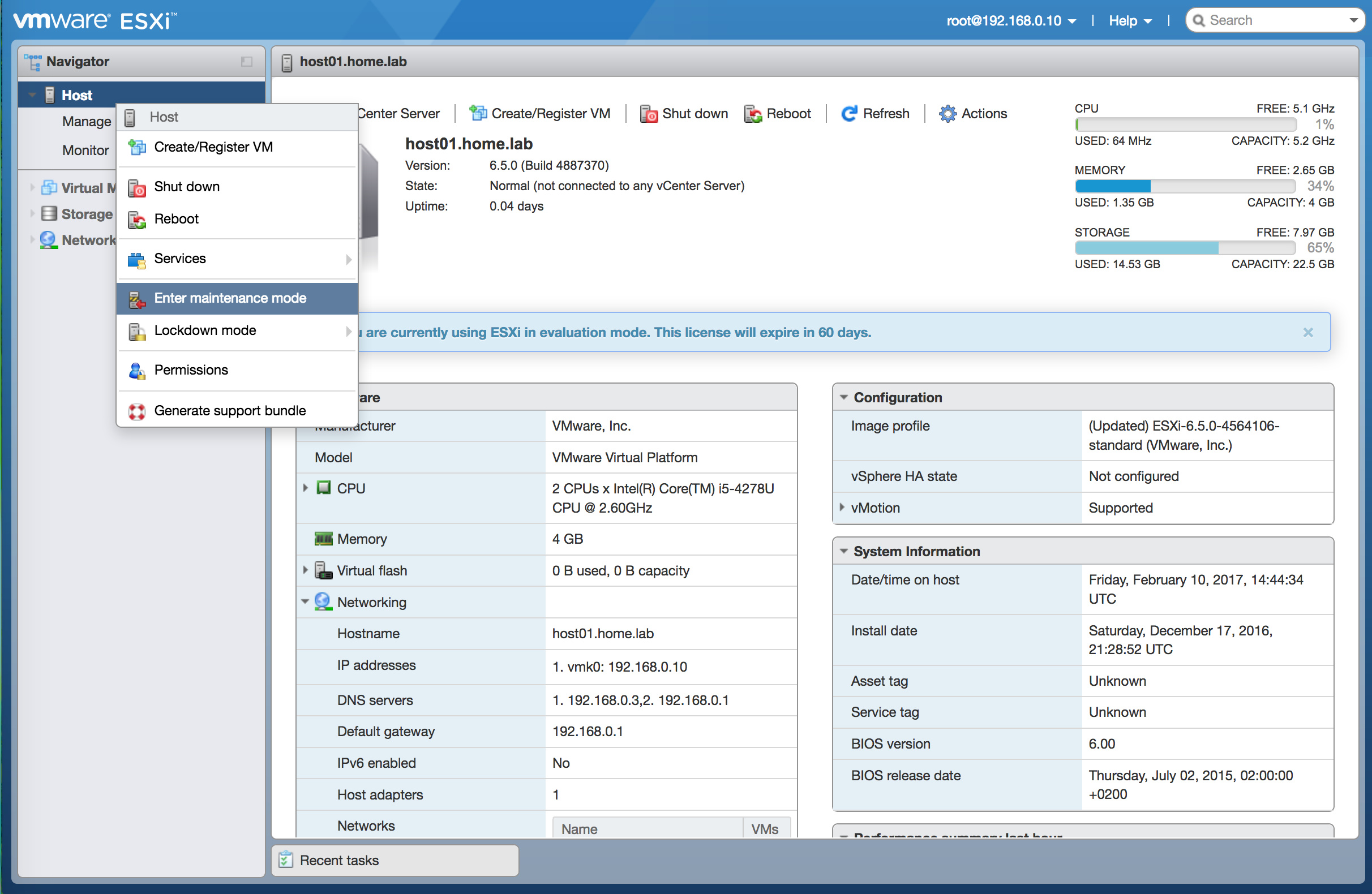 Enter maintenance mode.
Upload the Patch Bundle
Upload the downloaded offline patch bundle to an ESXi datastore:
- Open Storage.
- Select the target datastore.
- Open the Datastore browser.
- Select Upload.
- Upload the patch
.zipfile.
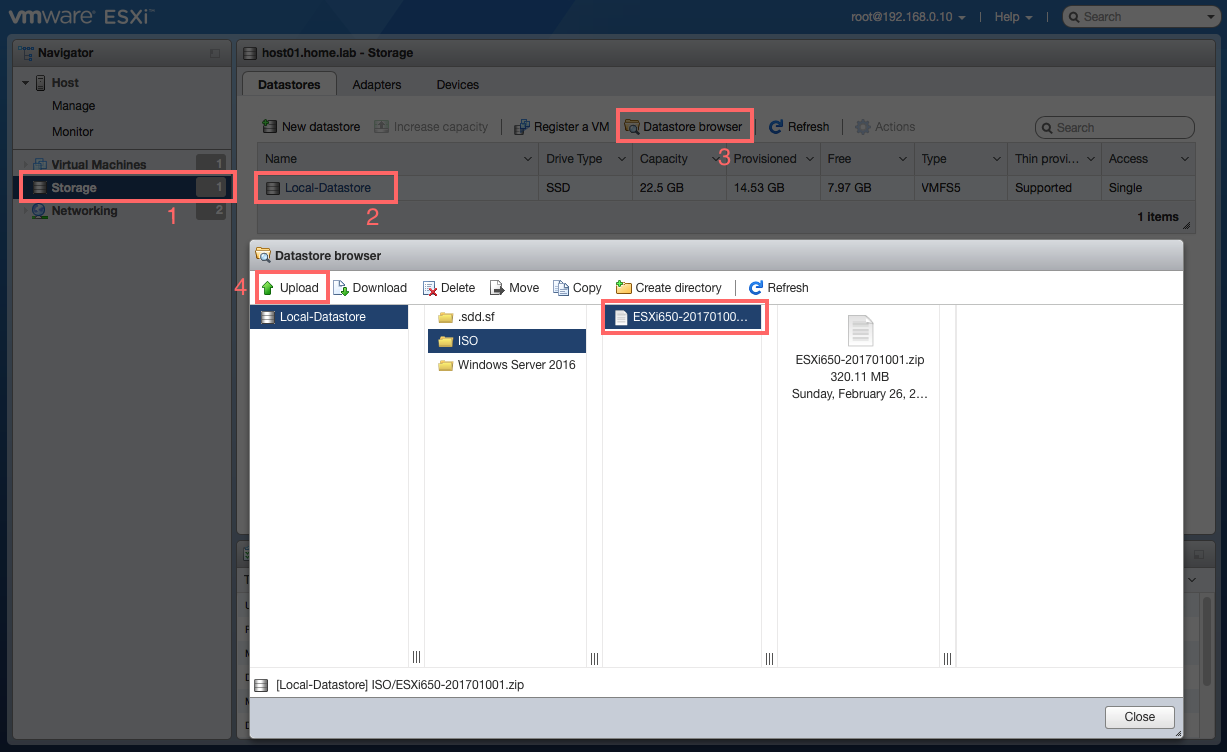 Copy the patch file to the datastore.
Connect to the ESXi Host Using SSH
Open an SSH session to the ESXi host using your preferred SSH client, such as PuTTY.
If SSH is not enabled, start it from the ESXi Host Client:
- Select Host.
- Select Manage.
- Open the Services tab.
- Locate
TSM-SSH. - Start the service.
Security recommendation: Enable SSH only for the maintenance task and stop the service again after completing the update.
Check the Current ESXi Version
To display the installed ESXi version and build number, run:
1
vmware -vl
The command uses a regular hyphen in -vl.
Update the ESXi Host
Run the following command and specify the path to the offline patch bundle:
1
esxcli software vib update -d <path-to-patch-file.zip>
For example:
1
esxcli software vib update -d /vmfs/volumes/Local-Datastore/ISO/ESXi650-201701001.zip
The command installs the VIB updates contained in the offline bundle.
Review the command output and confirm that the update completed successfully.
Reboot the ESXi Host
After the update finishes, reboot the ESXi host:
1
reboot
You can also reboot the host through the ESXi Host Client.
The host must be rebooted for the updated components to become active.
Verify the Update
After the host has restarted, reconnect to it through SSH and check the version again:
1
vmware -vl
You should now see the target ESXi version and build number.
In this example, the build number should change from 4564106 to 4887370.
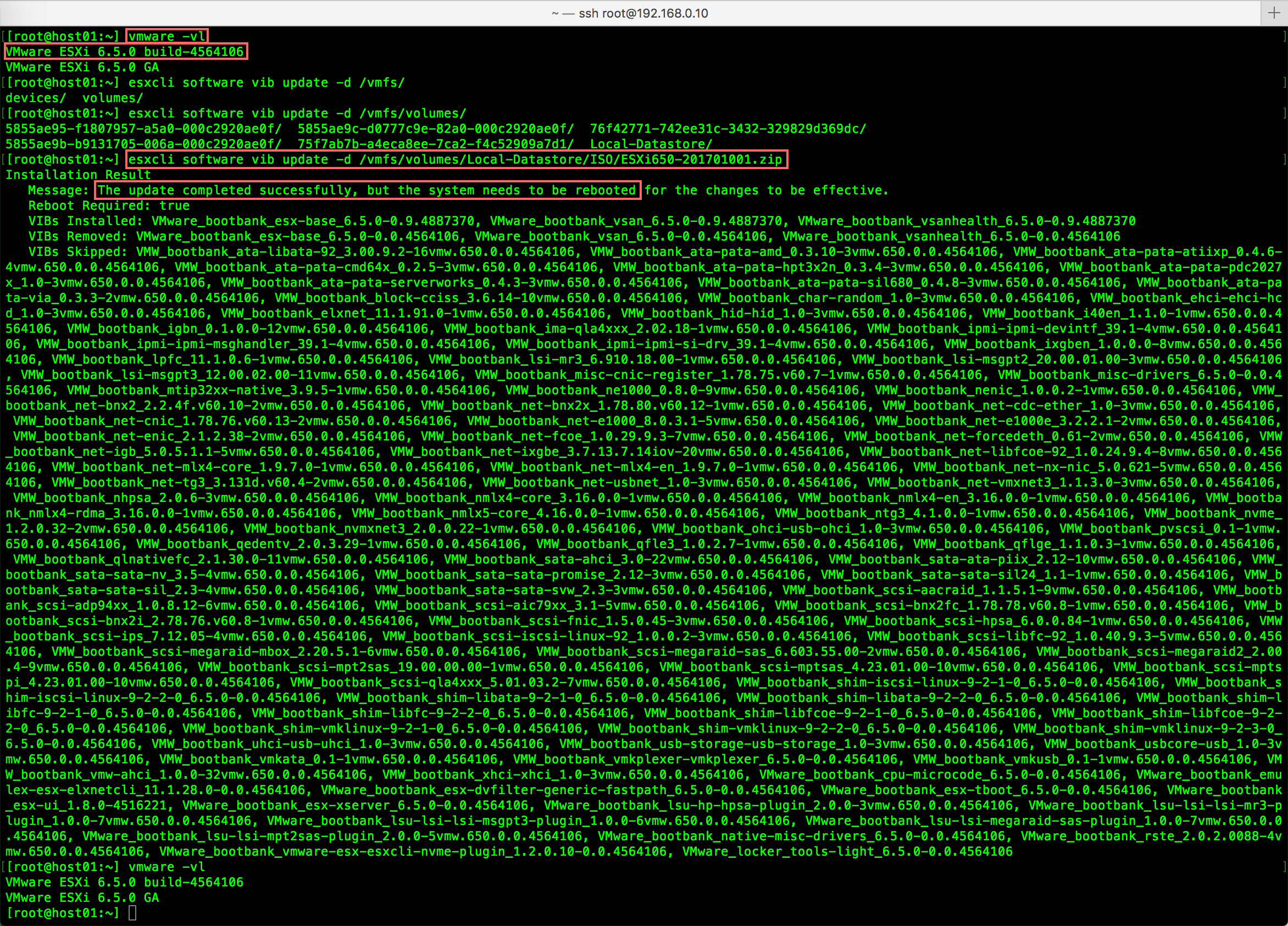 The update completed successfully.
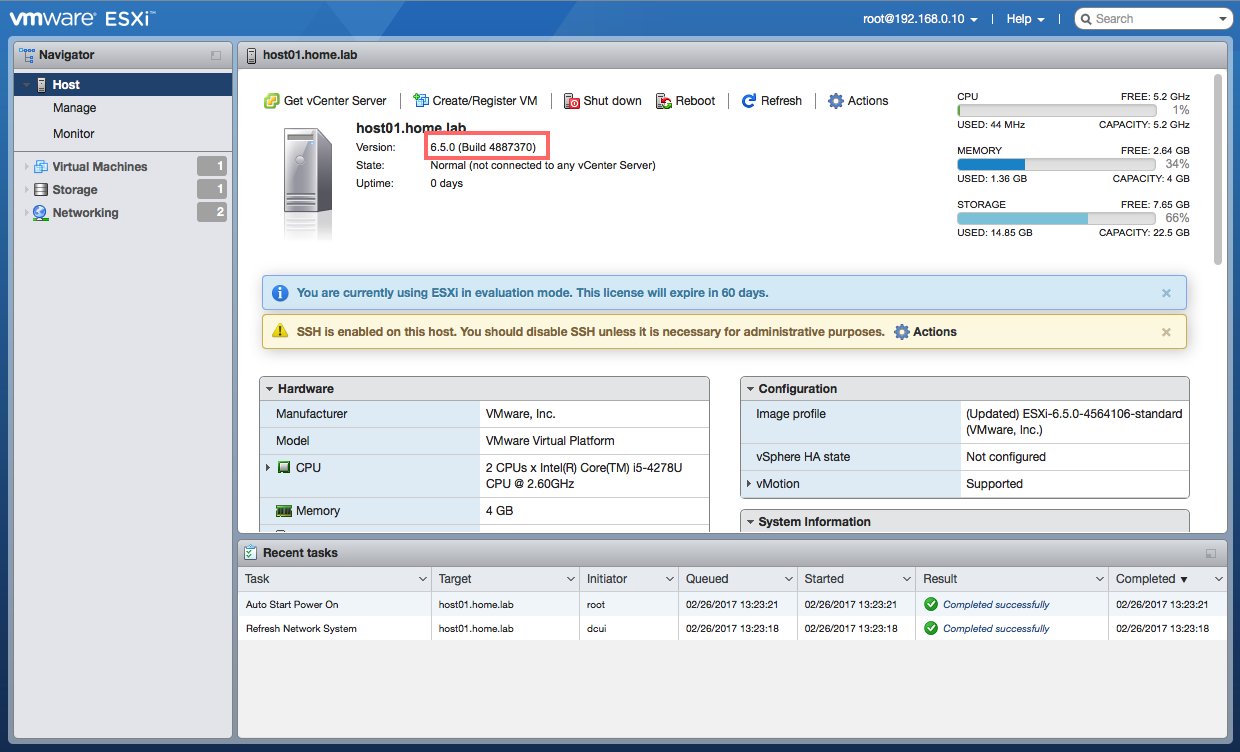 Updated ESXi build number.
After confirming the version, exit maintenance mode and verify that the host and its virtual machines are operating normally.