How to Fix a Failed Database Content Index in Exchange Server 2013
How to repair a failed Exchange Server 2013 database content index and rebuild the search catalog.
Last week, I encountered a problem where users could not search for email messages or contacts in Outlook. I had experienced the same issue before, and the cause was a damaged content index.
To restore search functionality, the content index must be rebuilt. This procedure is relatively straightforward and does not require Exchange Server downtime.
The Exchange Server services remain available during the procedure. However, the Exchange Search services must be stopped temporarily. Because users cannot search while the content index is failed, stopping these services should not cause any additional user impact.
This Exchange Server was not a member of a Database Availability Group (DAG).
Check the Database Status
First, check the status of the mailbox database copies:
1
2
Get-MailboxDatabaseCopyStatus |
    Format-Table -AutoSize
In this example, all databases were affected. The ContentIndexState value was Failed for every database.
A healthy database normally shows the following value:
1
Healthy
If only one or some databases have a failed content index, follow the same procedure, but rebuild the search catalog only for the affected databases.
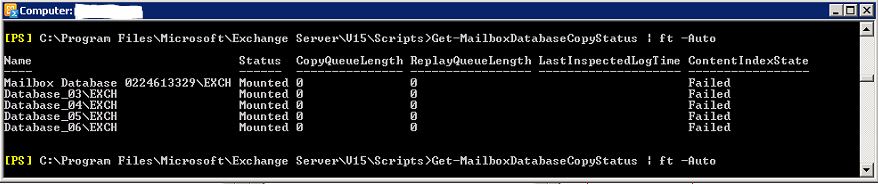 Failed content index status.
Reseed the Search Catalog
Stop the Exchange Search Services
Stop the following services from an elevated PowerShell session:
- Microsoft Exchange Search.
- Microsoft Exchange Search Host Controller.
Run these commands:
1
2
Stop-Service -Name MSExchangeFastSearch
Stop-Service -Name HostControllerService
You can also stop the services through the Windows Services console, but PowerShell is usually faster and easier when working on an Exchange Server.
Locate the Content Index
The content index is stored in the same directory as the mailbox database file.
For example, if the mailbox database is stored in:
1
F:\Database\DB_01
the corresponding content index directory should be located in the same path.
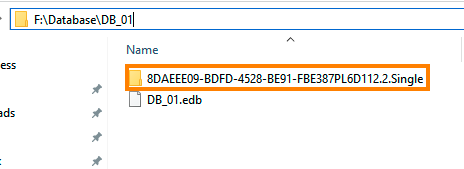 Exchange database and content index directory.
Make sure you identify the content index directory for the affected database before continuing.
Rename the Content Index Directory
Rename the failed content index directory instead of deleting it immediately.
For example, append .old to the existing directory name:
1
ContentIndex
becomes:
1
ContentIndex.old
Renaming the directory gives you a backup that can be removed later after you confirm that the new content index has been rebuilt successfully.
Repeat this step for each database with a failed content index.
Warning: Make sure you rename the content index directory and not the mailbox database directory or the
.edbdatabase file.
Start the Exchange Search Services
Start the Exchange Search services again:
1
2
Start-Service -Name MSExchangeFastSearch
Start-Service -Name HostControllerService
After the services start, Exchange Server creates a new content index directory and begins rebuilding the search catalog.
The rebuild time depends on the number of mailboxes, the amount of data, and the available server resources. Depending on the environment, the process can take several hours.
Monitor the Rebuild
Check the database copy status again:
1
2
Get-MailboxDatabaseCopyStatus |
    Format-Table -AutoSize
During the rebuild, the ContentIndexState value should show:
1
Crawling
Crawling indicates that Exchange Server is rebuilding the search catalog.
After the process completes successfully, the status should change to:
1
Healthy
Once the status is Healthy, test email and contact searches from Outlook to confirm that search functionality has been restored.
After verifying that the new content index works correctly, you can remove the old .old directory to recover disk space.