How to View SSL Certificate Details in Chrome
Learn how to view SSL certificate details in Google Chrome using Developer Tools.
Most people know that an SSL certificate helps establish a secure HTTPS connection between a browser and a website.
For many years, browsers displayed a green padlock next to the website address. Users could select the padlock to verify that the connection was secure and trusted.
Selecting the padlock also provided useful certificate information, including:
- The trusted domain.
- The certificate authority.
- The certificate expiration date.
- The connection security status.
However, Google Chrome 56 changed this behavior. The certificate details were no longer available by simply selecting the green padlock.
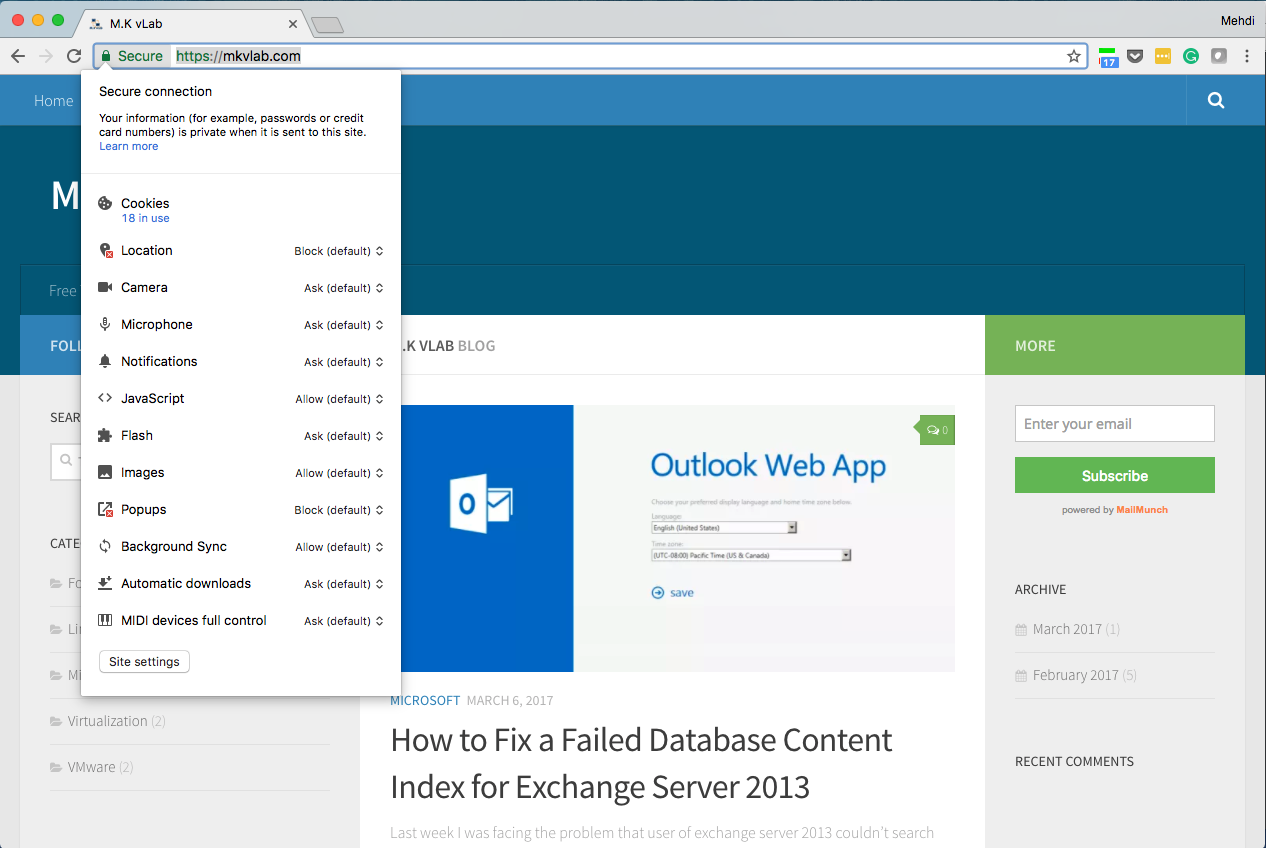
View Certificate Details
In Chrome 56, you can find the certificate details under the Security tab in Developer Tools.
There are two ways to open Chrome Developer Tools.
Method 1: Use a Keyboard Shortcut
On Windows, use one of the following shortcuts:
1
Ctrl + Shift + I
or:
1
F12
On macOS, use:
1
Command + Option + I
Method 2: Use the Chrome Menu
You can also open Developer Tools through the Chrome menu:
- Select the three-dot menu
⋮in the top-right corner of Chrome. - Select More tools.
- Select Developer Tools.
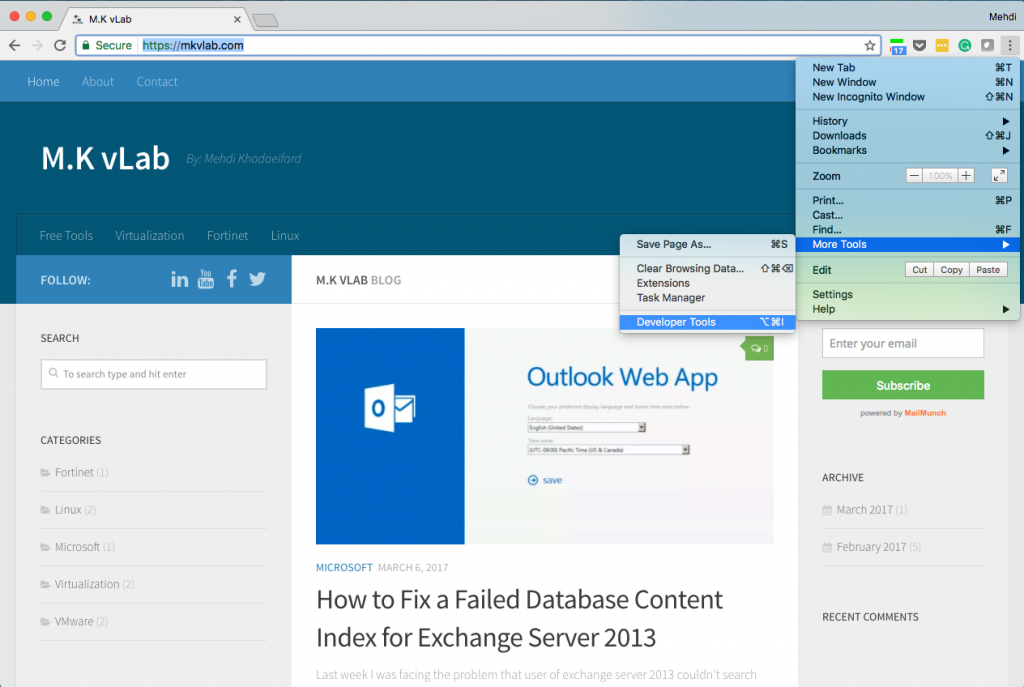
Open the Security Tab
After opening Developer Tools:
- Select the Security tab.
- Select View Certificate.
- Review the SSL certificate details.
The Security tab is usually located near the right side of the Developer Tools panel. If it is not visible, use the additional tabs menu to find it.
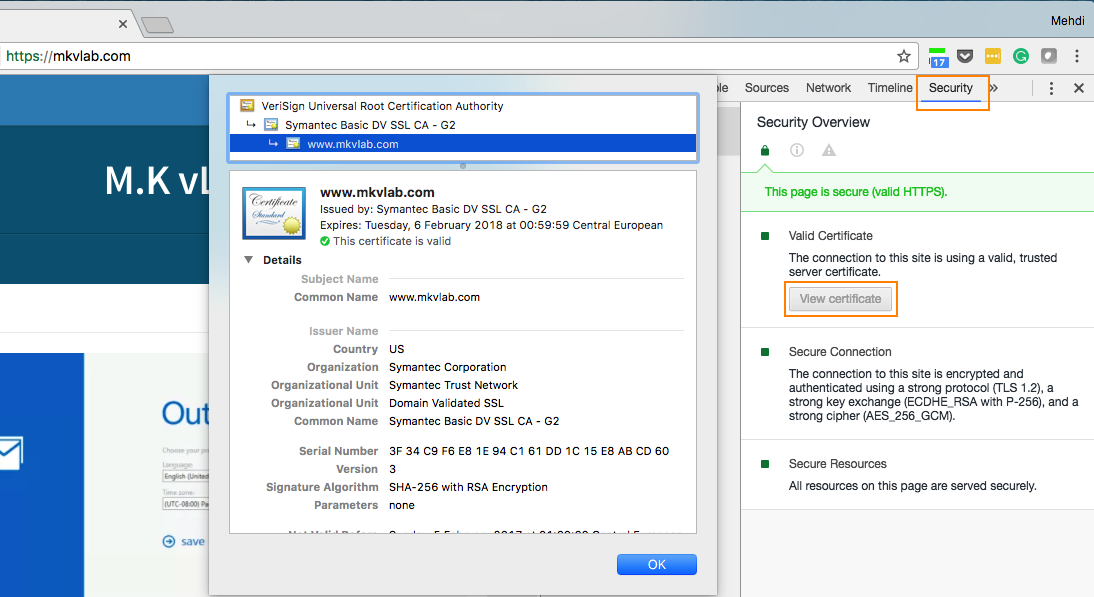
The certificate details include information such as the certificate subject, issuer, validity period, and certificate chain.