SSH to a Linux Server Without a Password Using an SSH Key Pair
Learn how to configure SSH key-based authentication from Windows, macOS, or Linux to a Linux server.
An SSH public-private key pair allows you to authenticate to Linux servers without entering a password each time.
SSH keys also allow you to transfer files through an encrypted network connection. You can create multiple key pairs, and each pair can be used independently for a specific client, server, user, or purpose.
In this guide, I generate an SSH key pair on Windows, macOS, and Linux, and then copy the public key to a Linux server.
Security recommendation: Protect private keys carefully and use a passphrase whenever possible. Never share or copy the private key to a server.
Generate an SSH Key Pair
The key pair consists of two files:
- The private key, which must remain on the client.
- The public key, which is copied to the Linux server.
The public key is added to the server user’s authorized_keys file.
Windows Client
On Windows, you can use Git or PuTTYgen to generate an SSH key pair.
Download Git for Windows.
Alternatively, PuTTYgen is included with some WinSCP installations. You can download WinSCP.
Generate a Key with Git
After installing Git:
- Open Git GUI from the Start menu.
- Open the Help menu.
- Select Show SSH Key.
- Select Generate Key.
- Enter a passphrase.
A passphrase is strongly recommended because it protects the private key if the key file is copied or stolen.
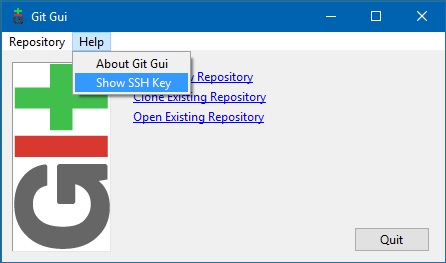 Generate an SSH key using Git GUI.
After the key is generated, copy the public key to the clipboard or save it temporarily in a text editor. You will use the public key when configuring the Linux server.
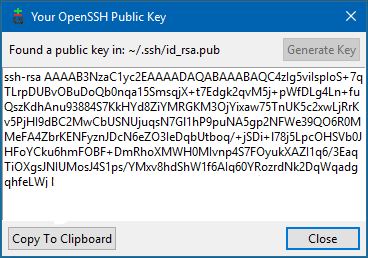 Copy the public SSH key.
macOS Client
On macOS, open Terminal and run:
1
ssh-keygen -t rsa
Follow the prompts and specify a secure passphrase when requested.
Note: RSA is used here to match the original procedure. For new deployments, Ed25519 is generally preferred when supported:
ssh-keygen -t ed25519
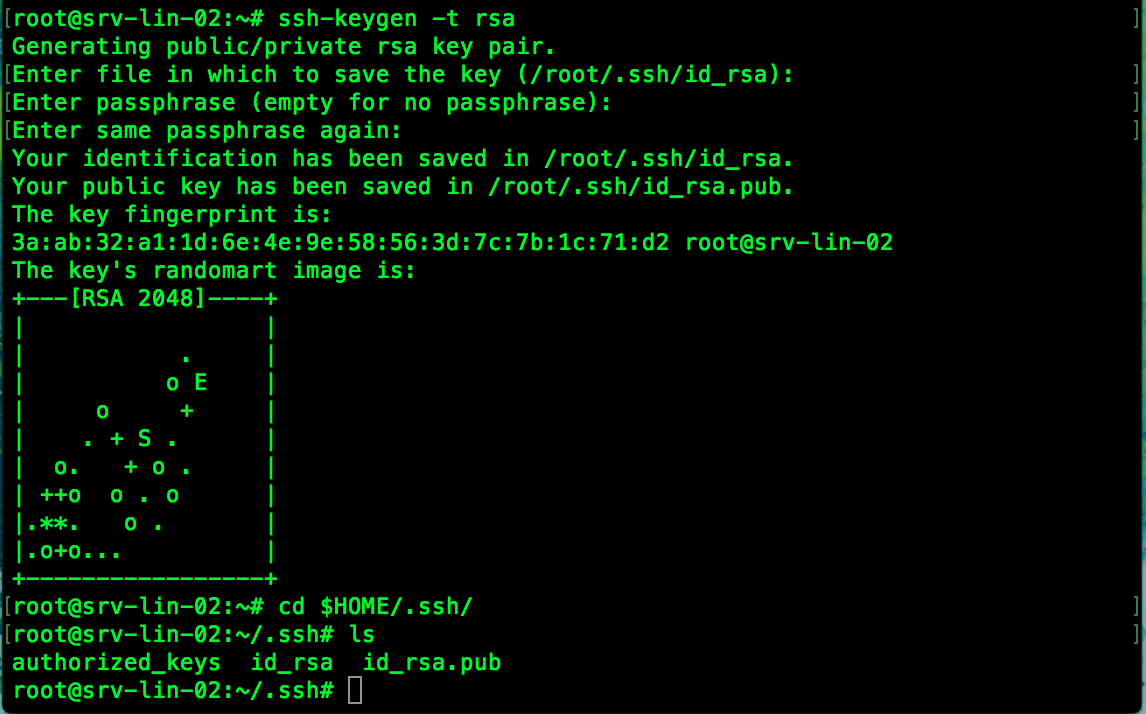 Generate an SSH key on macOS.
By default, the key files are stored in the .ssh directory under your home directory.
List the files:
1
2
cd ~/.ssh
ls
The public key normally has the .pub extension:
1
id_rsa.pub
Copy the public key to the macOS clipboard:
1
pbcopy < ~/.ssh/id_rsa.pub
You can then paste the key into the Linux server’s authorized_keys file.
Linux Client
On a Linux client, open a terminal and run:
1
ssh-keygen -t rsa
Follow the prompts and configure a passphrase.
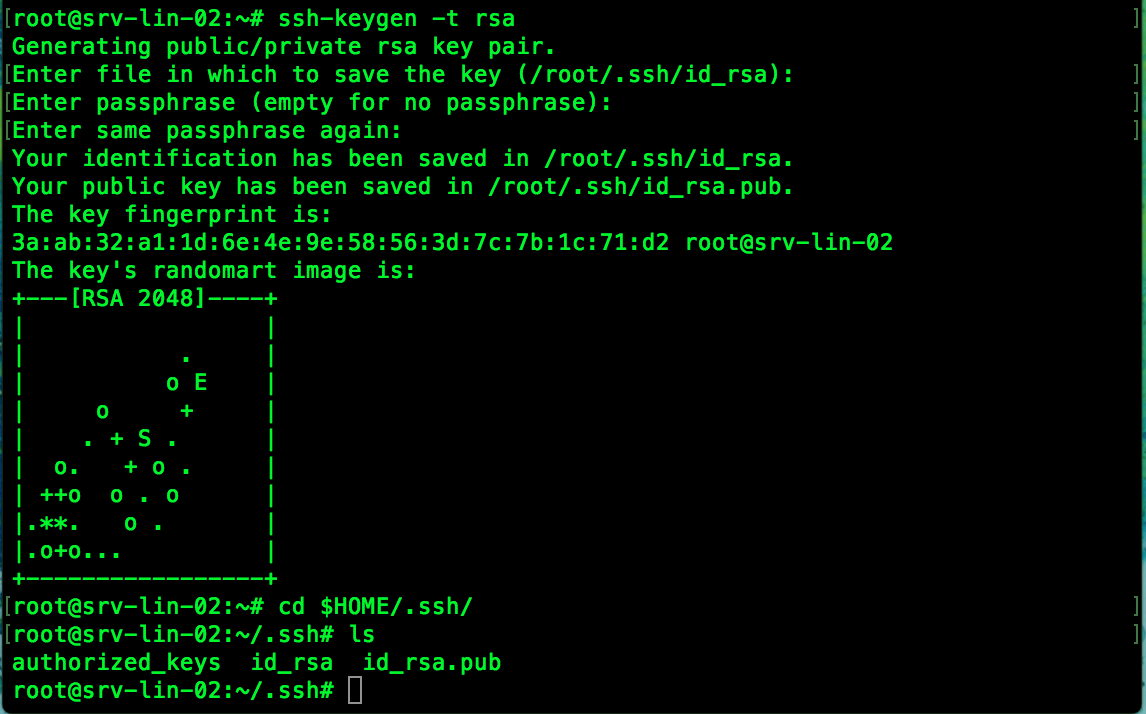 Generate an SSH key on Linux.
The key pair is stored in the .ssh directory under your home directory.
List the key files:
1
2
cd "$HOME/.ssh"
ls
Display the public key:
1
cat id_rsa.pub
Copy the complete output, including the key type and comment at the end.
Add the Public Key to the Linux Server
The public key must be added to the authorized_keys file of the Linux account that you want to use for SSH access.
For example, to inspect the authorized keys for the root account:
1
sudo cat /root/.ssh/authorized_keys
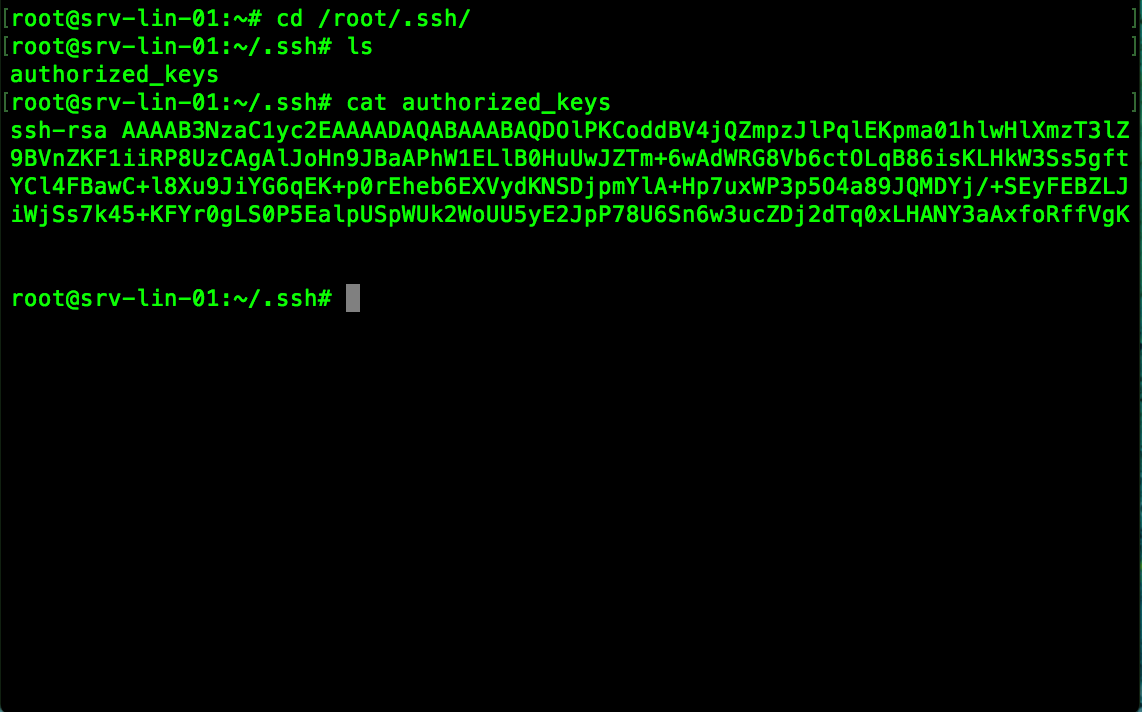 View the authorized SSH keys.
You can edit the file with your preferred text editor and append the client’s public key:
1
sudo nano /root/.ssh/authorized_keys
Each public key must occupy a single line.
Security recommendation: Avoid enabling direct root SSH access unless it is required. A safer approach is to copy the key to a normal administrative account and use
sudo.
Copy the Key Automatically
On Linux and macOS, you can use ssh-copy-id to copy the public key to the server:
1
ssh-copy-id root@<SERVER_IP>
Replace <SERVER_IP> with the IP address or hostname of the Linux server.
For example:
1
ssh-copy-id [email protected]
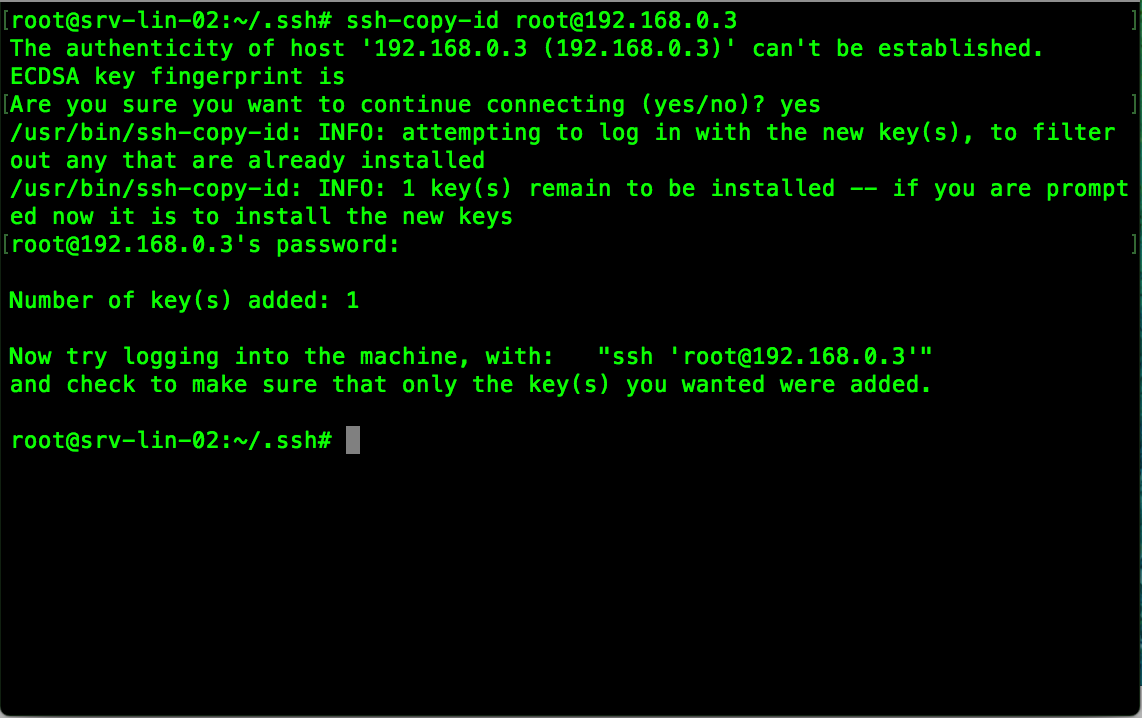 Copy the public key to the Linux server.
The command normally asks for the account password once. After the public key has been added, you should be able to authenticate with the private key.
Test the SSH Connection
Connect to the server:
1
ssh root@<SERVER_IP>
If the private key is stored in the default location, SSH should use it automatically.
If you used a different key filename, specify it with the -i option:
1
ssh -i ~/.ssh/id_rsa root@<SERVER_IP>
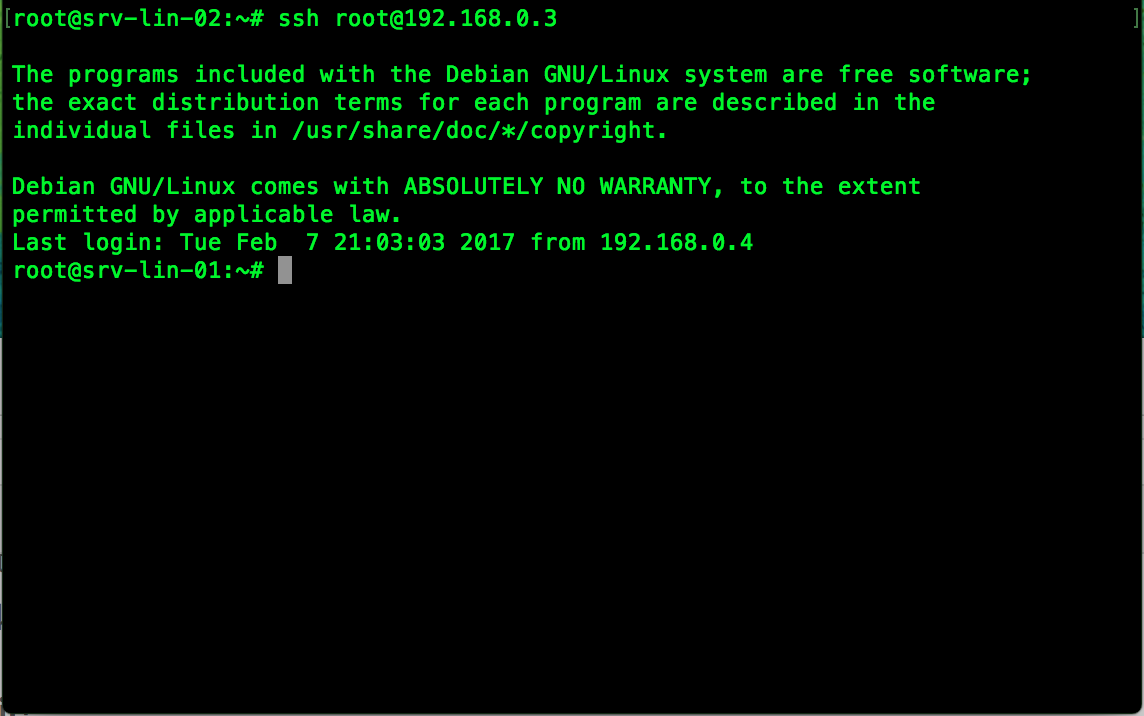 Connect to the Linux server using the SSH key.
If the key is protected with a passphrase, SSH prompts you for the passphrase instead of the server account password.
Troubleshooting
If key-based authentication does not work, check the following:
- The public key was copied as one complete line.
- The key was added to the correct user’s
~/.ssh/authorized_keysfile. - The
.sshdirectory has appropriate permissions. - The
authorized_keysfile has appropriate permissions. - The SSH service is running.
- The server allows public-key authentication.
- The client is using the correct private key.
- The server’s SSH logs do not report an authentication error.
Typical permissions are:
1
2
chmod 700 ~/.ssh
chmod 600 ~/.ssh/authorized_keys
After the public key has been copied successfully, you can connect to the Linux server using SSH key-based authentication instead of entering the account password.