Licensing and Registration of VCF/VVF 9.0
VMware Cloud Foundation 9.0 (VCF) and VMware vSphere Foundation 9.0 (VVF) introduce a centralized licensing workflow based on VCF Operations and the VCF Business Services console.
This workflow replaces the traditional use of individual 25-character license keys with subscription-based license management. Administrators register a VCF Operations instance, associate it with the appropriate Broadcom tenant and Site ID, import or synchronize the available entitlements, and then assign the licenses to the managed vCenter systems. [9][10]
VCF Operations supports two registration modes:
- Connected mode: VCF Operations communicates with the required Broadcom services. The administrator registers the instance through the VCF Business Services console and enters the generated activation code into VCF Operations.
- Disconnected mode: Intended for dark sites and air-gapped environments. Registration and licensing use files that are exchanged manually between VCF Operations and the VCF Business Services console. An activation code is not required for disconnected registration. [6][10]
This article demonstrates connected-mode registration and license assignment for a lab environment. Use disconnected mode when outbound connectivity is not permitted or when the environment is fully isolated.
Why this matters
Connected mode is intended for environments where VCF Operations can reach the required Broadcom services. Registration is completed by associating the VCF Operations instance with the VCF Business Services console and entering the generated activation code into VCF Operations.
After activation, VCF Operations can download the required license information and perform the required usage-reporting workflow.
The VCF 9.0 licensing model also groups core entitlements such as VMware Cloud Foundation capacity and add-on components like vSAN under a more consistent operational workflow, with assignment and visibility handled from the VCF Operations interface.
Prerequisites
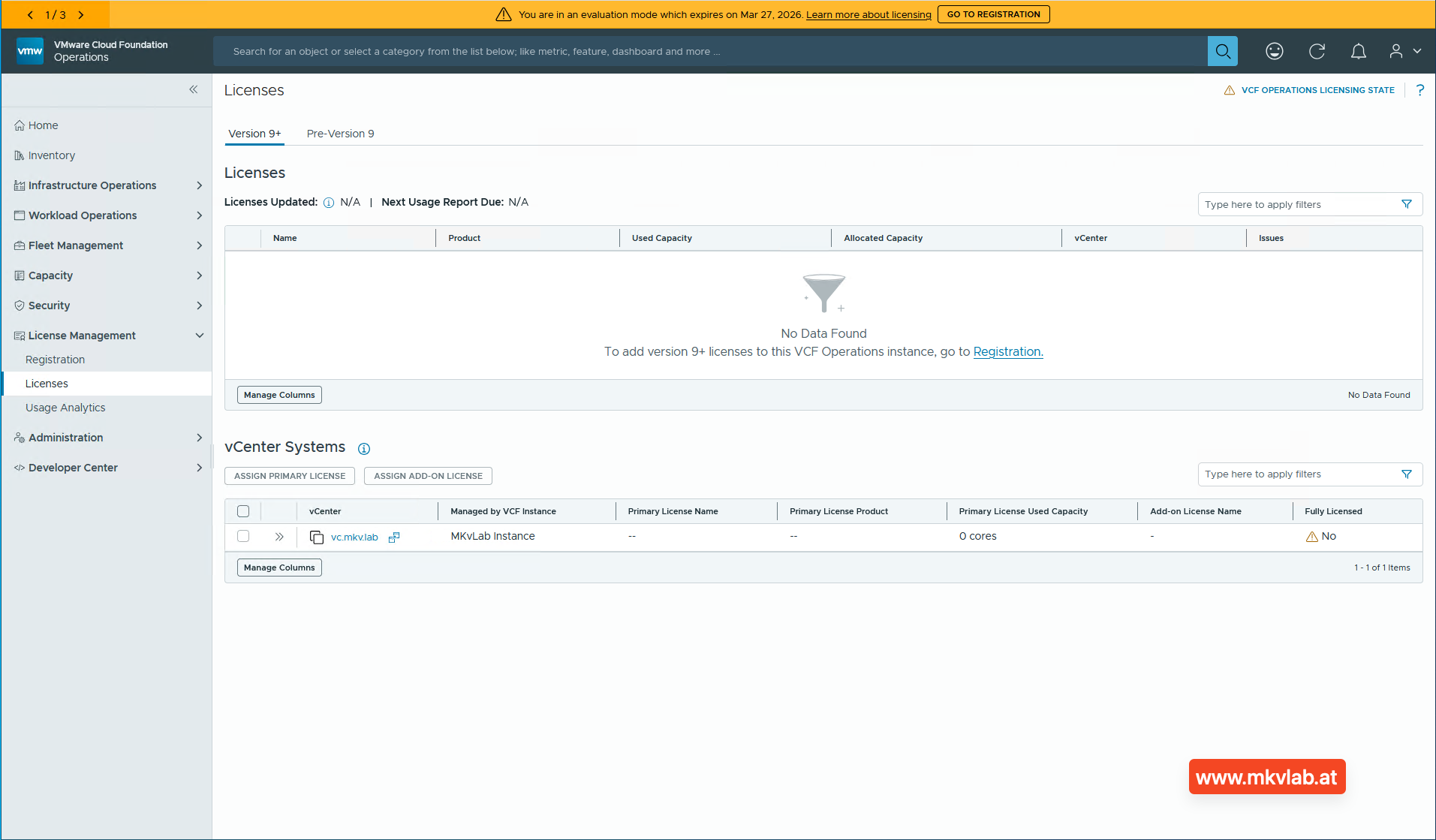
Before starting, make sure VCF Operations is deployed and can reach the required Broadcom services. Connectivity, firewall, proxy, or certificate issues can block registration in connected mode.
You also need a Broadcom account with access to the correct tenant and site in the VCF Business Services console, because registration binds the VCF Operations instance to that entitlement context.
 VCF Business Services console
Version note: This article documents the VCF Operations and VCF Business Services licensing workflow observed with VMware Cloud Foundation 9.0. Menu names and registration steps may change in later VCF releases. Always verify the current Broadcom documentation before using this procedure in production.
Registration workflow
1. Open the registration page
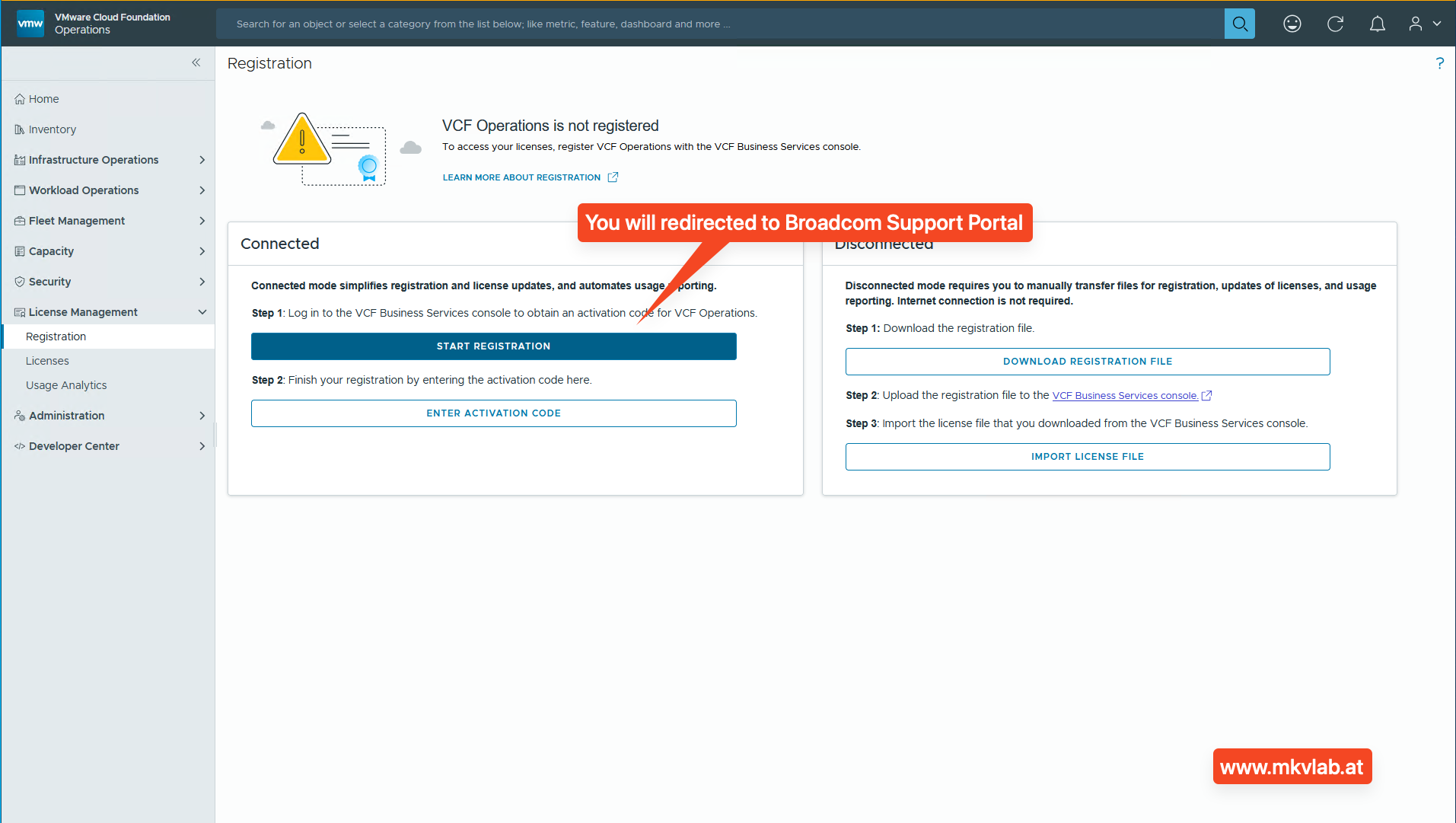
In VCF Operations, navigate to License Management > Registration. On a fresh system, the page shows both Connected and Disconnected registration modes, and connected mode includes Start Registration and Enter Activation Code actions.
2. Start connected registration
Click Start Registration in the Connected section. This redirects the browser to the Broadcom support portal and opens the VCF Operations registration wizard.
 registration
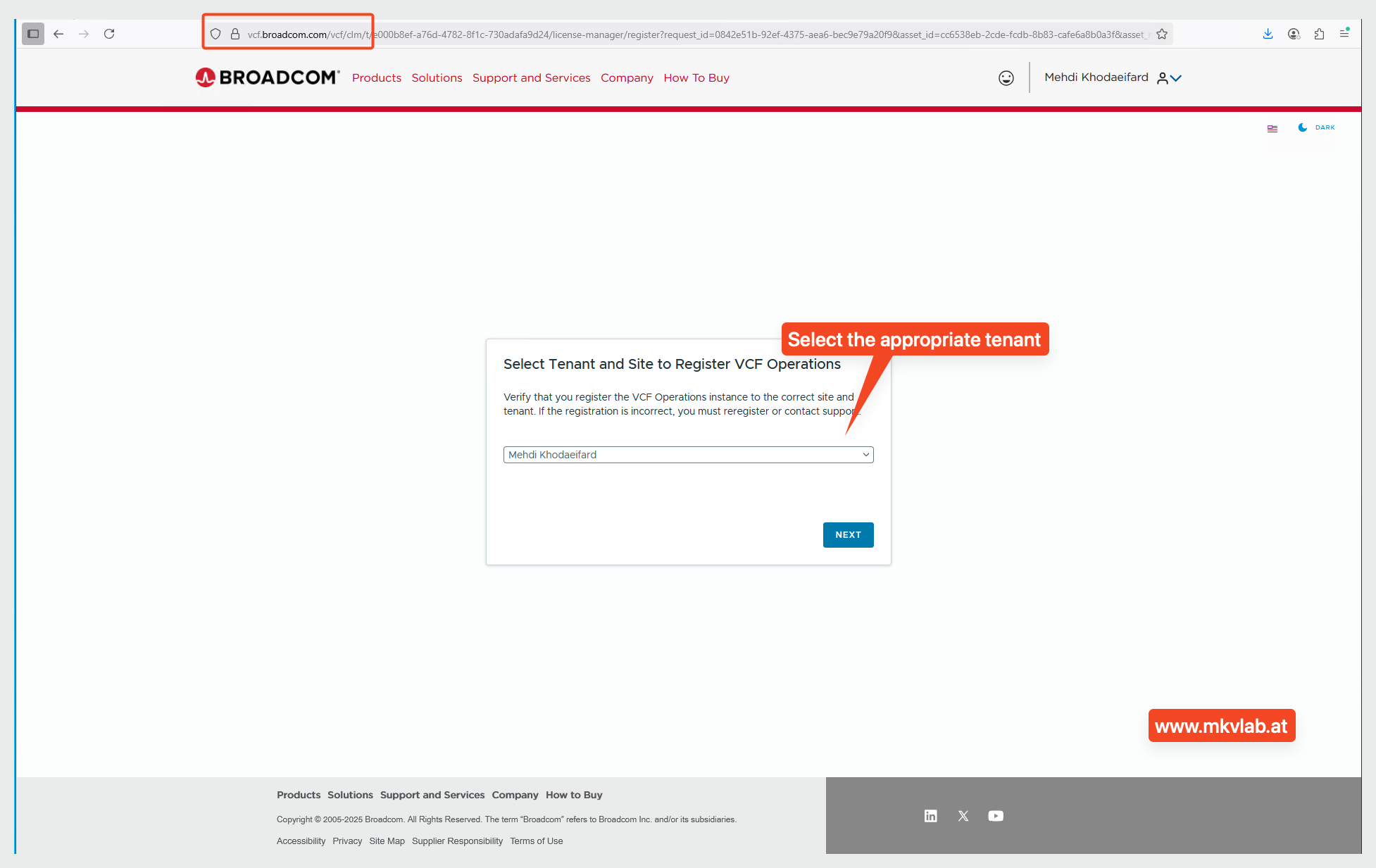
3. Select the tenant and site
Choose the correct tenant and site for the VCF Operations instance. This step is important because the instance must be registered against the intended organization and entitlement boundary.
 tenant selection
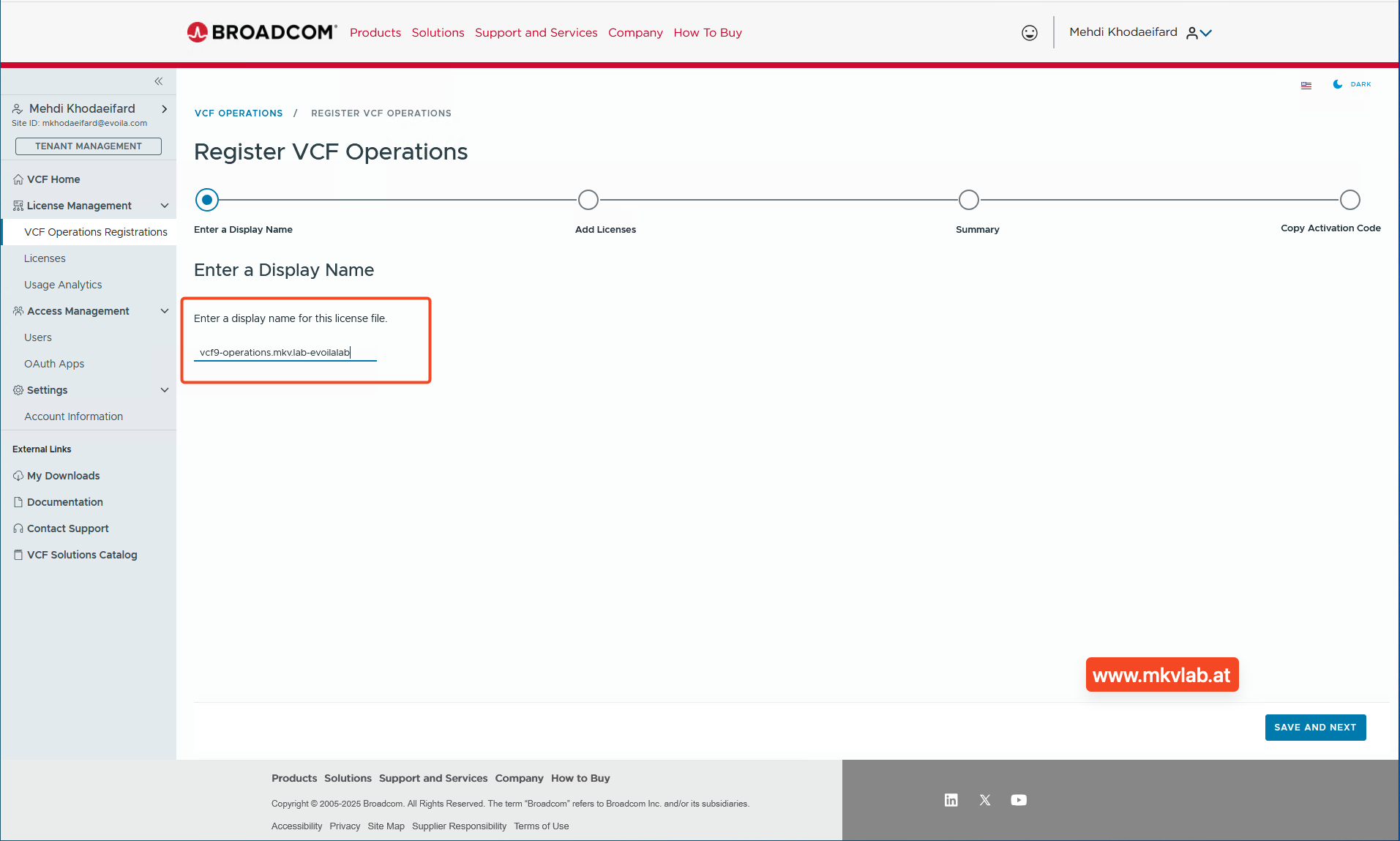
4. Enter a display name
Provide a display name for the VCF Operations instance. A clear and descriptive name makes later license tracking easier, especially when multiple labs or production environments are registered.
 display name
5. Add the available licenses
In the Add Licenses step, select the entitlements that should be associated with this VCF Operations instance. In this lab example, the selected licenses are VMware Cloud Foundation (cores) and VMware vSAN (TiB), matching the common VCF 9.0 core-plus-add-on pattern.
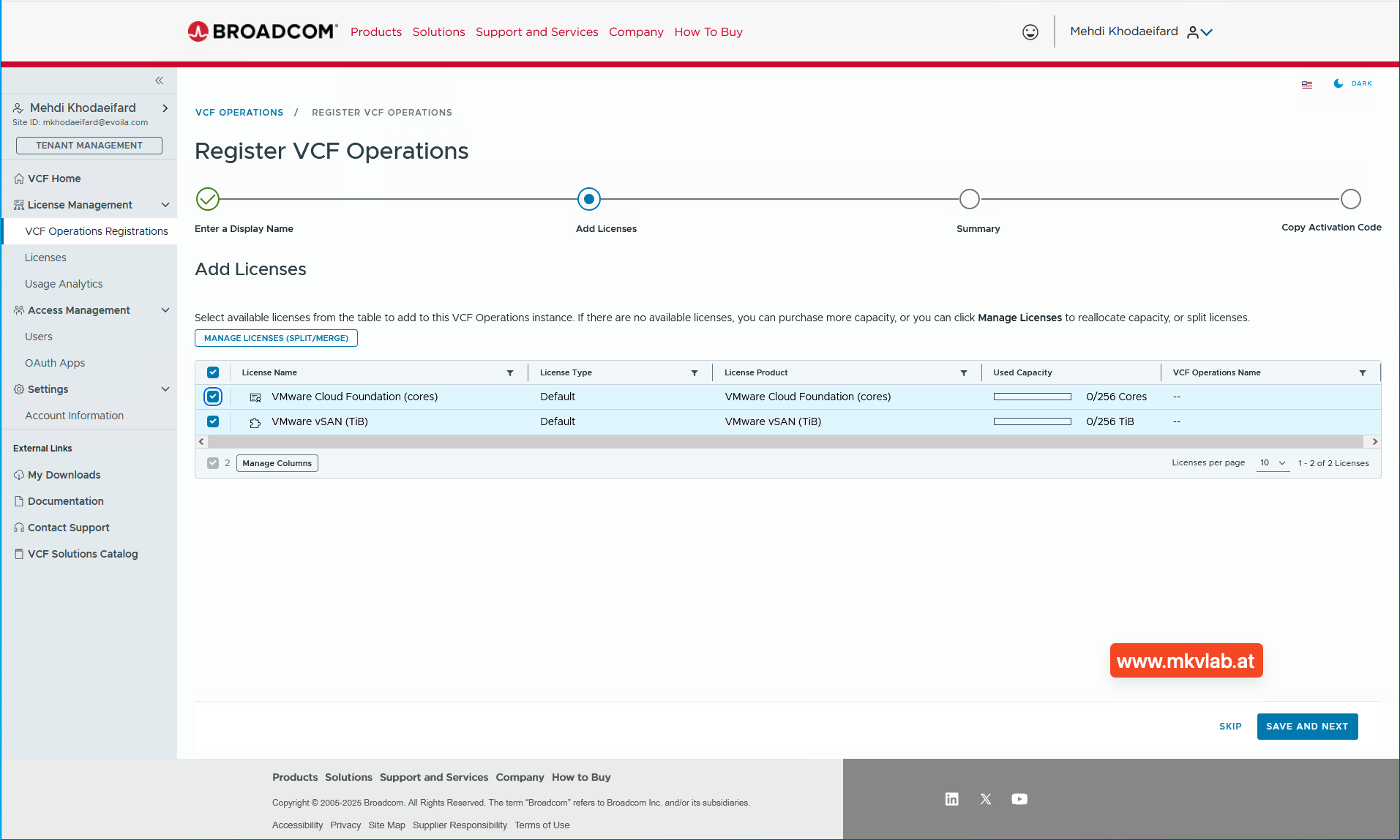 add licenses
6. Review the summary
Review the summary page and confirm the selected capacities before proceeding. This page shows the licenses and allocated capacity that will be attached to the registered VCF Operations instance.
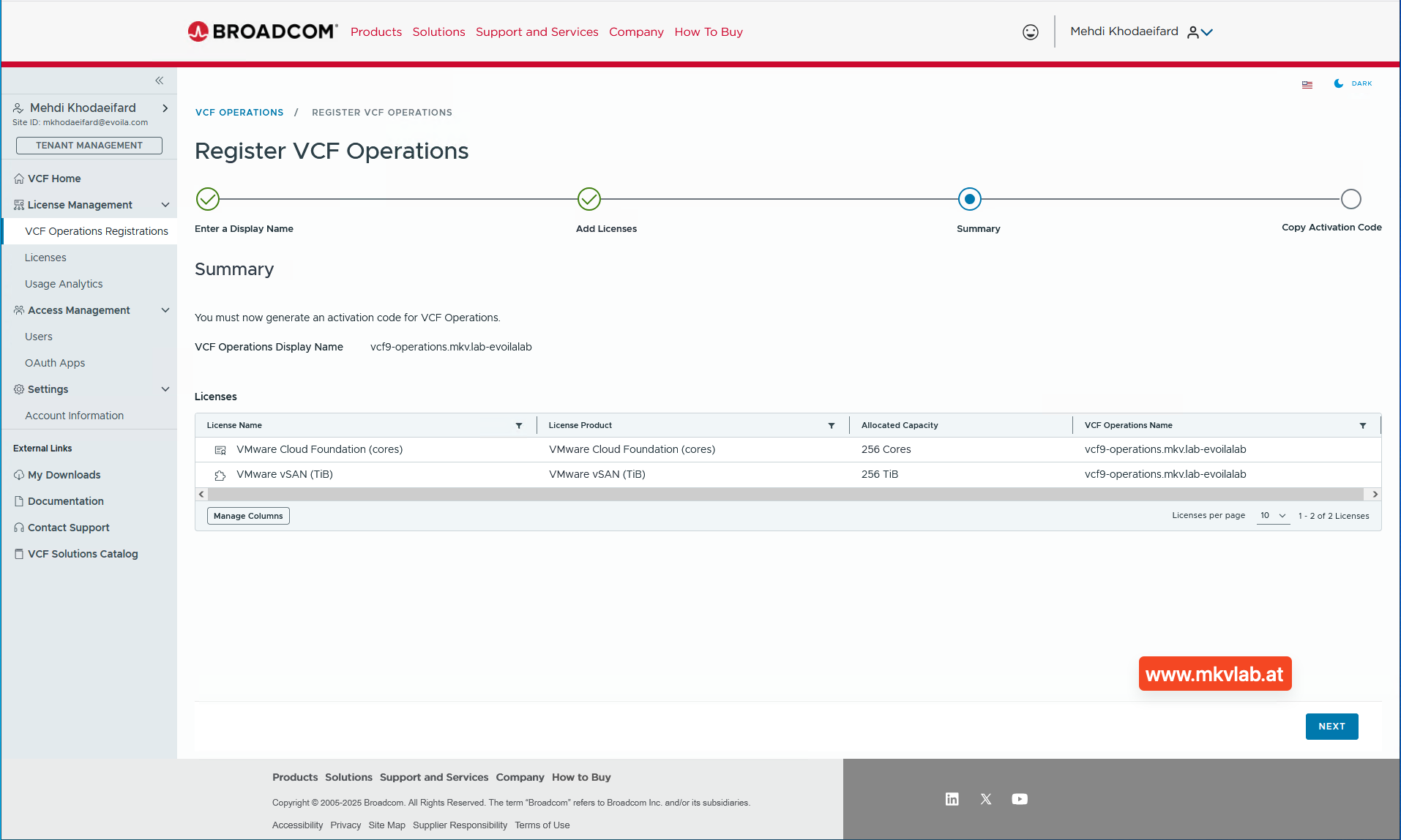 summary
7. Copy the activation code
After the wizard completes in the portal, Broadcom generates an activation code for the VCF Operations instance. Broadcom states that this activation code is the value used to finalize connected-mode registration in the product console.
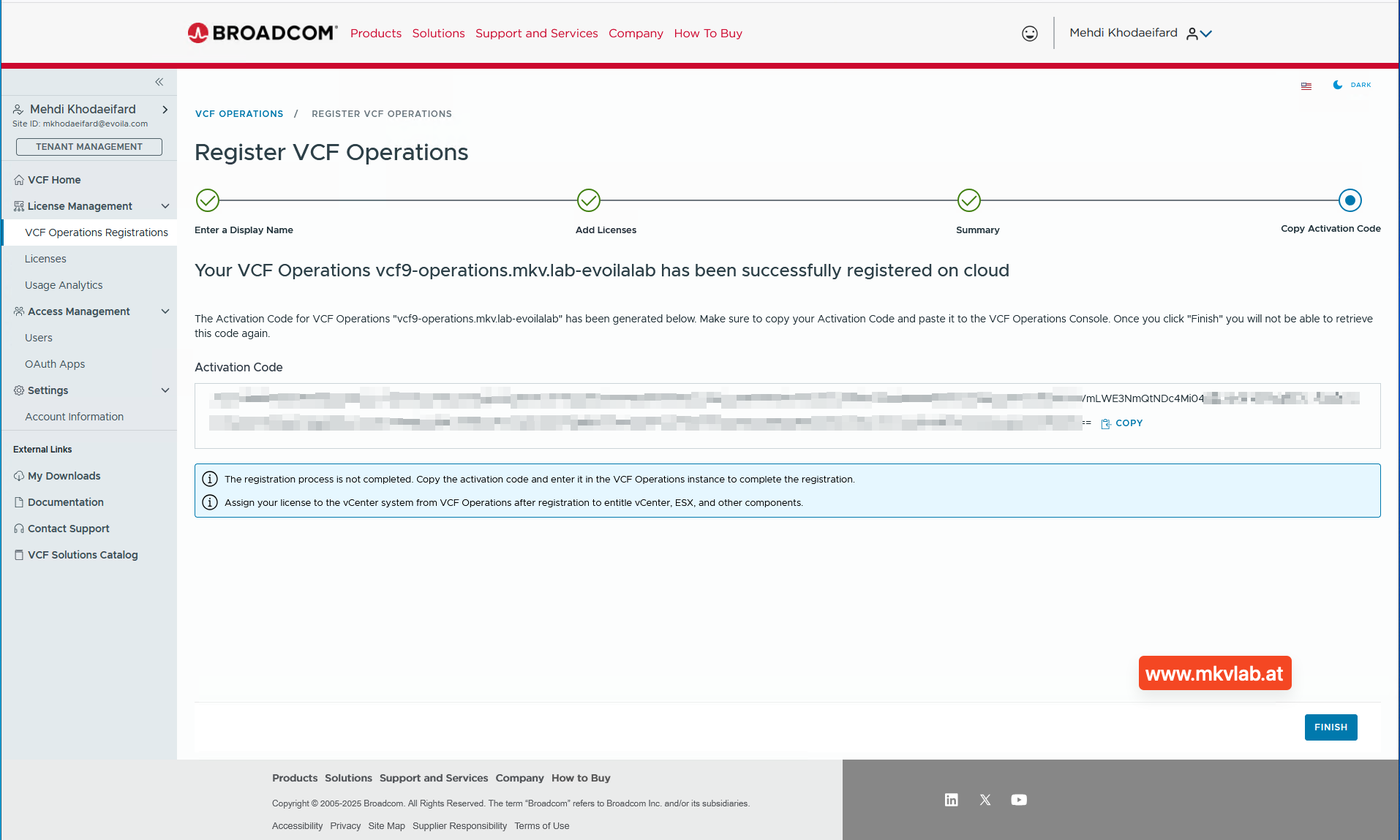 activation code
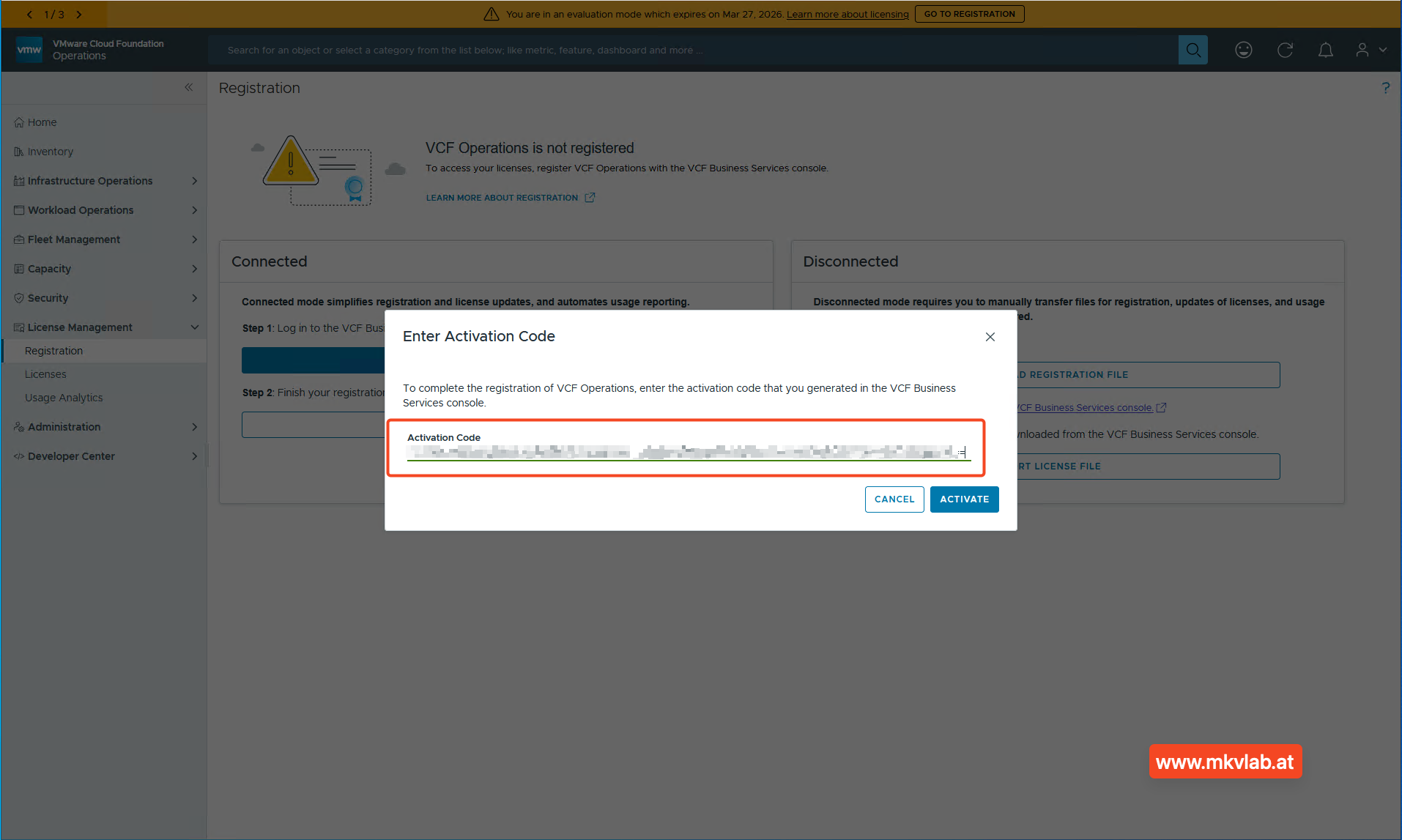
8. Enter the activation code in VCF Operations
Return to VCF Operations, click Enter Activation Code, paste the generated code, and activate it. This completes the registration handshake between the portal and the VCF Operations appliance.
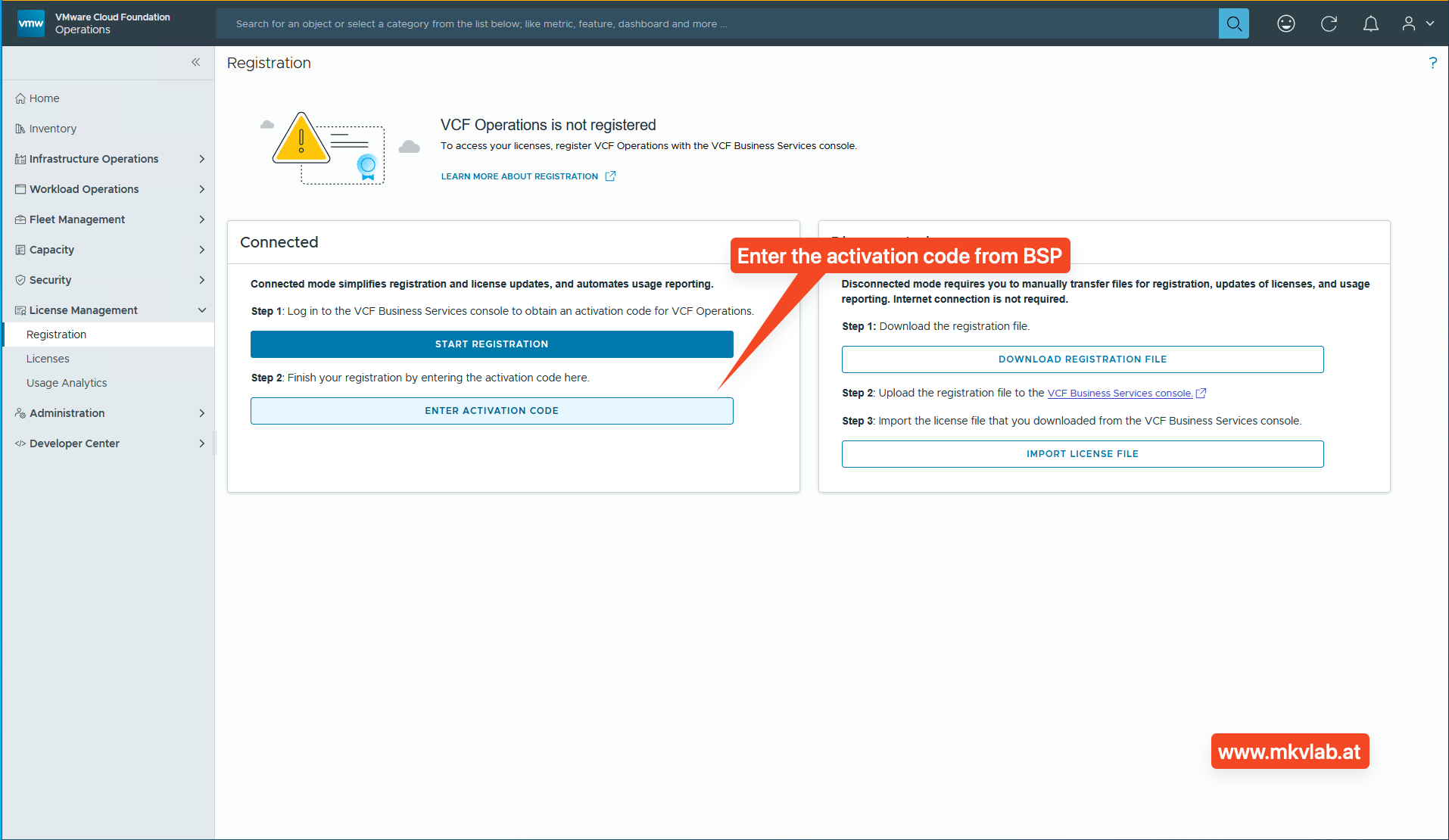 enter activation code
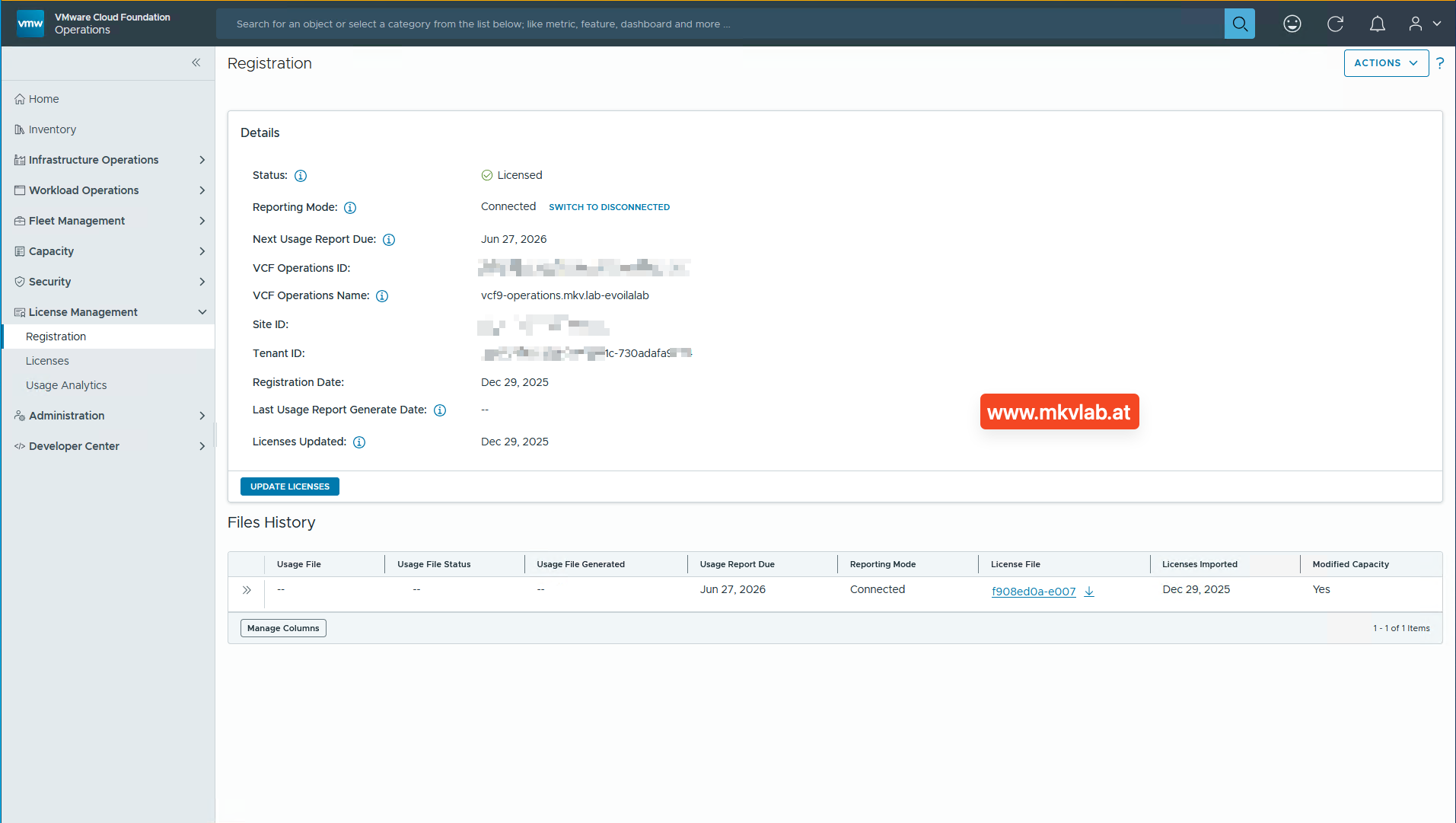
9. Confirm successful registration
Once activation succeeds, the Registration page should show the system as Licensed and the reporting mode as Connected. The page also displays registration metadata such as the registration date, next usage report due date, and imported license file history.
 Registration Status
Assign licenses to vCenter
Registration only makes the entitlements available in VCF Operations. The next task is to assign those licenses to the target vCenter system.
10. Open the Licenses view
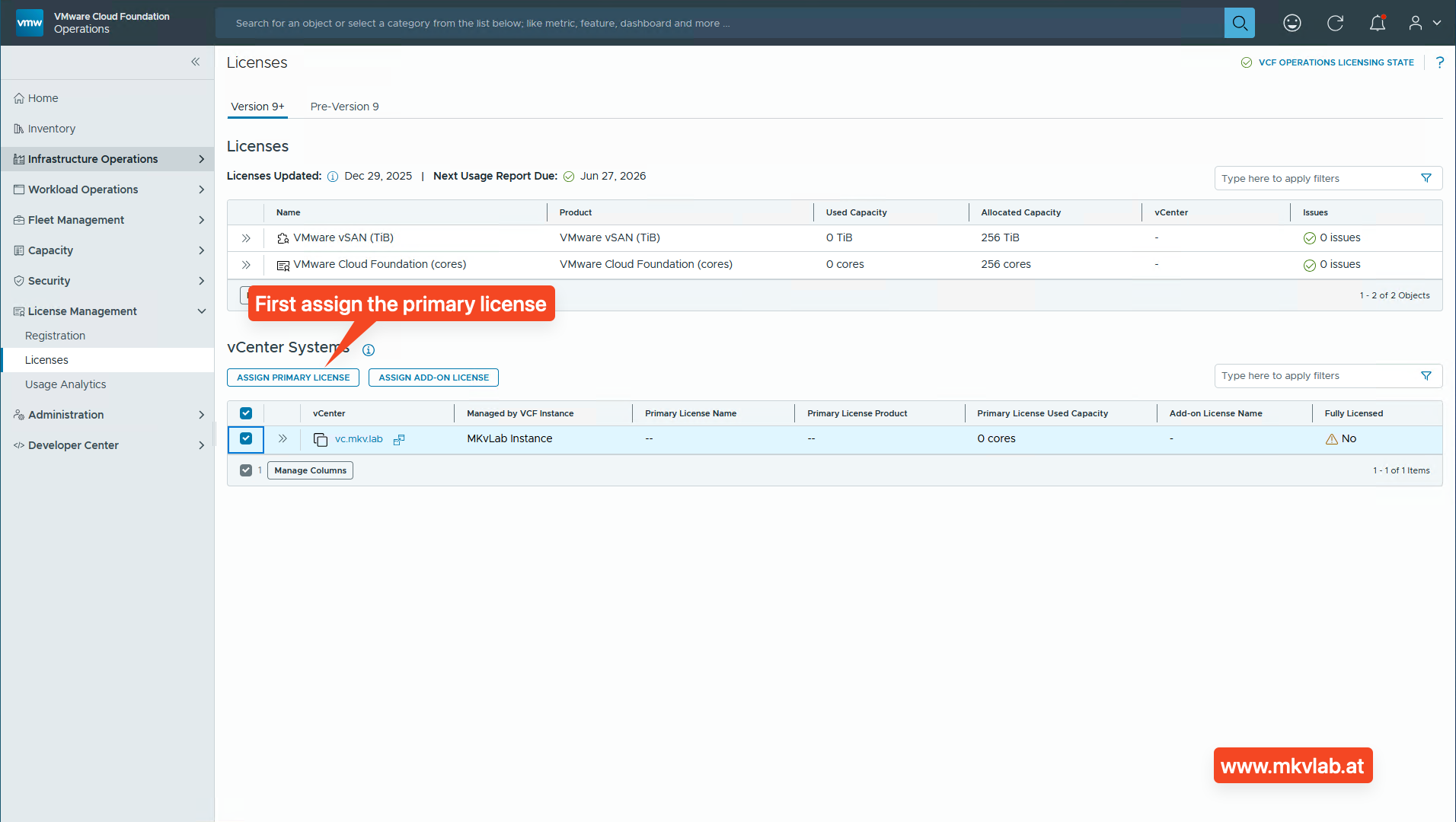
Go to License Management > Licenses and select the target vCenter under vCenter Systems. A newly registered environment can still show the vCenter as not fully licensed until both the primary and add-on licenses are assigned.
Navigation note: Depending on the VCF Operations build, the licensing pages may appear under License Management > Registration, License Management > Licenses, or Manage > Licensing > Licenses & Registration. In some versions, licensing is shown under the Version 9+ tab.
11. Assign the primary license first
Select the vCenter and click Assign Primary License. In this workflow, the primary license is VMware Cloud Foundation (cores), and it must be assigned before any dependent add-on license.
 primary license
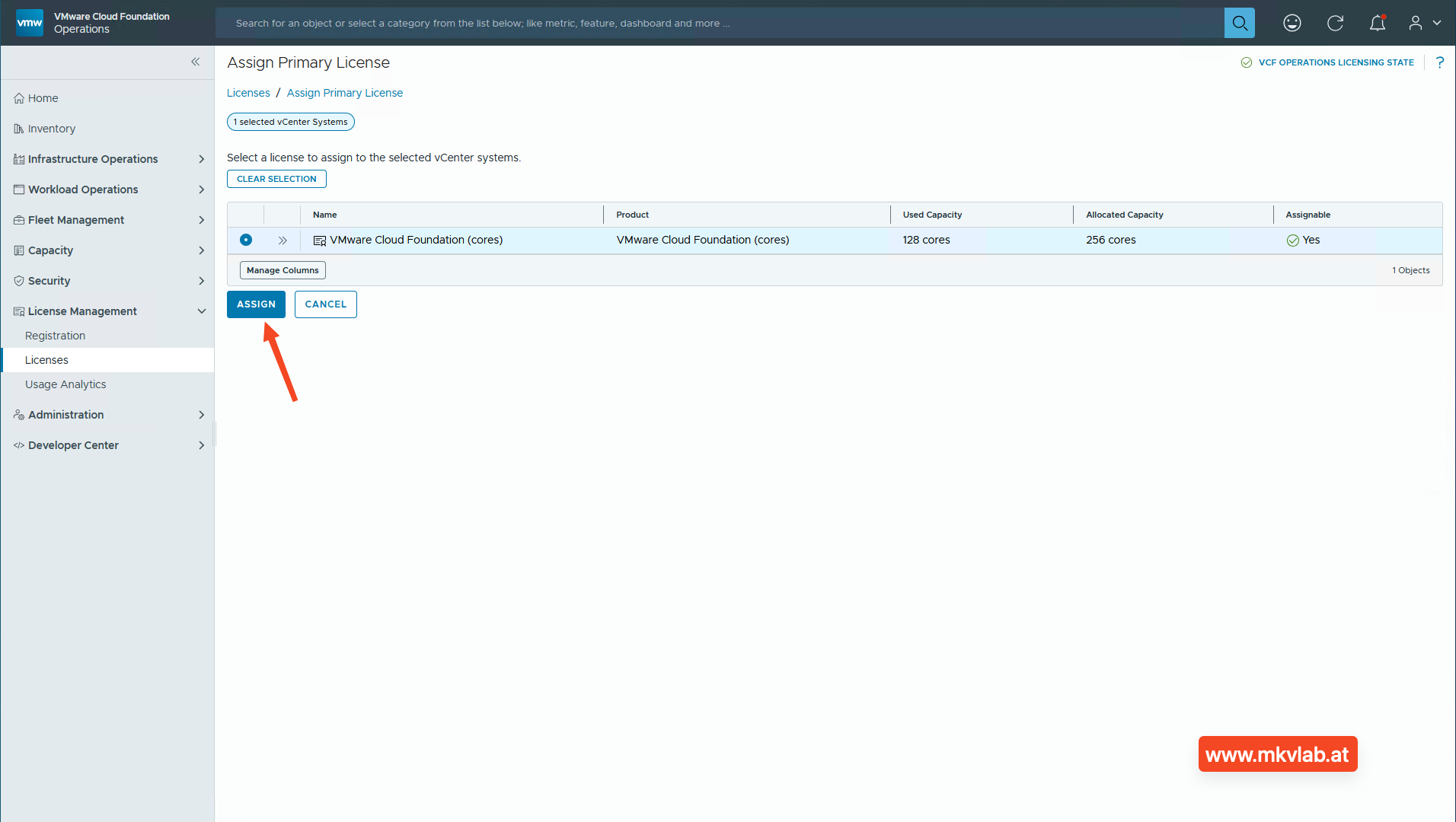
Then confirm the primary entitlement by selecting the available VCF cores license and clicking Assign.
 assign primary license
12. Assign the add-on license
After the primary license is attached, select the same vCenter and click Assign Add-on License. In this example, the add-on license is VMware vSAN (TiB).
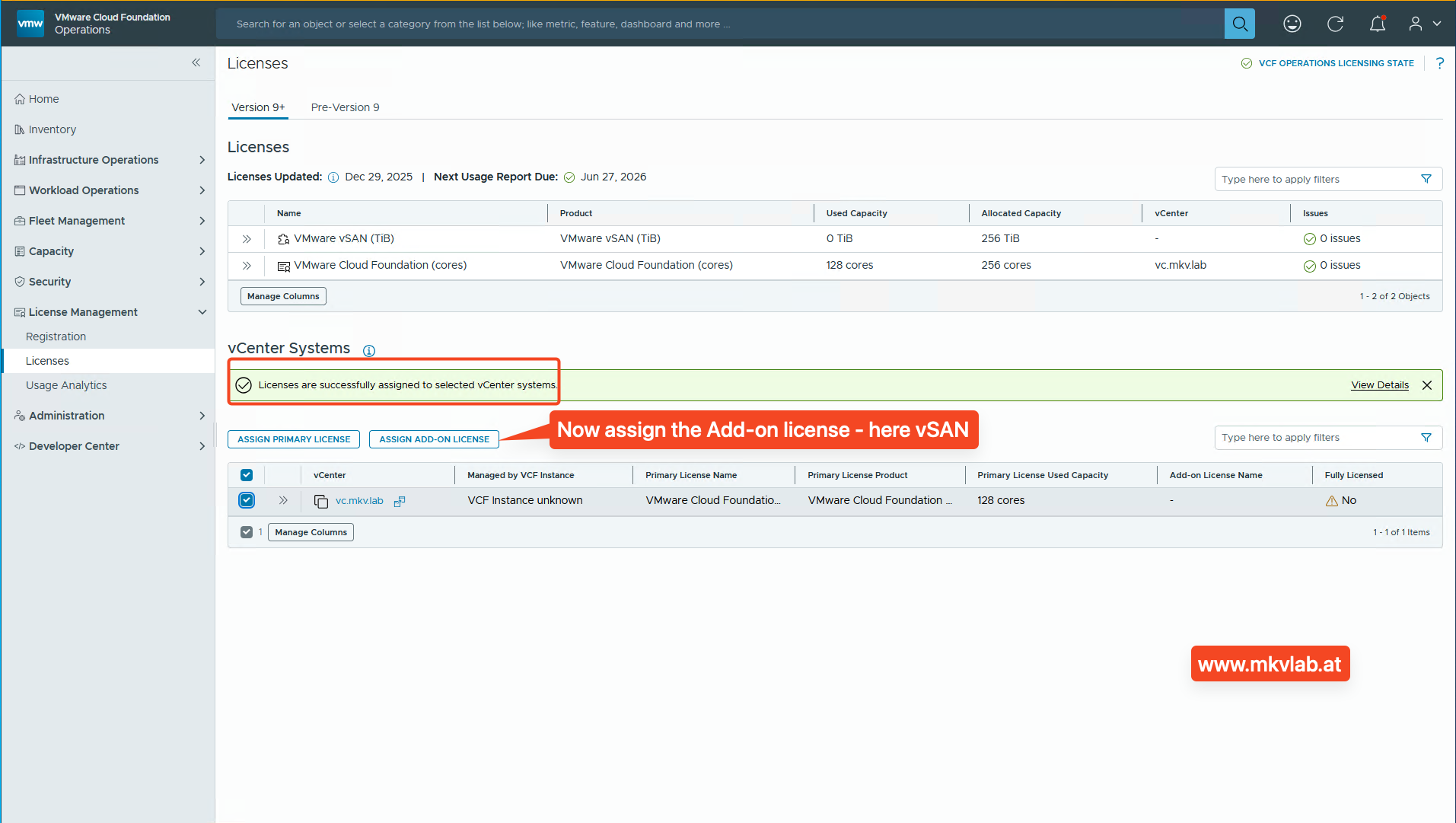 add-on license
Select the appropriate add-on entitlement and click Assign to complete the licensing sequence.
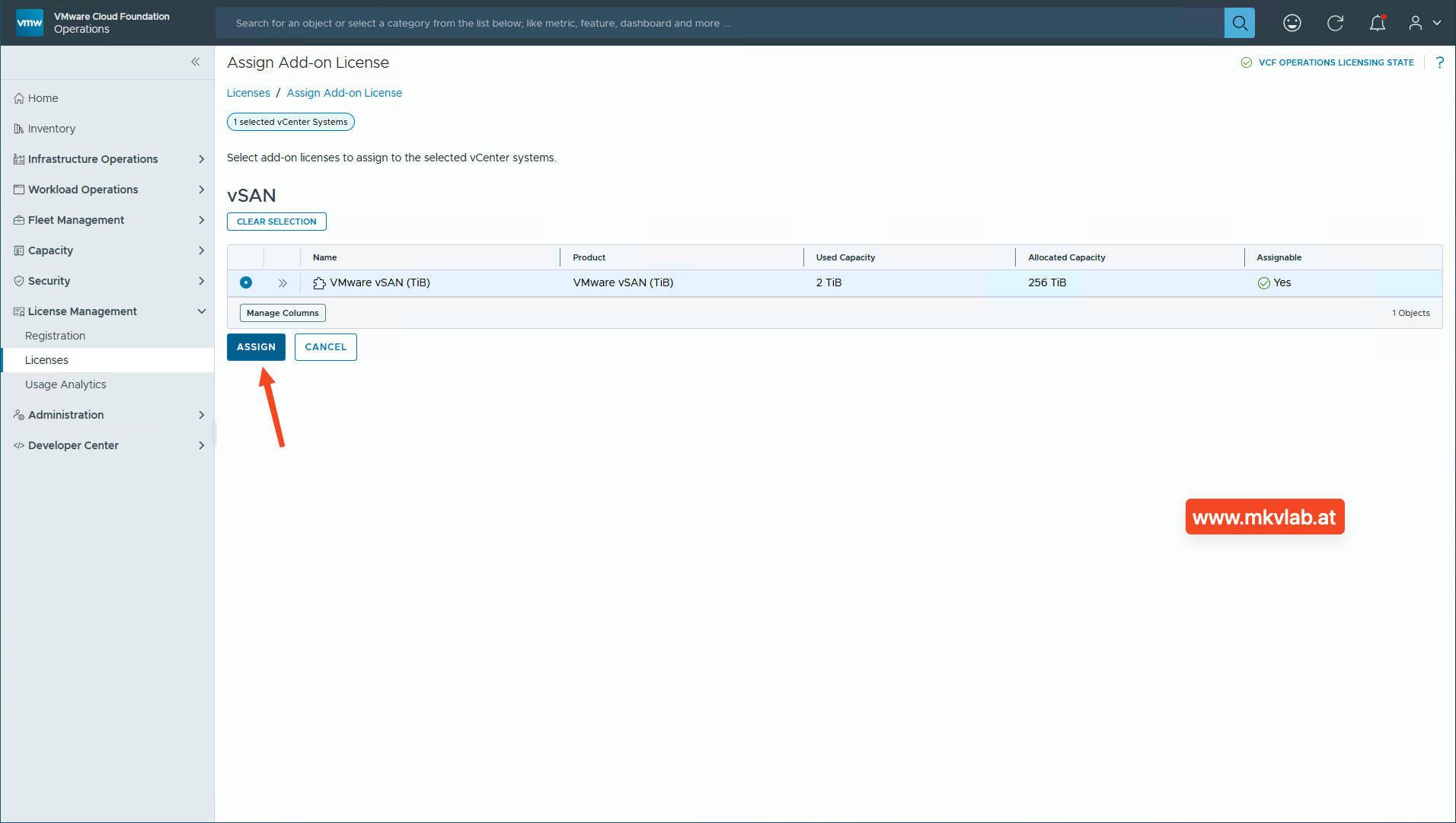 assign add-on license
13. Verify the final state
Once both licenses are assigned, the vCenter should show the correct primary and add-on products, along with the associated usage and expiration information. The final details pane in this lab confirms that the vCenter instance is fully licensed and shows both the VCF core and vSAN add-on association.
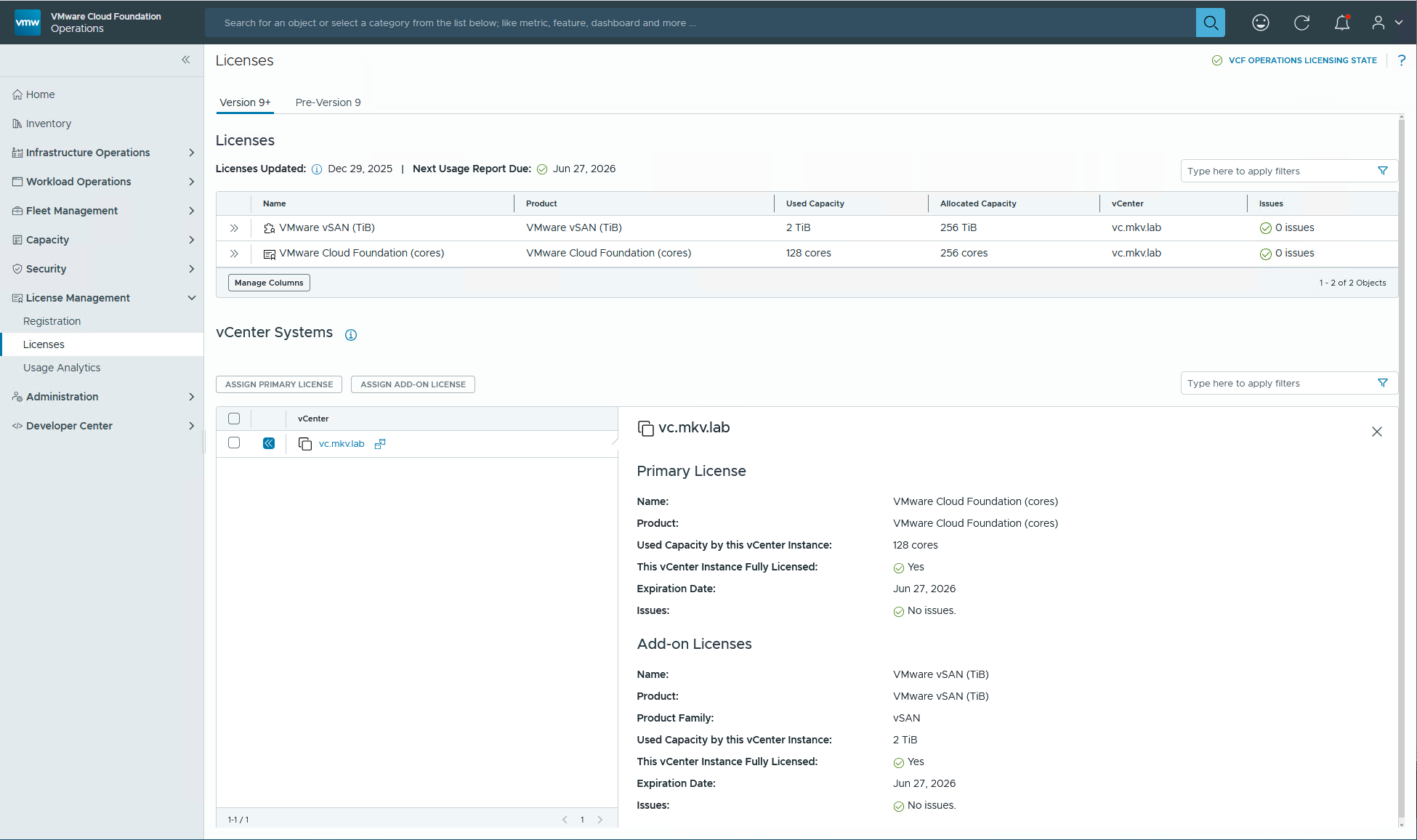 fully licensed
Notes from the lab
A useful operational detail from this workflow is the order of assignment: assign the primary license first and then the add-on license. That sequence is visible in the lab screenshots and avoids confusion when the vCenter initially appears only partially licensed.
Another practical takeaway is that connected mode is ideal when the environment has internet access and can reach the Broadcom services required for registration and reporting. For dark sites or air-gapped deployments, Broadcom documents a separate disconnected workflow instead.
Troubleshooting
Activation code is rejected
Check the following:
- The activation code was copied completely.
- The code has not expired or already been consumed.
- The correct VCF Operations instance is being registered.
- The correct tenant and Site ID were selected.
- VCF Operations can reach the required Broadcom services.
- The VCF Operations system time is correct.
Licenses are not visible
If the licenses do not appear after activation:
- Confirm that the registration status is Licensed.
- Check the registration and synchronization status.
- Verify that the correct entitlements were selected in the VCF Business Services console.
- Allow time for the license information to synchronize.
- Check the VCF Operations logs if synchronization fails.
The vCenter does not appear
If the target vCenter is missing from the licensing view:
- Confirm that the vCenter is registered with VCF Operations.
- Verify the vCenter integration status.
- Confirm that the vCenter is associated with the correct VCF Operations instance.
- Check the SDDC Manager or vCenter integration status where applicable.
- Refresh the licensing view after the integration becomes healthy.
Add-on license cannot be assigned
Confirm that:
- A primary VCF or VVF license is already assigned.
- The add-on entitlement is available.
- The license has sufficient remaining capacity.
- The add-on is compatible with the selected vCenter.
Closing thoughts
VCF/VVF 9.0 licensing is much easier to follow once the workflow is broken into two parts: first register VCF Operations in connected mode, then assign the imported entitlements to the vCenter systems. In day-to-day operations, that gives administrators a single place to track license allocation, usage, and reporting status across the environment.