FortiGate: Only the Default Security Profile Is Available
How to display and manage multiple FortiGate security profiles in the FortiOS graphical interface.
Problem
I first encountered this issue several years ago. More recently, I have seen it more often after FortiGate upgrades for customers, and customers and colleagues have asked about it as well.
Therefore, I decided to document the solution in case it is useful to someone else.
In some FortiOS versions, only the default UTM security profile is displayed in the graphical user interface. The default profile can still be assigned to a firewall policy.
You can modify profiles and assign them to firewall policies through the command line, but it is more convenient to view and edit them from the graphical interface.
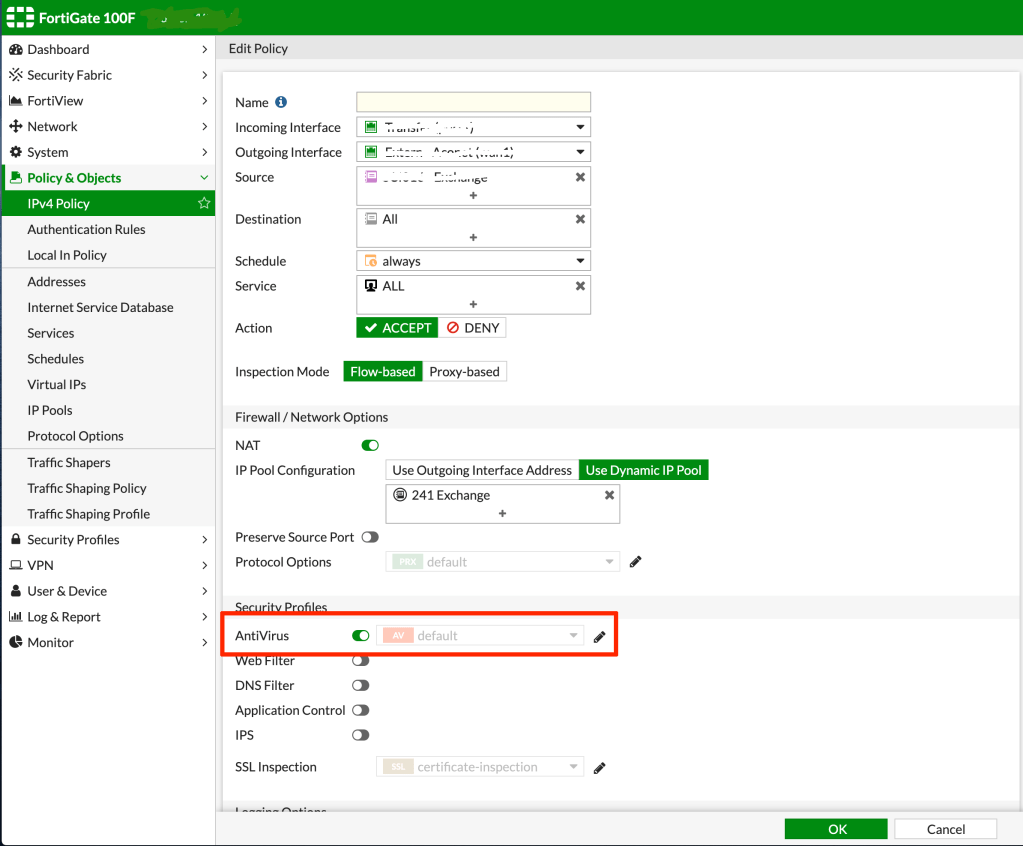 It is not possible to change the profile.
Use the CLI
You can modify security profiles through the FortiGate command line.
Antivirus Security Profile
1
FortiGate-VM64-KVM # config antivirus profile
Web Filter Security Profile
1
FortiGate-VM64-KVM # config webfilter profile
DNS Filter Security Profile
1
FortiGate-VM64-KVM # config dnsfilter profile
Intrusion Prevention Security Profile
1
FortiGate-VM64-KVM # config ips sensor
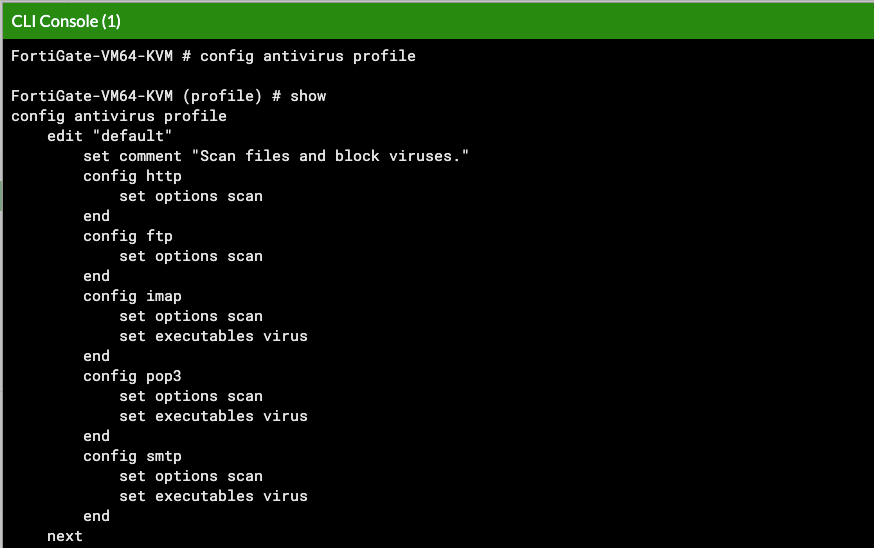 Modify the antivirus profile using the command line.
Enable Multiple Security Profiles
The original problem has a simple solution. It is caused by the default settings for feature visibility.
To display all security profiles in the FortiOS graphical interface, enable Multiple Security Profiles in the feature settings.
- Open System.
- Select Feature Visibility.
- Enable Multiple Security Profiles.
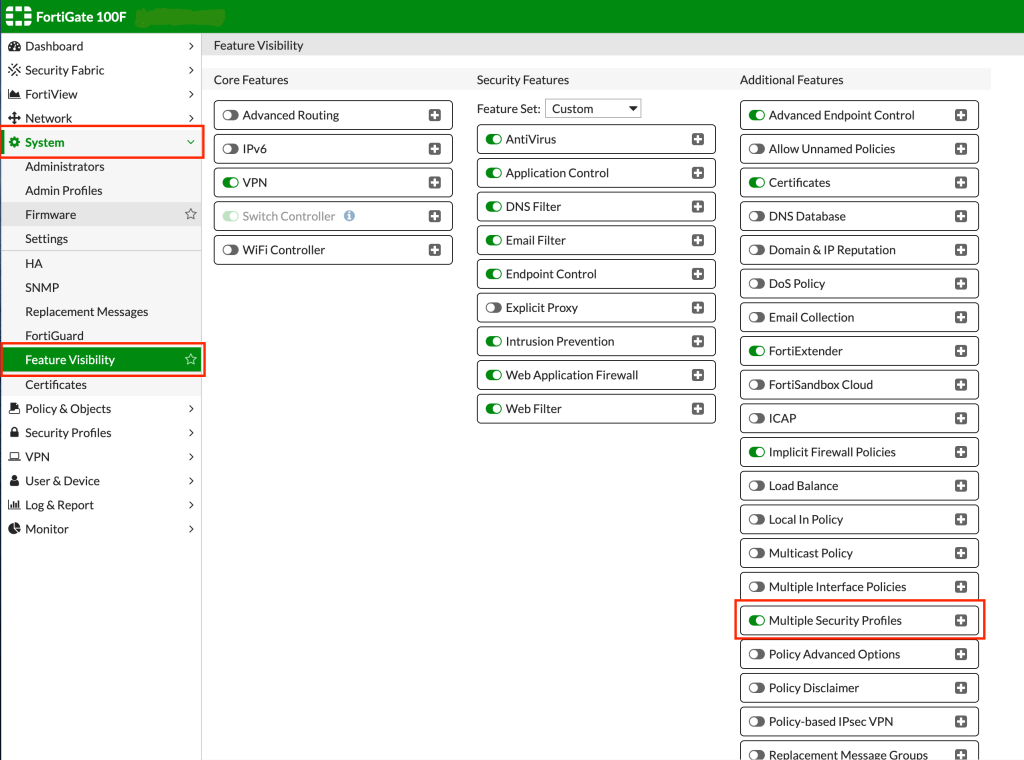 Enable the Multiple Security Profiles feature.
After enabling this option, you should be able to view all available security profiles in the FortiOS graphical interface.
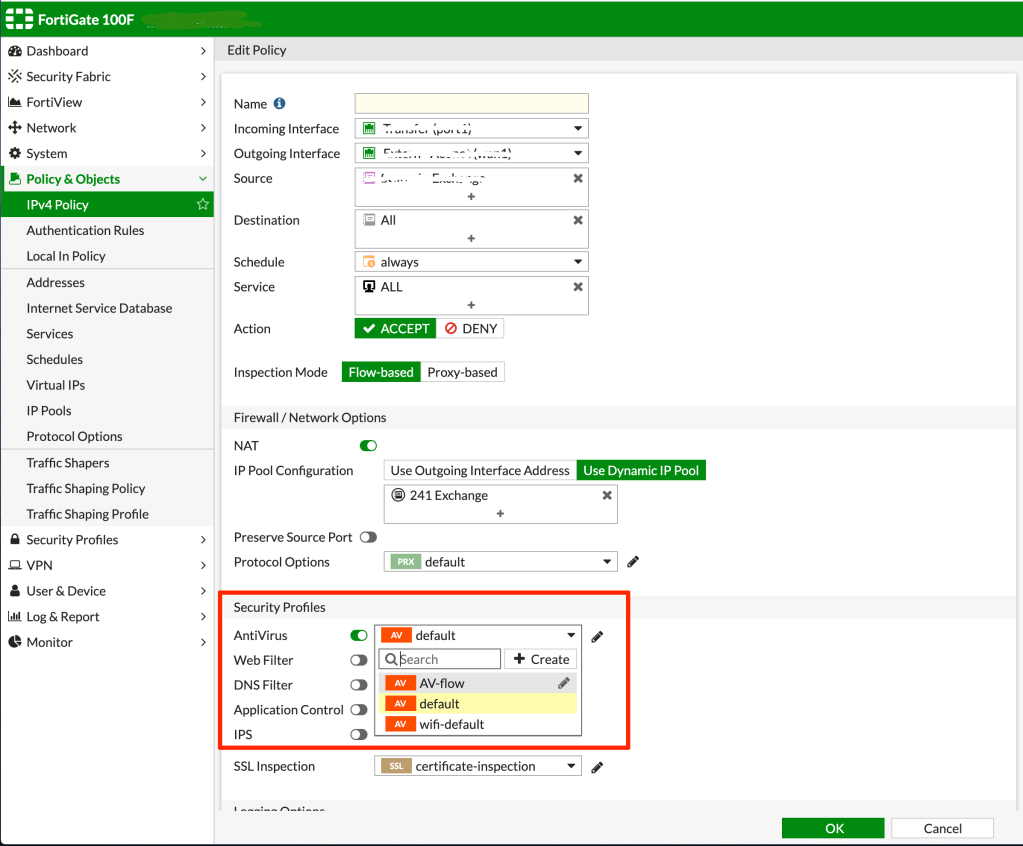 You can now change the security profile.
You can also open and edit the individual security profiles:
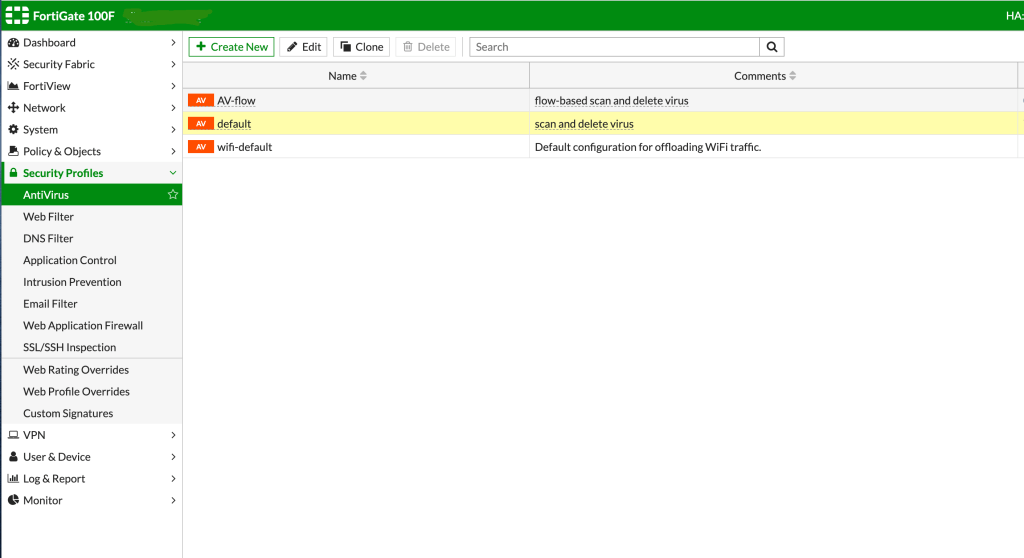 You can now edit the security profile.