Change an NSX User Password Using the API
Learn how to change a local NSX user password using the NSX Manager UI, CLI, or API.
In this article, I demonstrate several ways to change a local NSX user password, including the NSX Manager user interface, the NSX CLI, and the NSX API.
For the API procedure, I use Postman to send requests to the NSX Manager.
Version note: The available menu names, API fields, and password-management behavior may vary between NSX-T and NSX releases. Test the procedure in a lab first and verify the API schema for your NSX version before using it in production.
Change the Password in the NSX Manager UI
There are several ways to change a local NSX user password.
1. Use the Password-Expiration Alarm
When an NSX user password is close to expiration or has expired, NSX Manager may display an alarm that provides a password-management action.
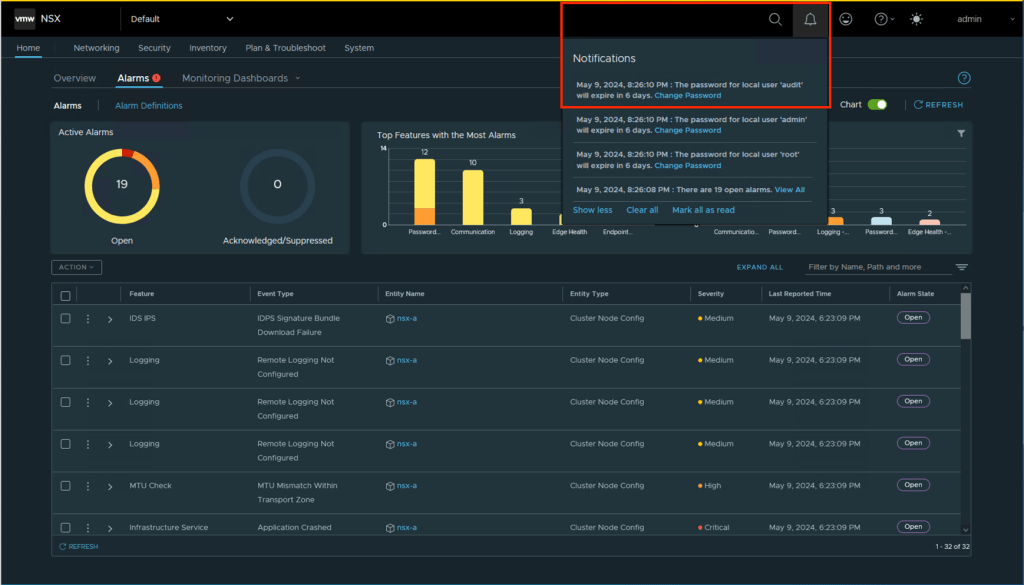 NSX user-password alarm.
Select the available action to change the password:
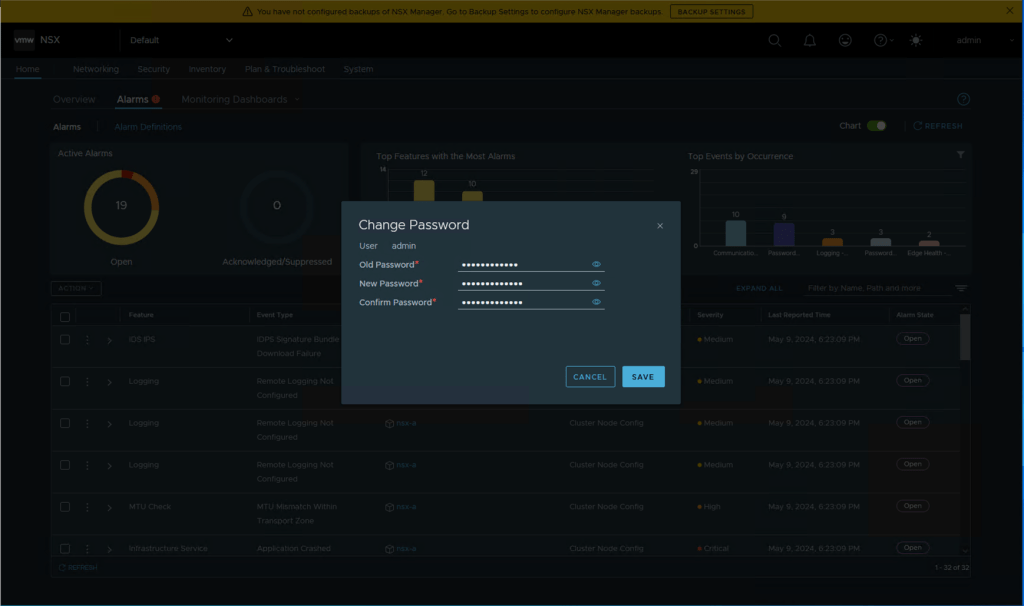 Change the NSX user password.
The exact alarm text and available action can vary between NSX versions.
2. Use User Management
You can also change a local user password through the user-management page.
Open the user-management section in NSX Manager, select the required user, and choose the password-change option.
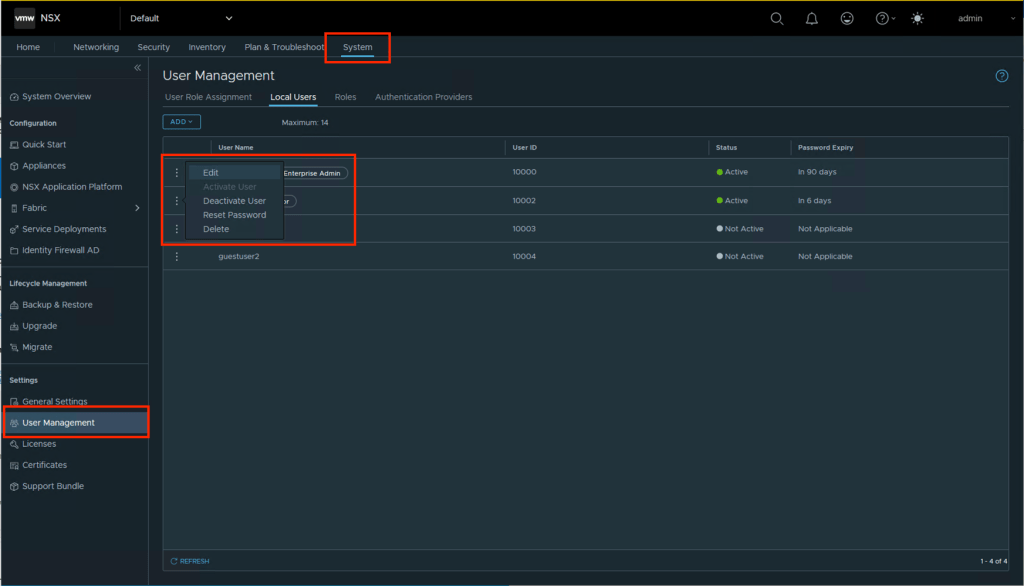 NSX User Management.
Change the Password Using the CLI
Connect to the NSX appliance CLI with an account that has permission to change the target user’s password.
To change the admin password, run:
1
nsx> set user admin password
The CLI prompts you for the current password, the new password, and confirmation of the new password.
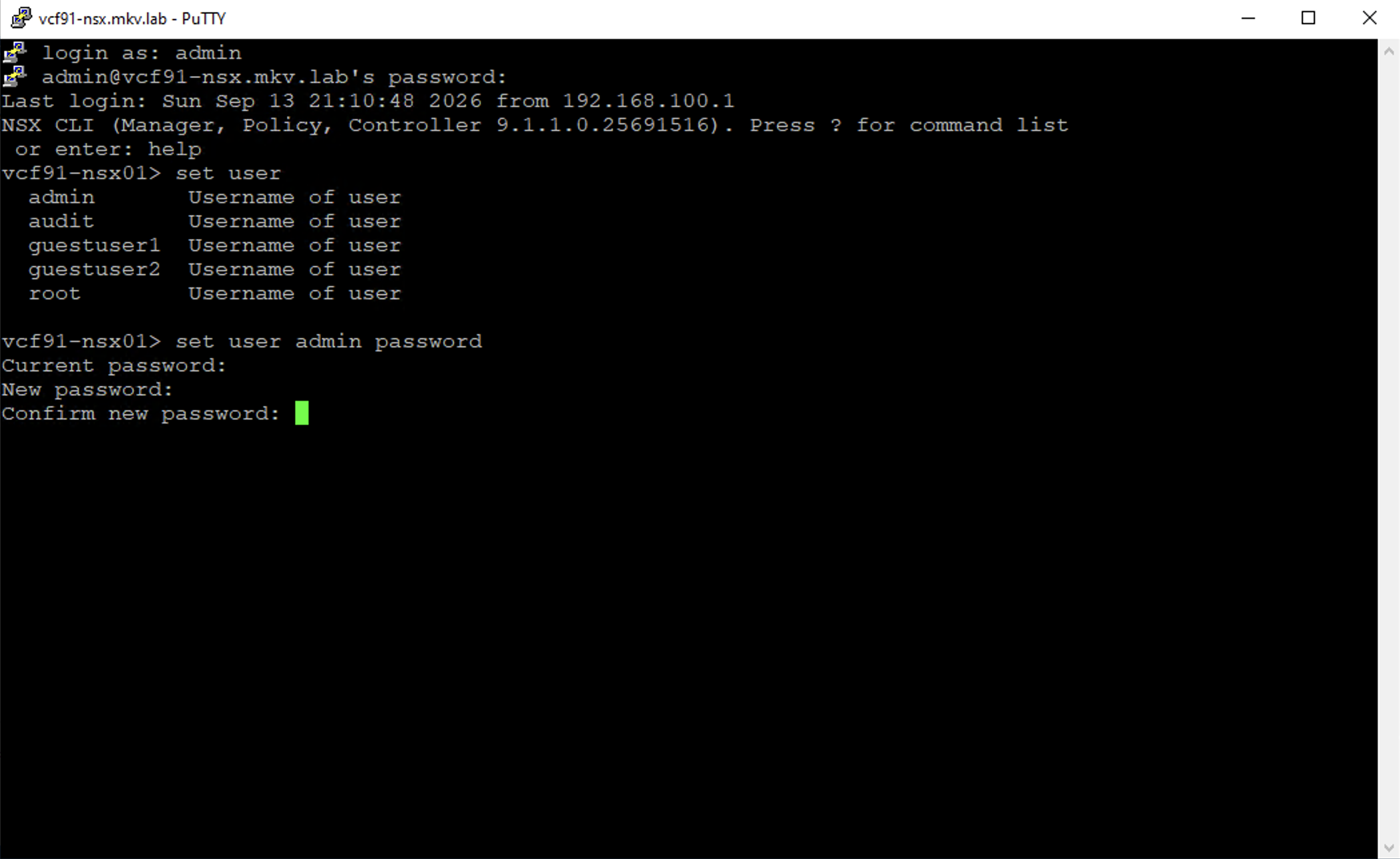 Change the password using the NSX CLI.
For another user, replace admin with the relevant username:
1
nsx> set user <username> password
The NSX CLI supports changing a user’s password interactively. The required permissions and whether the current password is required depend on the target account and the exact command form. [37][45]
Change the Password Using the API
Retrieve the Local Users
Start by retrieving the list of local NSX users.
Use the following request:
1
GET [https://nsx-a.mkv.lab/api/v1/node/users](https://nsx-a.mkv.lab/api/v1/node/users)
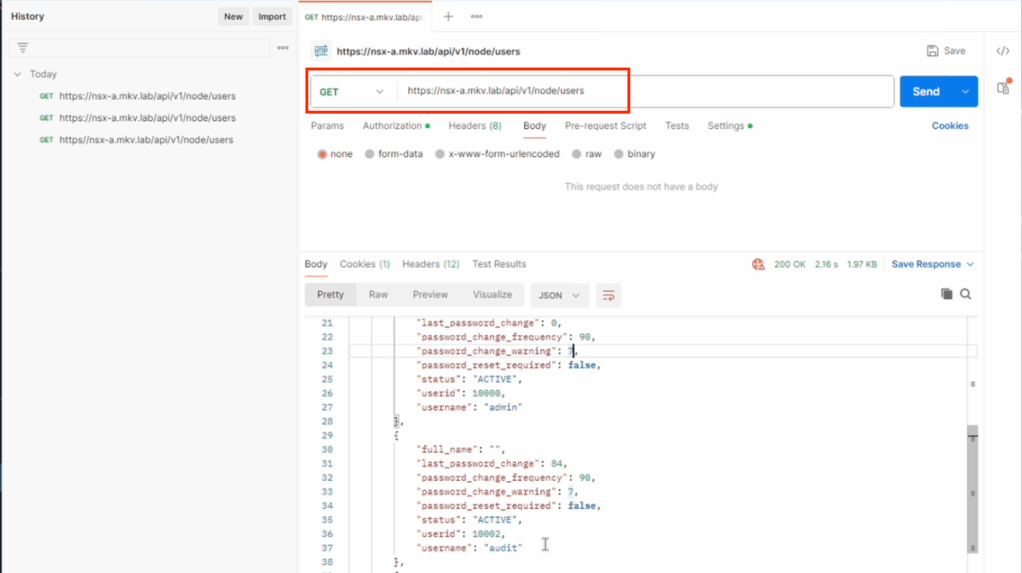 Retrieve NSX users using the API.
In Postman, configure authentication in the Authorization tab. In this example, I use Basic Authentication with an NSX administrator account.
If the NSX Manager uses a self-signed certificate, you may need to disable SSL certificate verification in the Postman settings. Use this only for a controlled lab environment. In production, install and trust the appropriate certificate instead.
The response contains the local users and their user IDs. Identify the account whose password you want to change and record its userid.
Retrieve the User Details
Use the user ID from the previous response:
1
GET [https://nsx-a.mkv.lab/api/v1/node/users/](https://nsx-a.mkv.lab/api/v1/node/users/)<USER_ID>
For example:
1
GET [https://nsx-a.mkv.lab/api/v1/node/users/10002](https://nsx-a.mkv.lab/api/v1/node/users/10002)
Save the complete response. The PUT request should preserve the existing user attributes and modify only the fields required for the password change.
Update the Password
Change the request method from GET to PUT:
1
PUT [https://nsx-a.mkv.lab/api/v1/node/users/10002](https://nsx-a.mkv.lab/api/v1/node/users/10002)
Set the request body to raw JSON.
The important fields are:
old_password: The user’s current password.password: The new password.
A complete request body may look similar to this:
1
2
3
4
5
6
7
8
9
10
11
12
{
  "full_name": "Guest User1",
  "last_password_change": 0,
  "password_change_frequency": 90,
  "password_change_warning": 7,
  "password_reset_required": false,
  "status": "ACTIVE",
  "userid": 10002,
  "username": "username-AAAA",
  "old_password": "CURRENT_PASSWORD",
  "password": "NEW_PASSWORD"
}
Replace the example values with the values returned by the GET request.
Important: The original post had these two fields reversed. Use the current password as
old_passwordand the new password aspassword.
Depending on the NSX version and account state, some fields may be read-only or may need to match the existing user object exactly. Do not remove fields from the response unless the API documentation for your version explicitly allows it.
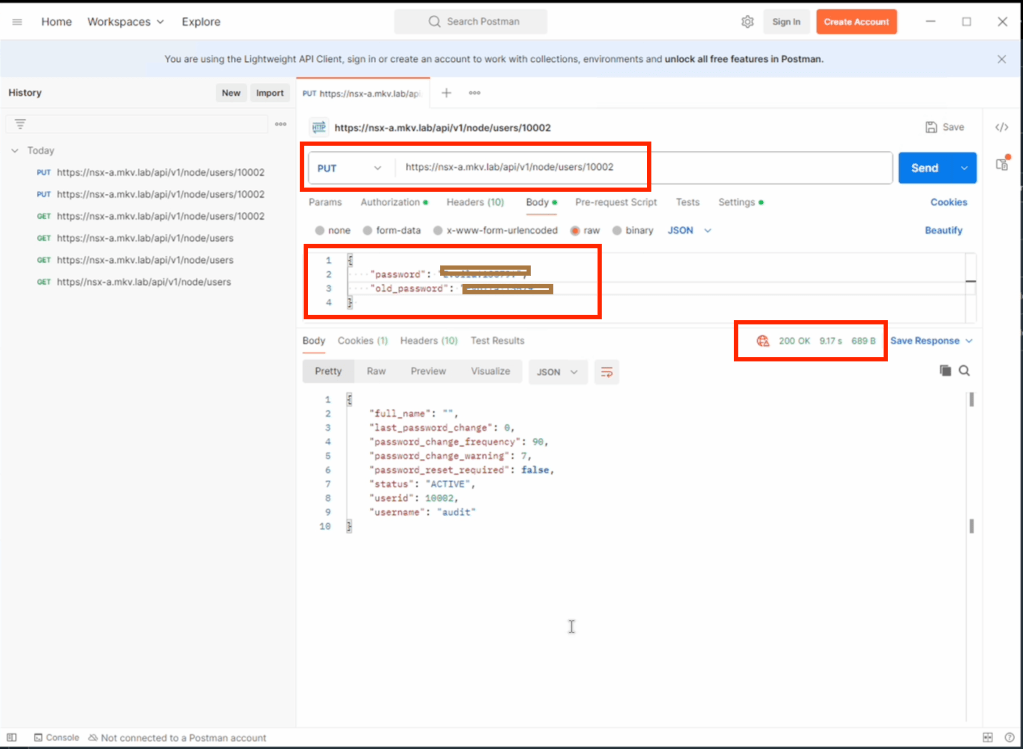 Change the NSX password using a PUT request.
A successful response indicates that the request was accepted. Test the new password by authenticating with the affected account.
Note: A successful HTTP response does not replace functional testing. Open a new session and verify that the user can authenticate with the new password before closing the existing administrative session.
Password Expiration Policy
By default, administrative passwords for NSX Manager and NSX Edge appliances expire after 90 days.
You can change the password-expiration period from the NSX CLI.
Check Password Expiration
To check the expiration information for a user, run:
1
nsx> get user admin password-expiration
Set the Expiration Period
Set the number of days that the password remains valid:
1
nsx> set user admin password-expiration <1-9999>
For example:
1
nsx> set user admin password-expiration 9999
The value must be between 1 and 9999 days. [35]
Disable Password Expiration
To disable password expiration for a user:
1
nsx> clear user admin password-expiration
This causes the password not to expire for that user.
Security recommendation: Disabling password expiration is generally not recommended for interactive administrator accounts. If you use a non-expiring password for a service account, protect the account with least privilege, strong credentials, restricted access, and monitoring.
The same commands can be used for other supported local users:
1
2
3
nsx> get user <username> password-expiration
nsx> set user <username> password-expiration <1-9999>
nsx> clear user <username> password-expiration
Password Already Expired
If a password expires, you may be unable to log in and manage NSX components. Tasks or API calls that require the affected administrative credentials may also fail.
If the password has already expired, use the appropriate NSX CLI recovery procedure and log in with an account that still has sufficient privileges.
For additional recovery guidance, see the Broadcom knowledge-base article NSX-T admin password expired. [39]
After resetting the password:
- Confirm that the user status is active.
- Check the password-expiration status.
- Test authentication with the new password.
- Update any scripts, integrations, or stored credentials that use the account.
- Verify that NSX Manager and related components can communicate normally.
YouTube Video
Here is the YouTube video where I demonstrate the process: