Licensing and Registration of VCF/VVF 9.0
Licensing has always been a core operational aspect of running VMware Cloud Foundation, and with version 9.0 the underlying model has been significantly modernized, simplified, and streamlined. Instead of juggling individual keys for vCenter, ESXi, vSAN and add‑ons across multiple environments, VCF 9.0 introduces a single, centrally managed license model that ties into VMware Cloud Foundation Operations and the VCF Business Services Console.
In this post I will walk through how this new model works in practice, how to register and activate licenses in both connected and air‑gapped environments, and what actually sits inside the license and usage files from a compliance and data‑privacy perspective. The examples and screenshots are taken from my own lab deployment of VCF 9.0, so you can see the exact workflows and UI states you will encounter when you go through the same process in your environment.
Why VCF 9.0 licensing is different
Previously you had per‑component keys (vCenter, ESXi, vSAN, etc.), while in VCF 9 you move to a single license file managed centrally in VMware Cloud Foundation Operations.
Key points to highlight:
- Single license file for the whole VCF stack, no more dozens/hundreds of keys per cluster or vCenter.
- Same model also applies to vSphere Foundation (VVF) 9.0.
- Capacity pooling: multiple VCF subscriptions of the same type are auto‑aggregated, you manage total cores/TiB rather than juggling keys.
- Evaluation mode extended from 60 to 90 days, buying more time to complete registration in greenfield deployments.
- What is covered by the file: VCF cores, vSAN TiB, Private AI Foundation, VVF cores, VCF Edge cores.
- What still uses traditional keys: vDefend Firewall, Avi Load Balancer, Tanzu Platform, Data Services Manager, Telco Cloud Platform, plus SaaS like Live Recovery.
License Connecting Modes:
- Connected: In connected mode, license compliance is almost hands‑off: once every 180 days you simply trigger a usage report from VCF Operations, which automatically transmits the required licensing information to Broadcom.
- Disconnected: In disconnected mode, you export the usage file from VCF Operations, upload it manually to the VCF portal at vcf.broadcom.com, then download and import the updated license file back into VCF Operations at least every 180 days to remain compliant.
Registration and activation – connected mode
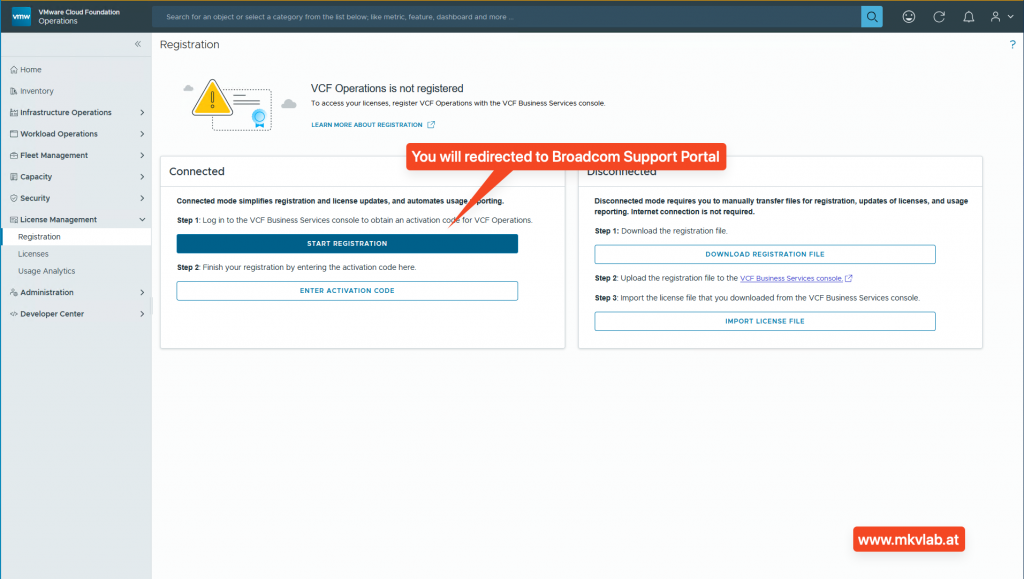
In connected mode, registration and activation are handled end‑to‑end from within VMware Cloud Foundation Operations. You start the registration workflow in the License Management section, which redirects you to the VCF Business Services portal where you authenticate and associate your entitled VCF 9.x subscriptions with the specific VCF Operations instance. After you confirm the selected capacity, an activation code or license association is created, and once you complete the final step back in VCF Operations the environment transitions from evaluation to a fully licensed, connected state.
Step 1: From VCF Operations, go to License Management → Registration and click “Start Registration”.
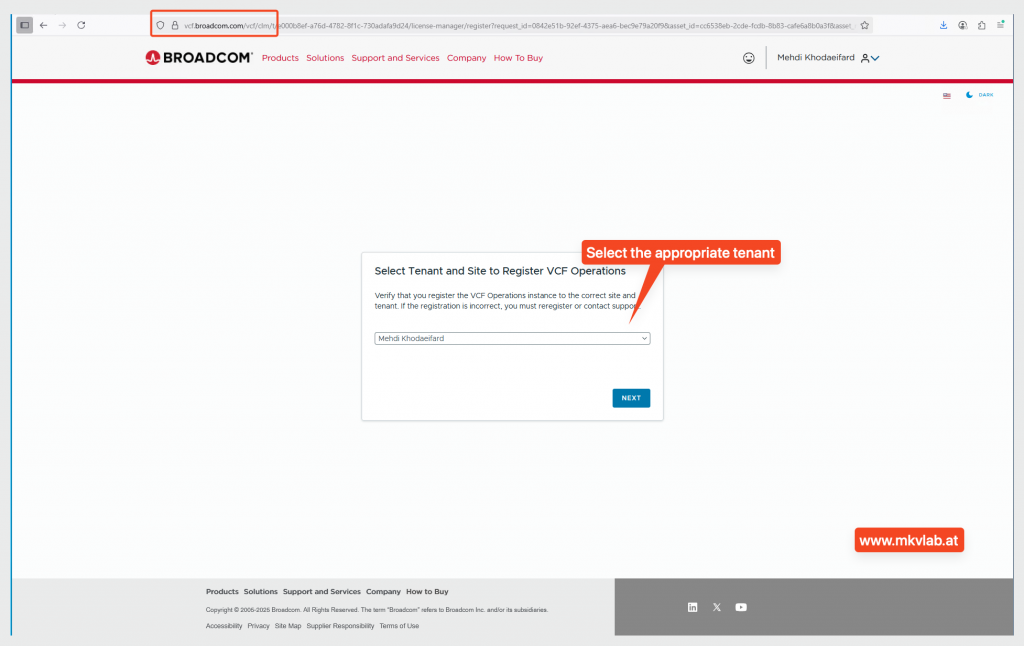
Step 2: The workflow opens the VCF Business Services Console at vcf.broadcom.com, where you log in with the entitled Broadcom account. After login you need to select the appropriate Tenant.
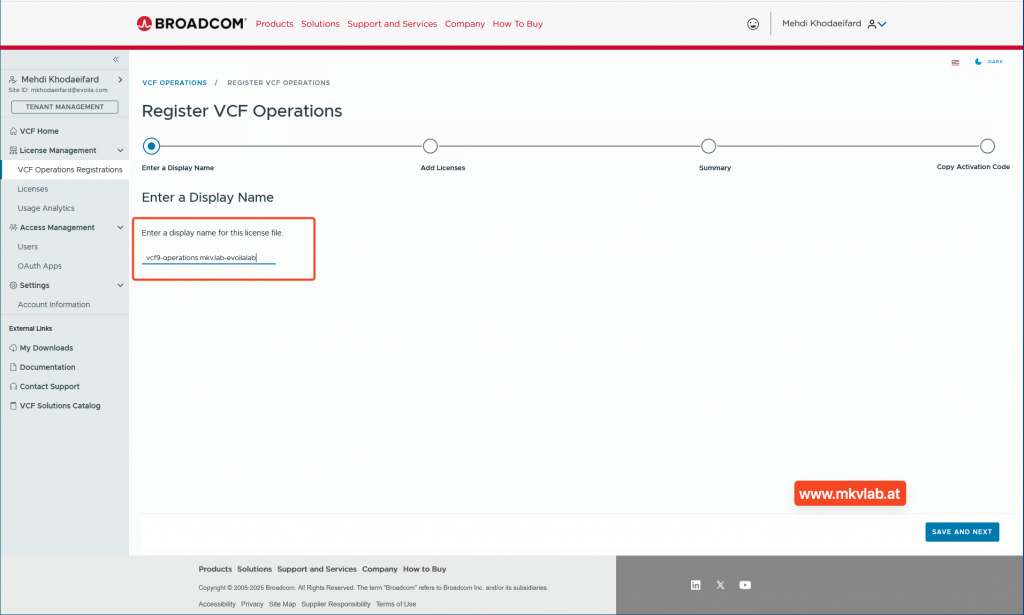
Step 3: Registration process has been started. Confirm the VCF Operations instance name and proceed.
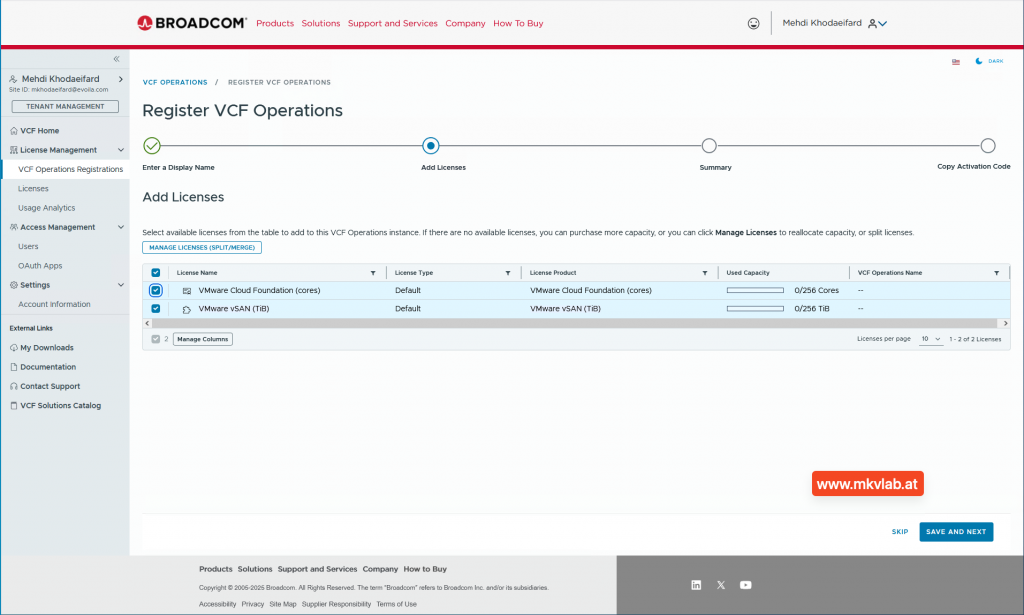
Step 4: Select the licenses (compute cores, vSAN TiB, Private AI, etc.) to associate with this VCF Operations instance; optionally explain split/merge for carving capacity between multiple VCF Ops instances.
Step 5: Review and confirm the selection.
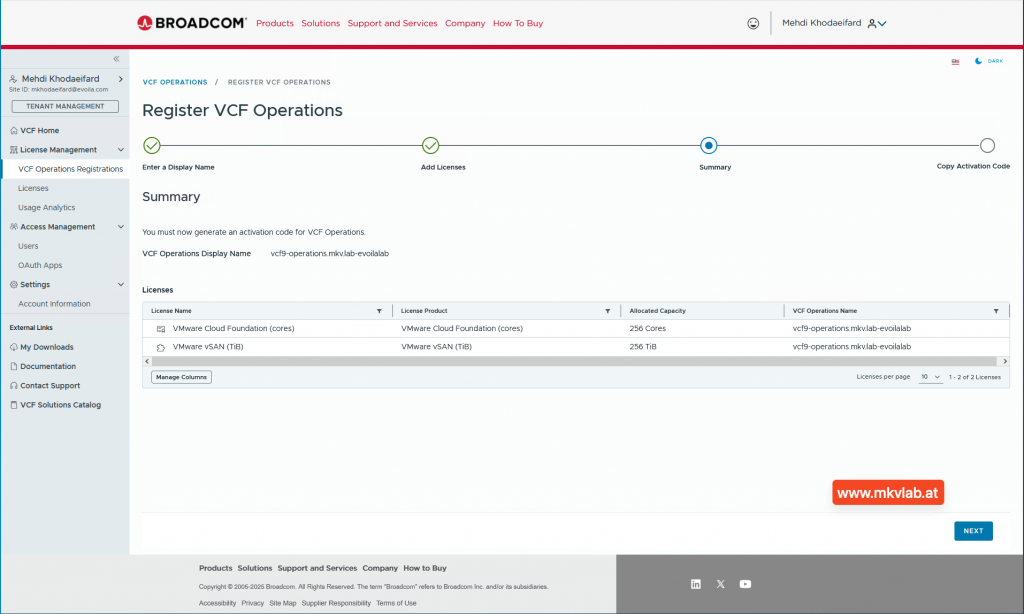
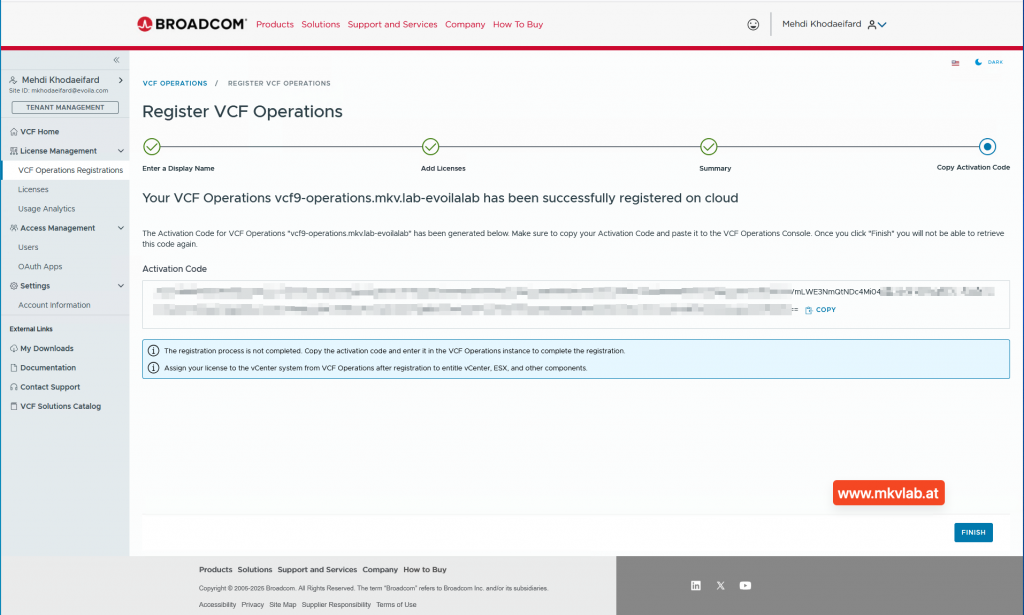
Step 6: Copy the activation code that is generated at the end of the wizard.
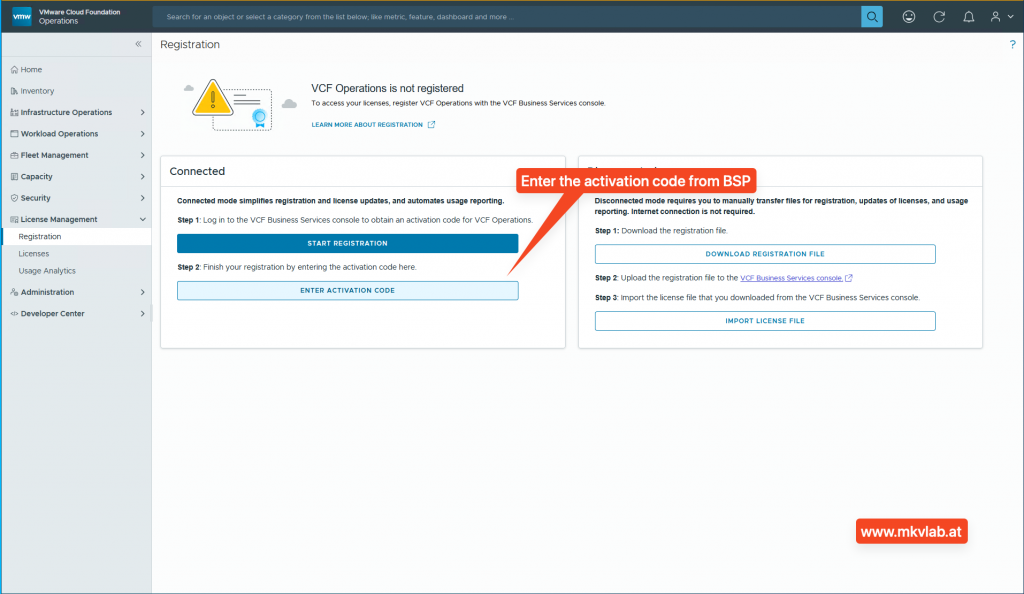
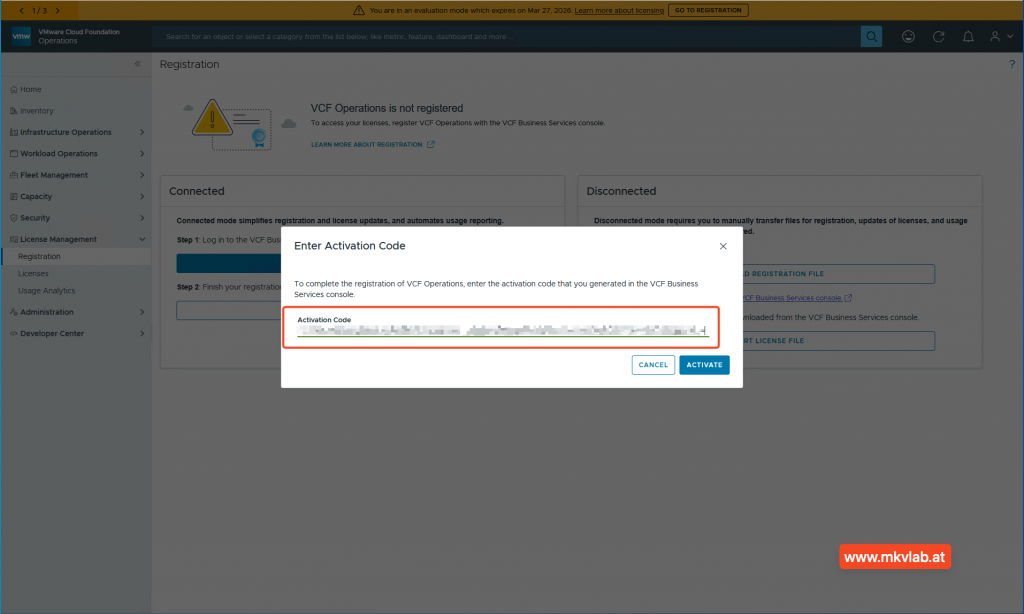
Step 7: Back in VCF Operations, paste the activation code under License Management → Registration and “activate”Enter Activation Code”.
Step 8: Verify that license mode shows “Connected” and status “Licensed”.
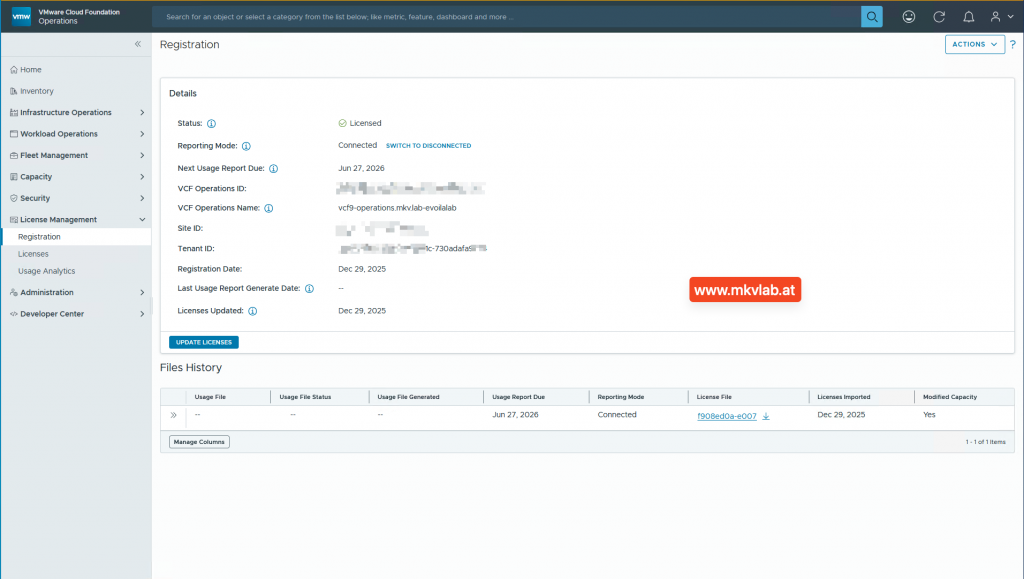
Assigning the License
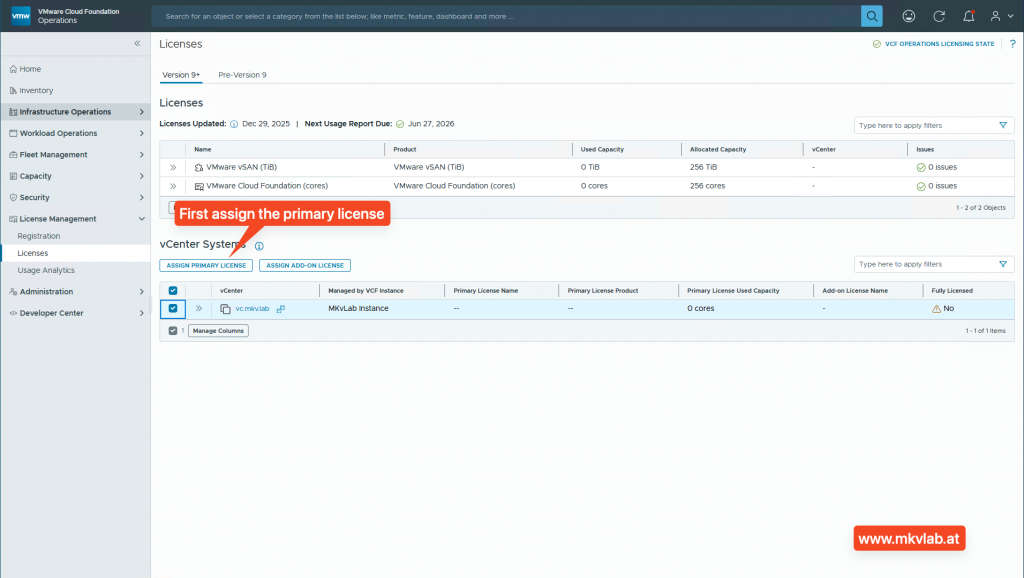
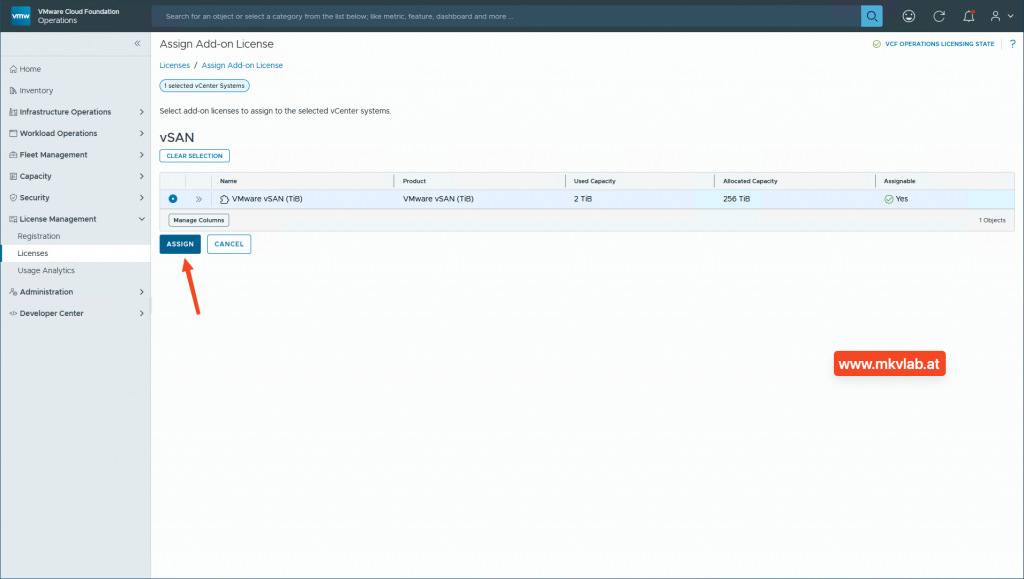
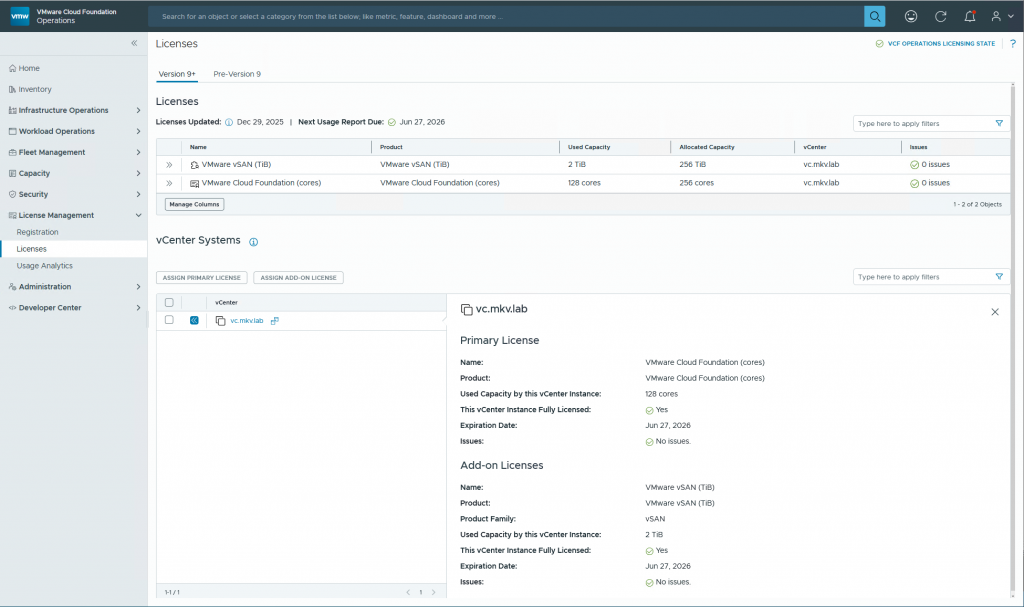
After importing the license file into VCF Operations, you assign it to specific vCenter instances via License Management → Licenses → vCenter Systems (Version 9+ tab). Select one or more vCenters managed by this VCF Operations instance, then choose “Assign License” or “Assign Add-on License” and pick the appropriate license (e.g., VCF cores, vSAN TiB); capacity must be sufficient for the selected vCenters. VCF Operations automatically propagates the licensing downstream to all associated ESXi hosts, NSX, HCX, and other stack components—no manual keys needed at the vCenter or host level. Verify assignment in the UI, where licensed vCenters show compliant status, and monitor utilization across the environment.
Step 1: In VCF Operations, navigate to License Management → Licenses and switch to the vCenter Systems (Version 9+) tab. Select the target vCenter(s) from the list of managed instances (filter by cluster or workload domain if needed). First click on “Assign Primary License”
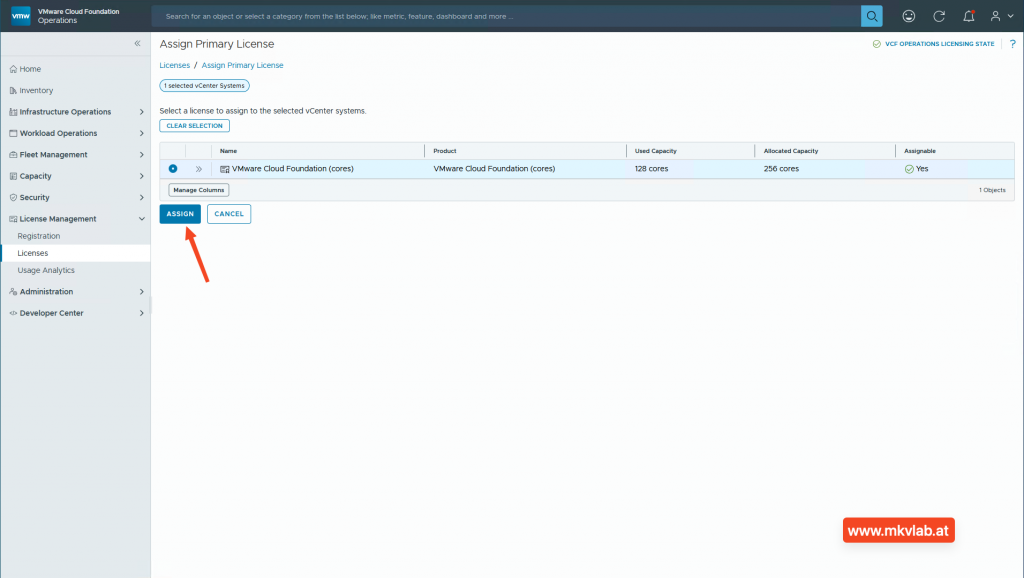
Step 2: Choose the license from available entitlements like VCF cores —ensure allocated capacity covers the vCenter’s hosts.
Step 3: If it is applies, now you can assign the vSAN license by selecting vCenter and clicking “Assign Add-On License”
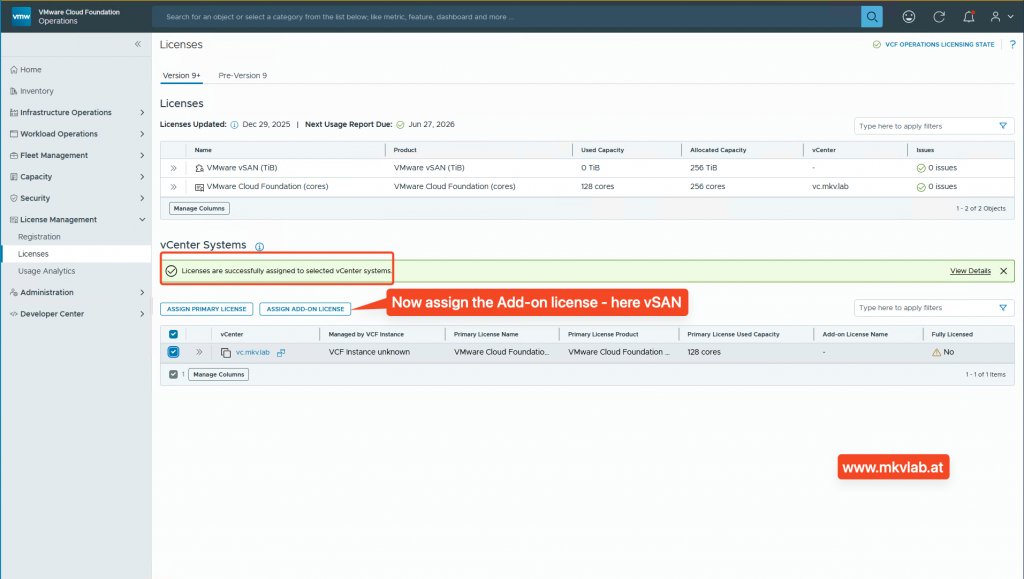
Step4: Validate in the Licenses view. selected vCenters show “Licensed” status, with core/TiB utilization visible, check vCenter’s own Administration → Licensing for confirmation.
Important Notes:
- License compliance requires usage reporting every 180 days, regardless of deployment mode.
- Connected mode fully automates registration, updates, and usage reporting for seamless operation.
- Disconnected mode suits air-gapped or secure environments, using manual file transfers via vcf.broadcom.com.
VCF 9.0’s unified licensing model represents a significant step forward in operational simplicity, eliminating the chaos of per-component keys while maintaining robust compliance through connected or disconnected workflows. Whether you’re running a single lab or a multi-site enterprise deployment, mastering registration, assignment to vCenters, and periodic usage reporting ensures uninterrupted operations and capacity optimization. With automation options for air-gapped environments and clear visibility into license contents, VMware has addressed both practitioner pain points and enterprise governance needs—deploy confidently and focus on delivering value to your infrastructure.
