Update your VMware ESXi 8.x, 9.x – Offline Mode
In my post How to update your VMware ESXi 6.x, Offline Mode, I walked you through updating an ESXi server in offline mode using the esxcli software vib update command. However, this method has been depricated beginning with ESXi 8.0 Update 2 and replaced by profile-based update commands, which I will demonstrate in this post. Using the offline method, you can easily and efficiently update an air-gapped standalone ESXi host. Of course, for hosts managed by vCenter, updates should be performed using vLCM to automate the process through vCenter Server.
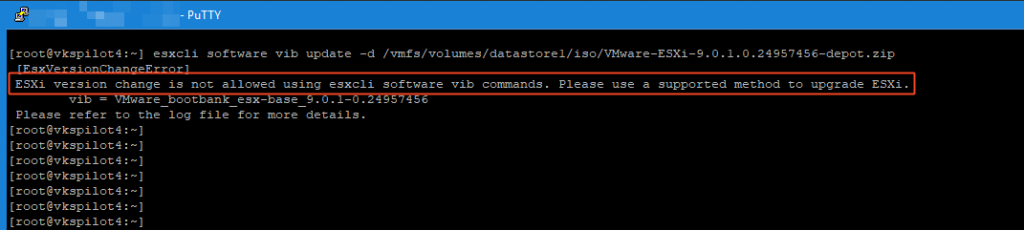
Today, I will update my ESX 9.0.0 host (build 24813472) to ESX 9.0.1.0 (build 24957456). The same offline, profile‑based procedure applies to both ESXi 8.x and ESX 9.x—you just need to download the appropriate offline depot (patch) ZIP for your target image profile.
Before you start:
- Make you to check the VMware Compatibility Guide.
- Visit the Broadcom Support Portal to download the offline bundle ZIP file.
- Make sure you have downtime; the update requires a host reboot.
- My suggestion is that enter the host into maintenance mode.
How to Update:
- First step is to copy the offline bundle zip file to your host’s datastore. To do this Navigate to Storage > select datastore > datastore browser > upload and then upload the file.
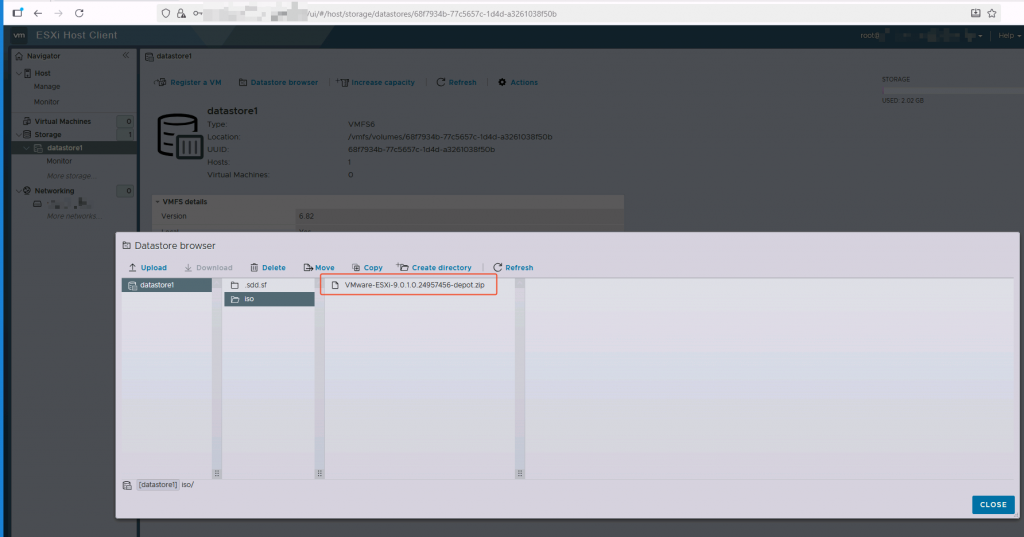
- Login to ESX host using ssh. Use your SSH client of choice like PuTTY. First, you need to enable SSH service in your ESXi web client. Navigate to Host > Manage > Services and start service TMS-SSH.
- List image profiles available in the bundle using following command:
esxcli software sources profile list -d /vmfs/volumes/<datastore>/depot.zip
- Use following command and the profile name from the output above to validate the changes before applying the update using dry run option:
esxcli software profile update --dry-run -d /vmfs/volumes/<datastore>/depot.zip -p <profile_name>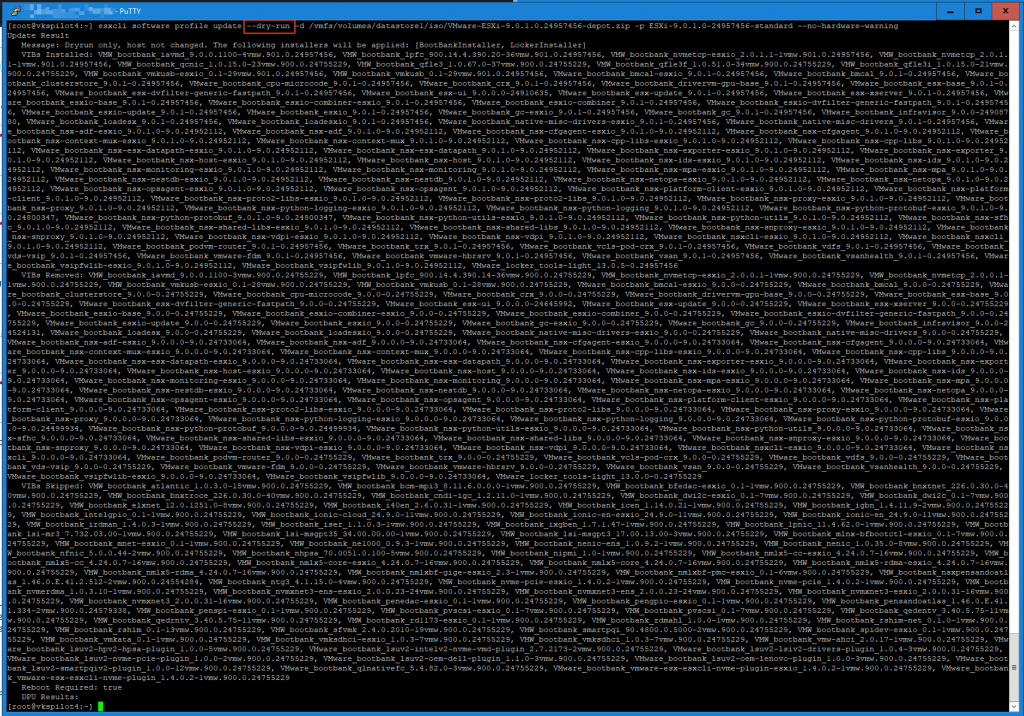
- Now after validating the changes you can remove the dry run option to actually apply the update.
esxcli software profile update -d /vmfs/volumes/<datastore>/depot.zip -p <profile_name>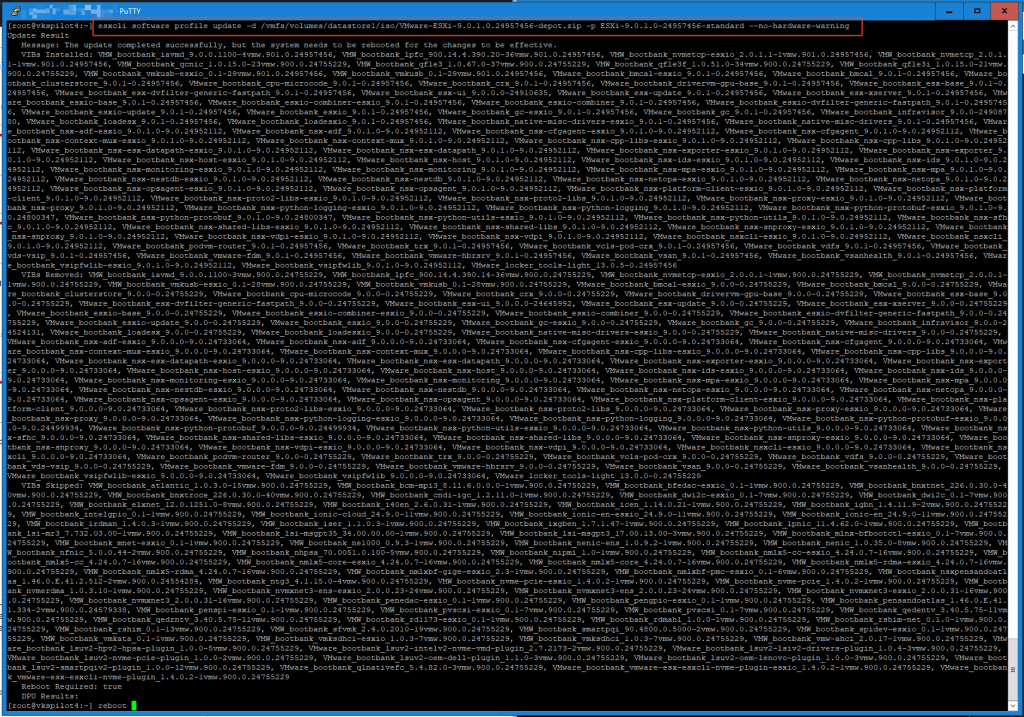
Time to validate the installes version. Don’t forget to reboot the host after applying update.
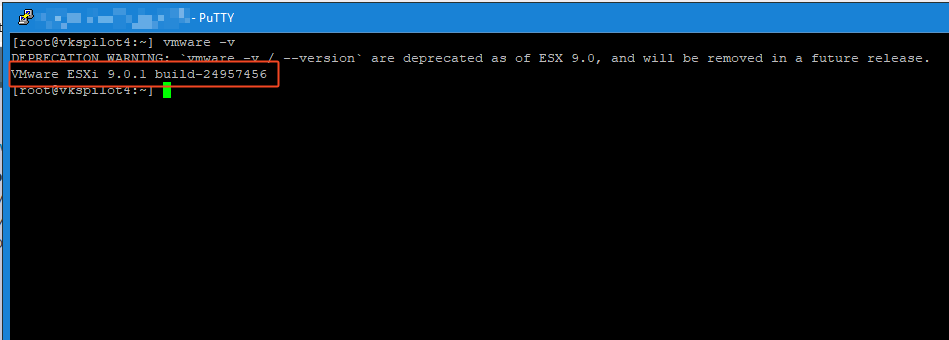
We have successfully updated the ESX host. You can see all the availabe VMware products and build numbers in my blog’s VMware Product Release page.
Note: I added the –no-hardware-warning option to the end of my command because this is a lab environment, and the CPU isn’t compatible; removing this option would result in a compatibility error. This should be used only in lab environments—production systems must run on compatible hardware.
