Pi-hole and Unbound - your own recursive DNS server - Installation Guide
Running your own DNS stack at home is one of those projects that looks simple at first, then teaches you a lot about containers, networking, and version-specific config changes. I recently built a Pi-hole + Unbound setup on my Synology NAS with Container Manager, and this post documents the short setup path, the final working configuration, and the issues I hit on the way.
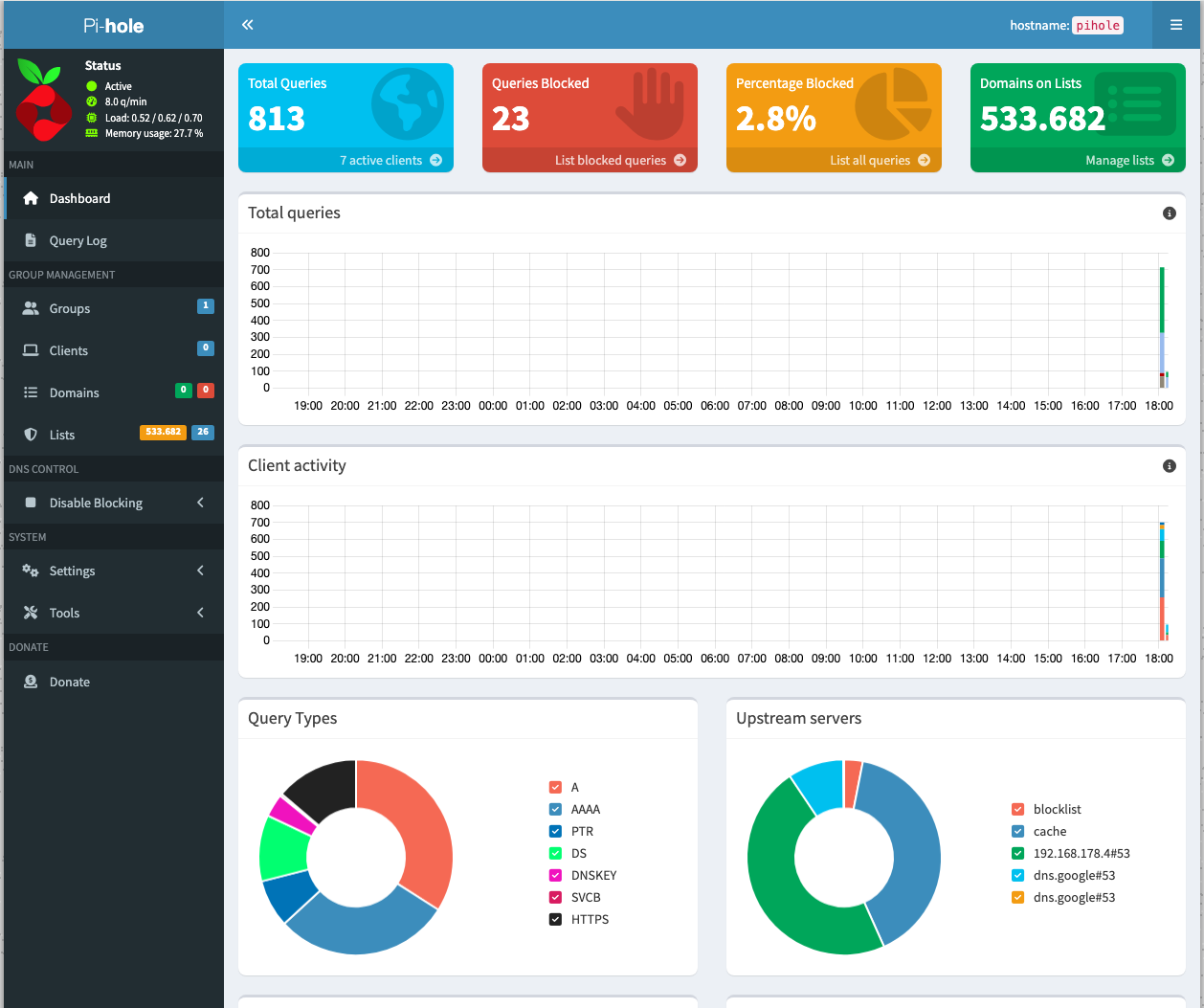
Why I wanted this setup
Pi-hole gives me network-wide ad and tracker blocking, while Unbound lets me use a local recursive resolver instead of sending all DNS requests to a public upstream like Google or Cloudflare. My goal is to use Pi-hole as a DNS server for my home lab—but that’s not all. Pi-hole not only caches DNS entries, but also blocks queries to hostnames used for ads, tracking, or even malware.
In short, the goal was:
- Pi-hole as the DNS frontend for my clients.
- Unbound as the upstream recursive resolver.
- Both running as containers on my Synology NAS.
- Deployment through Synology → Container Manager → Project → YAML file.
Short step-by-step setup
This is the short version of the process I used:
- Open Synology DSM.
- Start Container Manager.
- Go to Project.
- Create a new project.
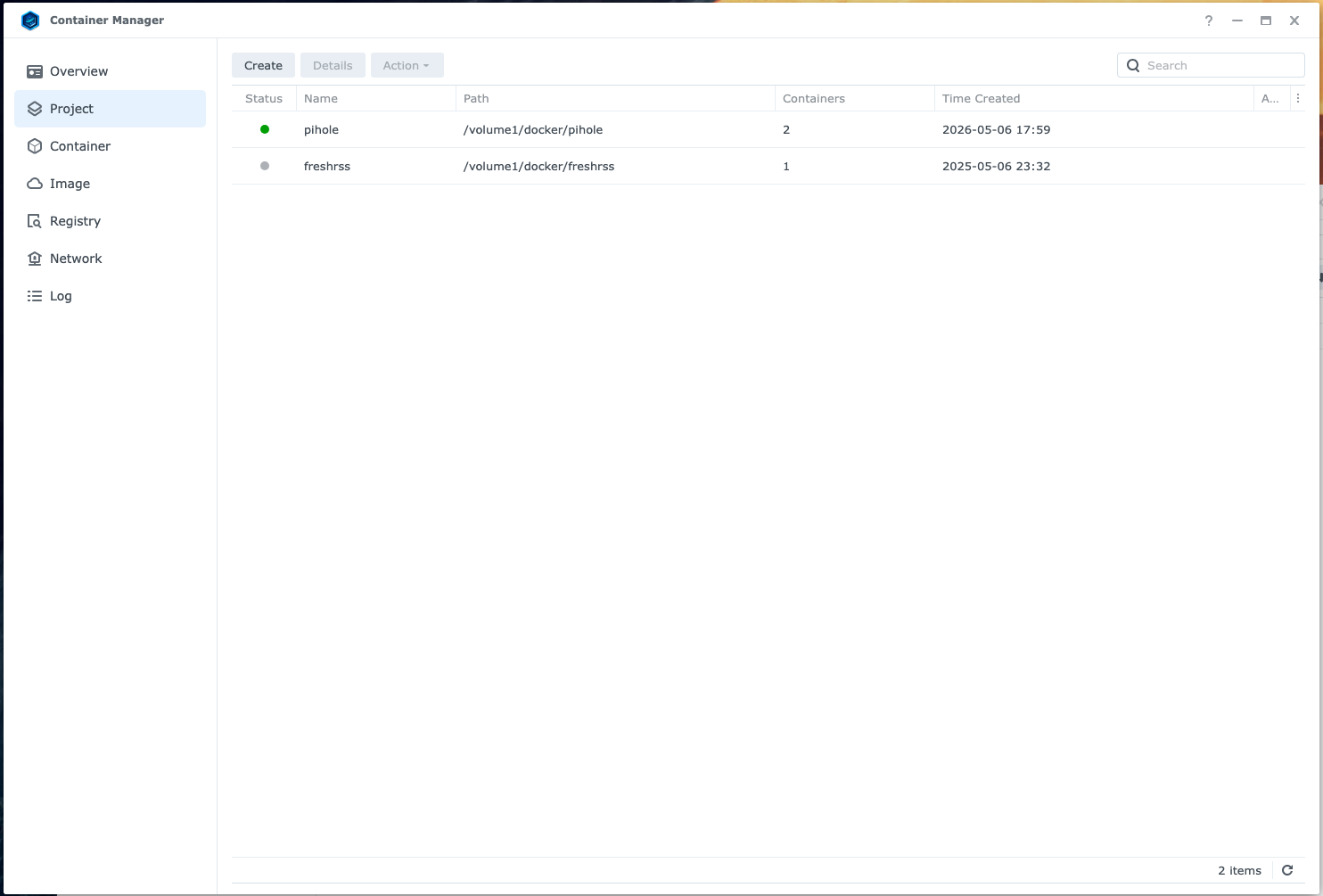
- Paste or upload the Docker Compose YAML.
You can get my sample Docker Compose file from my GitHub and don’t forget to update the variables like password and IP addresses accordingly.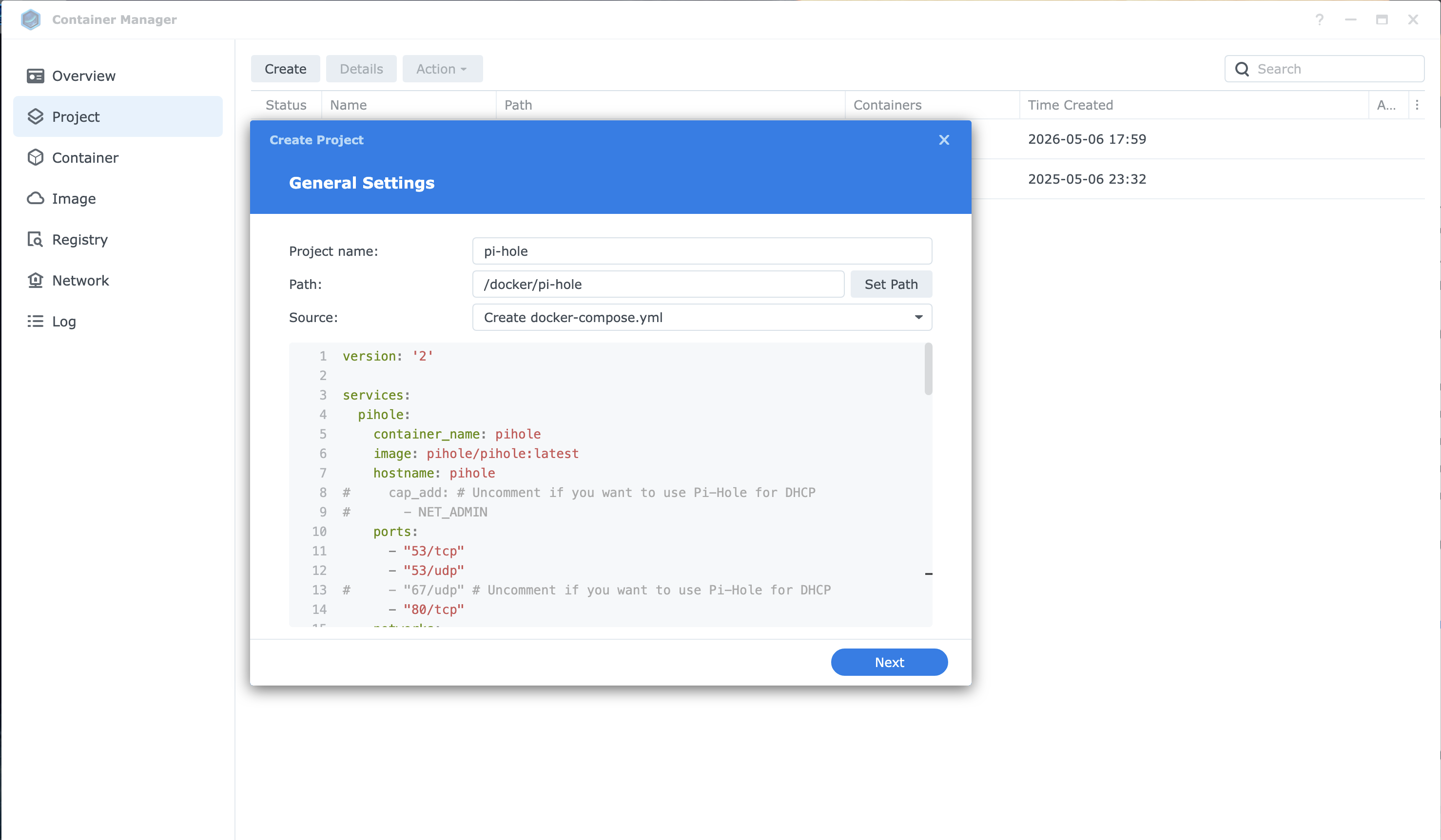
YAML File
- Deploy the stack.
- Confirm that the Unbound and Pi-hole container starts and that the Pi-hole’s web UI is reachable.
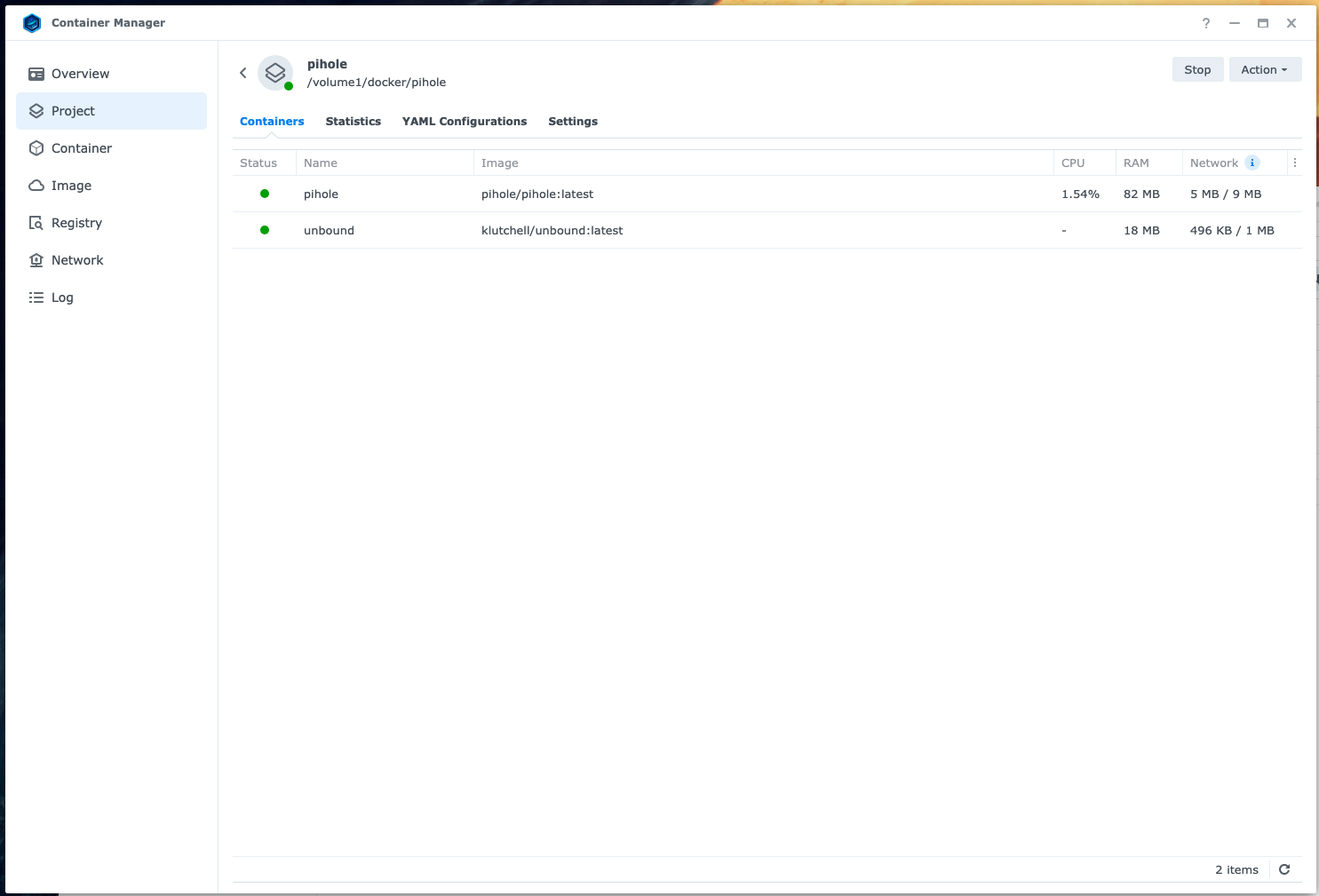
both containers are running
- Set Pi-hole to use the Unbound container as its upstream DNS. Own Recursive DNS Server!!!
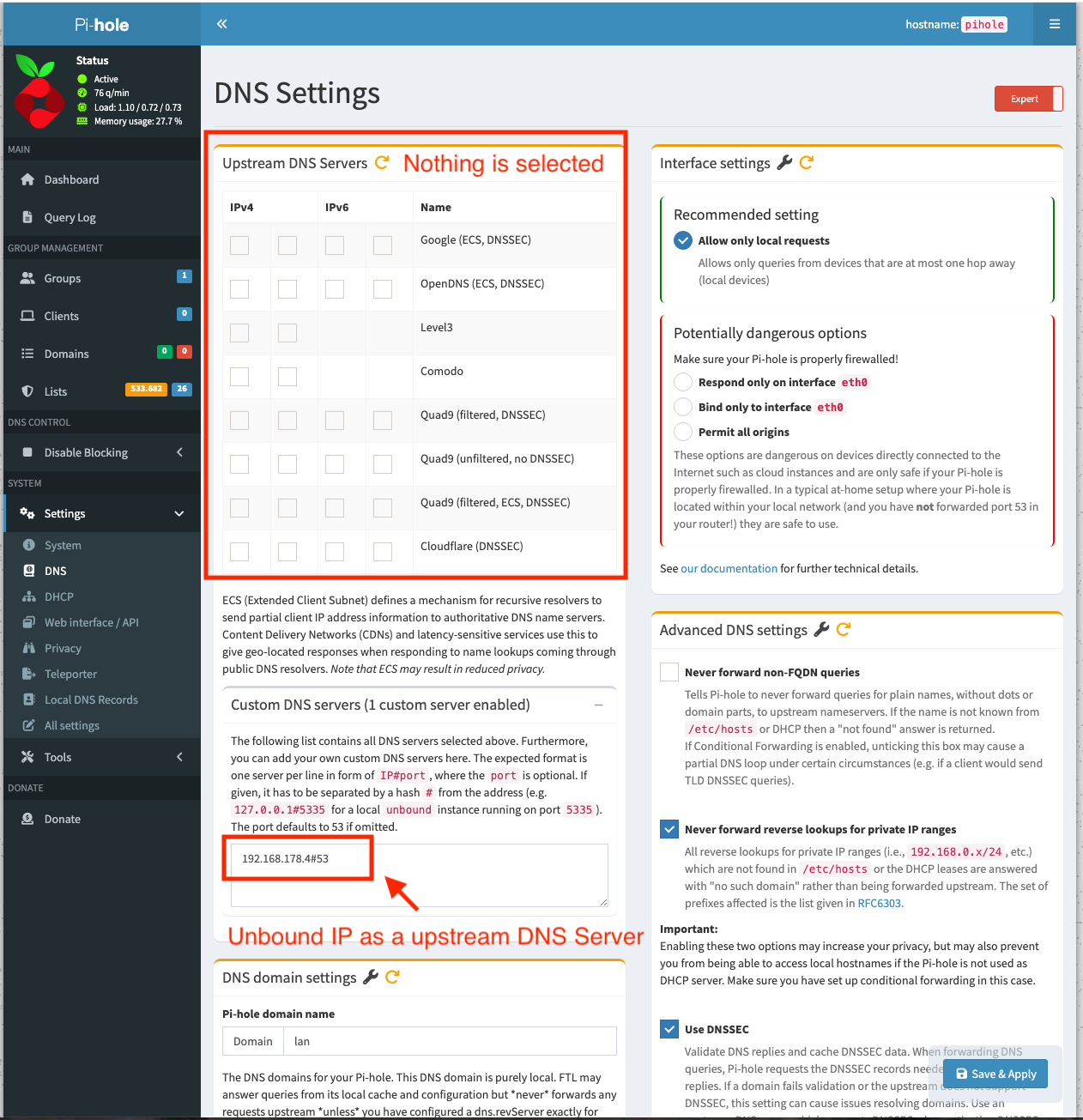
Unbound as upstream dns server
- Test name resolution from a client.
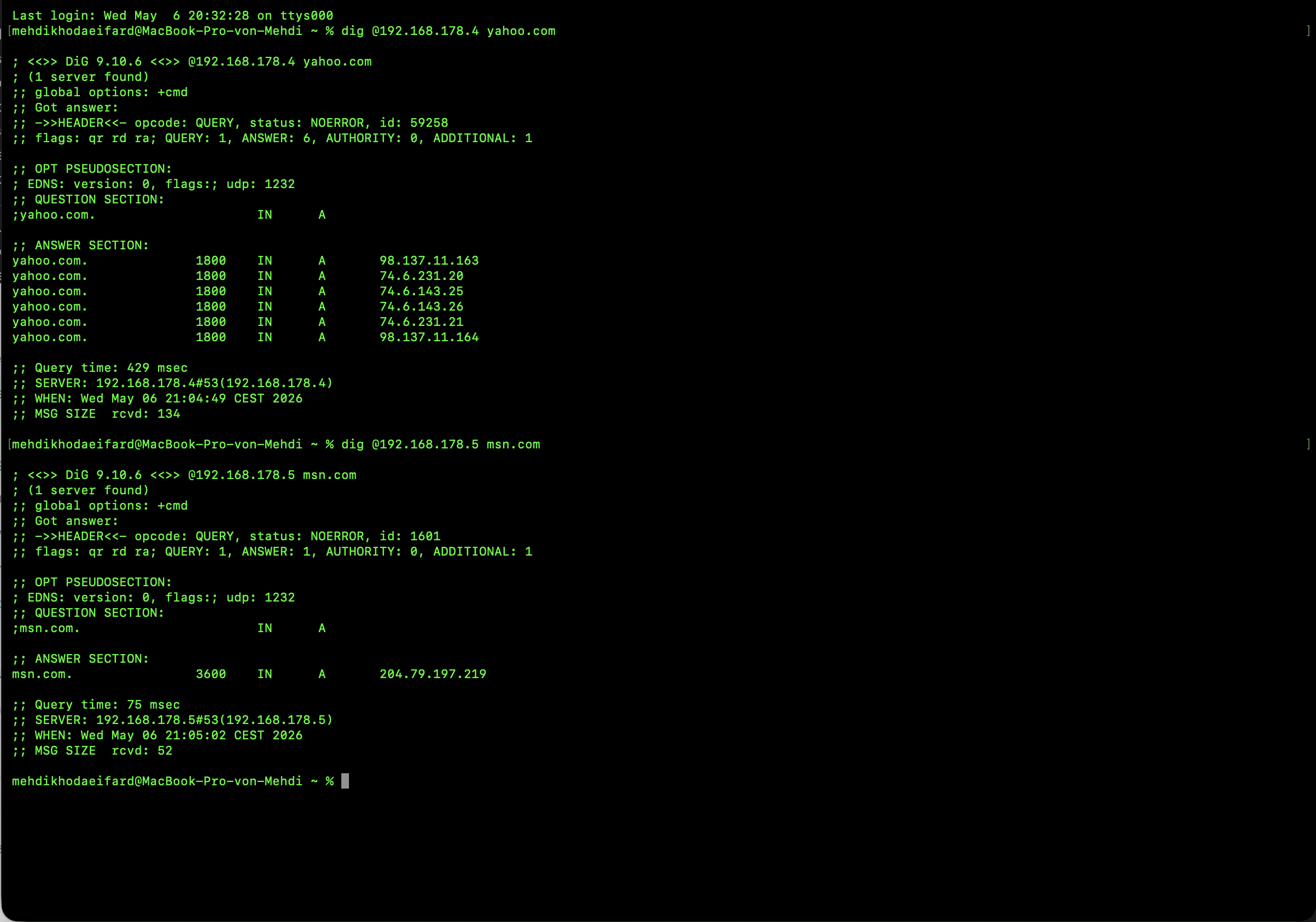
both unbound and pi-hole are responding to dns queries
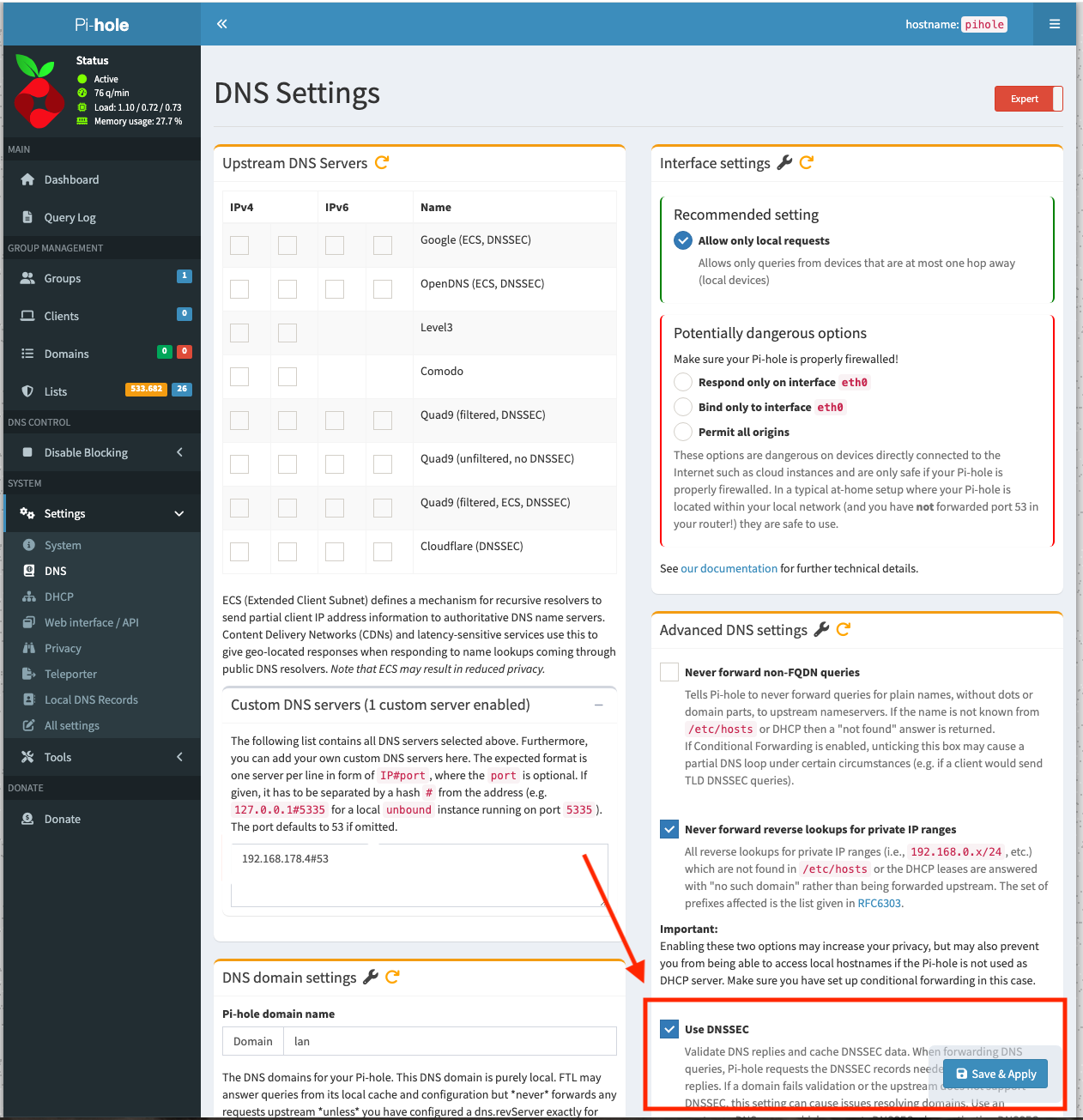
Using DNSSEC
I also wanted DNSSEC validation as part of the setup. Since Unbound is handling recursive lookups and validating DNS replies, Pi-hole does not need DNSSEC enabled separately in this configuration. DNSSEC
In practice, that means DNSSEC is handled at the resolver level, while Pi-hole stays focused on filtering and logging. That keeps the setup cleaner and avoids overlapping DNSSEC validation features.
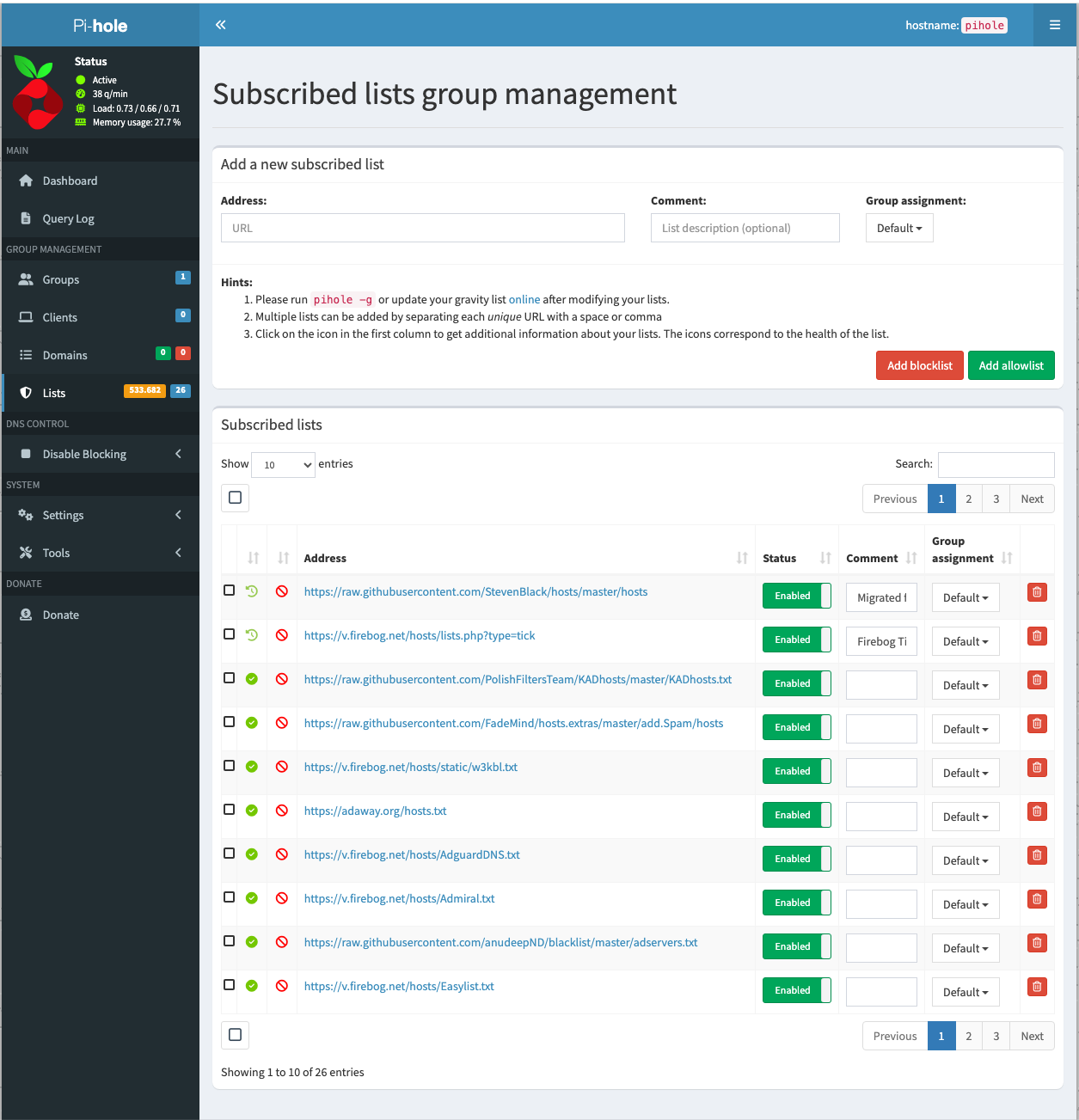
Adding blocklists
The second important step was adding blocklists to Pi-hole. Pi-hole uses gravity to collect and process adlists, then turns them into blocked domains for network-wide filtering. blocklist
This is the part that gives Pi-hole most of its blocking power. Once the blocklists are in place and gravity has run, Pi-hole can block requests for known ad, tracker, and malware domains before they reach the client.
Chosing a such a list is also very important! I have chosen “The Firebog” project which lists some lists out of the following categories: suspicious, advertising, tracking & telemetry, and malicious.
My initial Docker Compose idea
I started with two services:
piholeunbound
Pi-hole got its own IP and the web interface was immediately reachable. I could ping the Pi-hole container and open the admin page without any problem.
The real trouble started with Unbound.
What worked in the end
A few details mattered a lot.
1. Pi-hole v6 password setting
My first login problem was caused by using the old password variable:
WEBPASSWORD: 'password123'
That did not work for me with the Pi-hole version I was running. The fix was switching to the newer variable:
FTLCONF_webserver_api_password: 'password123'
After that, login worked correctly.
2. Unbound image choice mattered
The biggest blocker was the Unbound container image.
I originally used:
image: mvance/unbound:latest
On my Synology NAS, that container kept crashing. After several rounds of checking logs and adjusting config, I switched to:
image: klutchell/unbound
That version started successfully and stayed up.
Problems I faced
This setup was not plug-and-play for me. These were the main issues.
Missing include files in unbound.conf
My first Unbound logs showed that the config was trying to load files that did not exist, such as:
a-records.confsrv-records.confforward-records.conf
That caused Unbound to stop immediately. So the first lesson was simple: if unbound.conf includes extra files, those files must actually exist.
Tips if you want to do the same
Here are the practical tips I would give anyone building the same stack on Synology.
Keep the setup simple first
Start with the smallest working setup possible:
- one Pi-hole container,
- one Unbound container,
- one known-good compose file,
- minimal Unbound config.
Do not start by adding extra records, custom includes, advanced DNS tweaks, or unnecessary logging rules.
Read container logs early
If a container stops, the logs usually tell you why. In my case, the logs quickly revealed whether the issue was:
- a missing file,
- a syntax error,
- a runtime/image issue.
That saved much more time than guessing.
Watch for version-specific settings
This was especially important for Pi-hole. A setting that worked in older posts or tutorials may not be the right one for the current version.
That is exactly what happened with the web password variable.
Test one thing at a time
When several problems appear at once, separate them:
- first, make sure the container starts,
- then make sure the service stays up,
- then test connectivity,
- then test the application login,
- then verify DNS resolution.
That order makes troubleshooting much easier.
How to verify you are really using Unbound
Once everything is running, I would verify the chain in three small steps:
- Make sure Pi-hole is configured to use the Unbound container IP as its upstream DNS.
- Run a DNS lookup against Pi-hole from a client.
- Check Pi-hole’s query log while Unbound is running.
You can also stop the Unbound container briefly and confirm that recursive resolution through that upstream stops. That is a very practical real-world check.