Licensing and Registration of VCF/VVF 9.0
VMware Cloud Foundation 9.0 and VMware vSphere Foundation 9.0 introduce a centralized licensing workflow through VCF Operations, replacing much of the version-specific key handling with a more unified entitlement and usage model.
VCF 9.0 supports two registration modes: connected and disconnected. Disconnected mode is intended for environments without internet connectivity or for fully air-gapped setups. Broadcom describes this mode as suitable for air-gapped networks, where administrators manually exchange registration, usage, and license files with the VCF Business Services portal.
In contrast, connected environments complete registration through the VCF Business Services console, which generates an activation code. This code is then entered into VCF Operations to finalize the process.
For this article, we use connected mode because it provides the simplest registration experience. However, for isolated labs, secure zones, or production air-gapped environments, disconnected mode is fully supported and remains the appropriate approach.
Why this matters
Connected mode is the easiest option for environments that have outbound connectivity because it automates usage reporting and license synchronization through VCF Operations.
The VCF 9.0 licensing model also groups core entitlements such as VMware Cloud Foundation capacity and add-on components like vSAN under a more consistent operational workflow, with assignment and visibility handled from the VCF Operations interface.
Prerequisites
Before starting, make sure VCF Operations is deployed and can reach the required Broadcom services. Connectivity, firewall, proxy, or certificate issues can block registration in connected mode.
You also need a Broadcom account with access to the correct tenant and site in the VCF Business Services console, because registration binds the VCF Operations instance to that entitlement context.
Registration workflow
1. Open the registration page
In VCF Operations, navigate to License Management > Registration. On a fresh system, the page shows both Connected and Disconnected registration modes, and connected mode includes Start Registration and Enter Activation Code actions.
2. Start connected registration
Click Start Registration in the Connected section. This redirects the browser to the Broadcom support portal and opens the VCF Operations registration wizard.
registration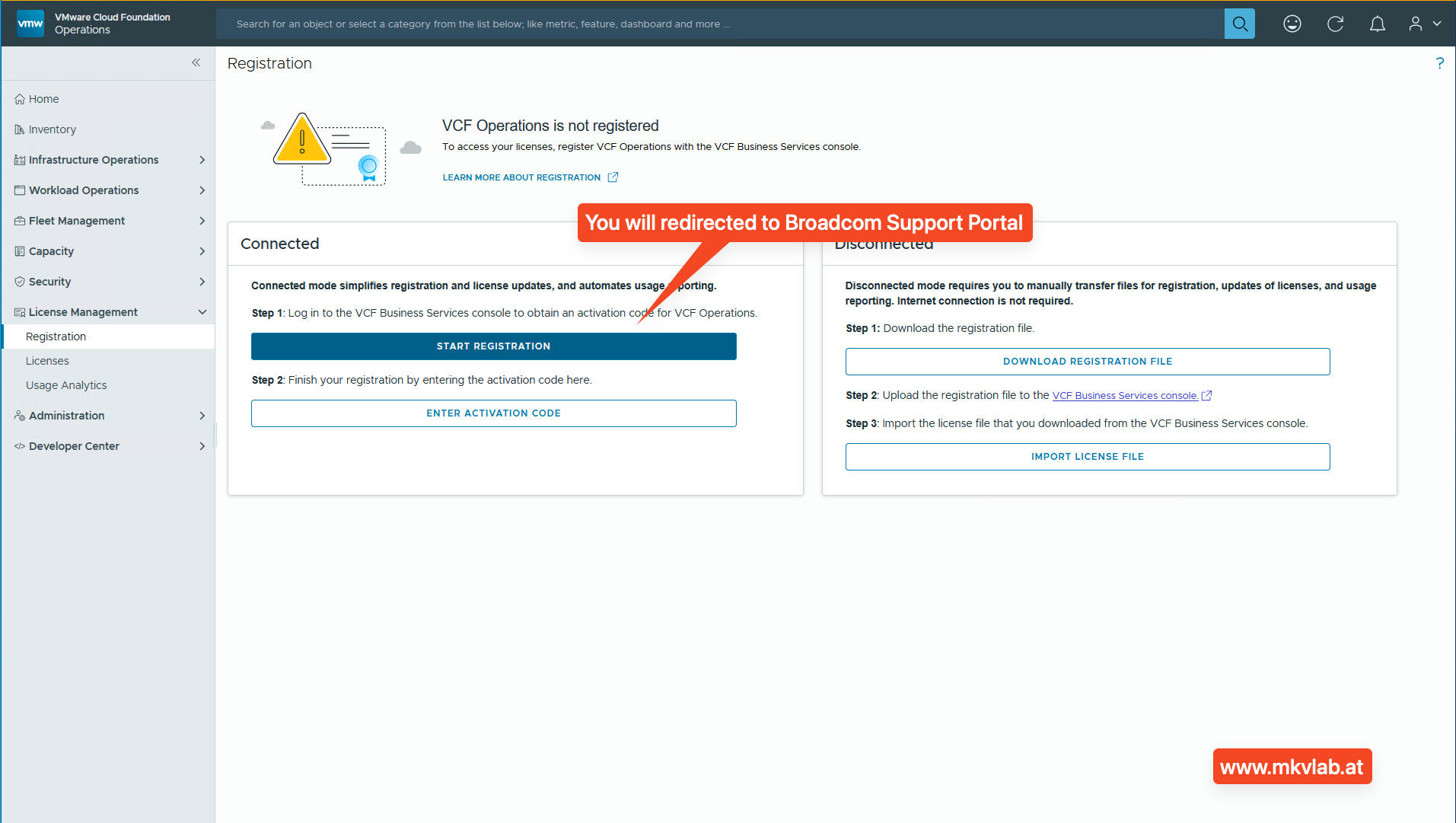
3. Select the tenant and site
Choose the correct tenant and site for the VCF Operations instance. This step is important because the instance must be registered against the intended organization and entitlement boundary.
tenant selection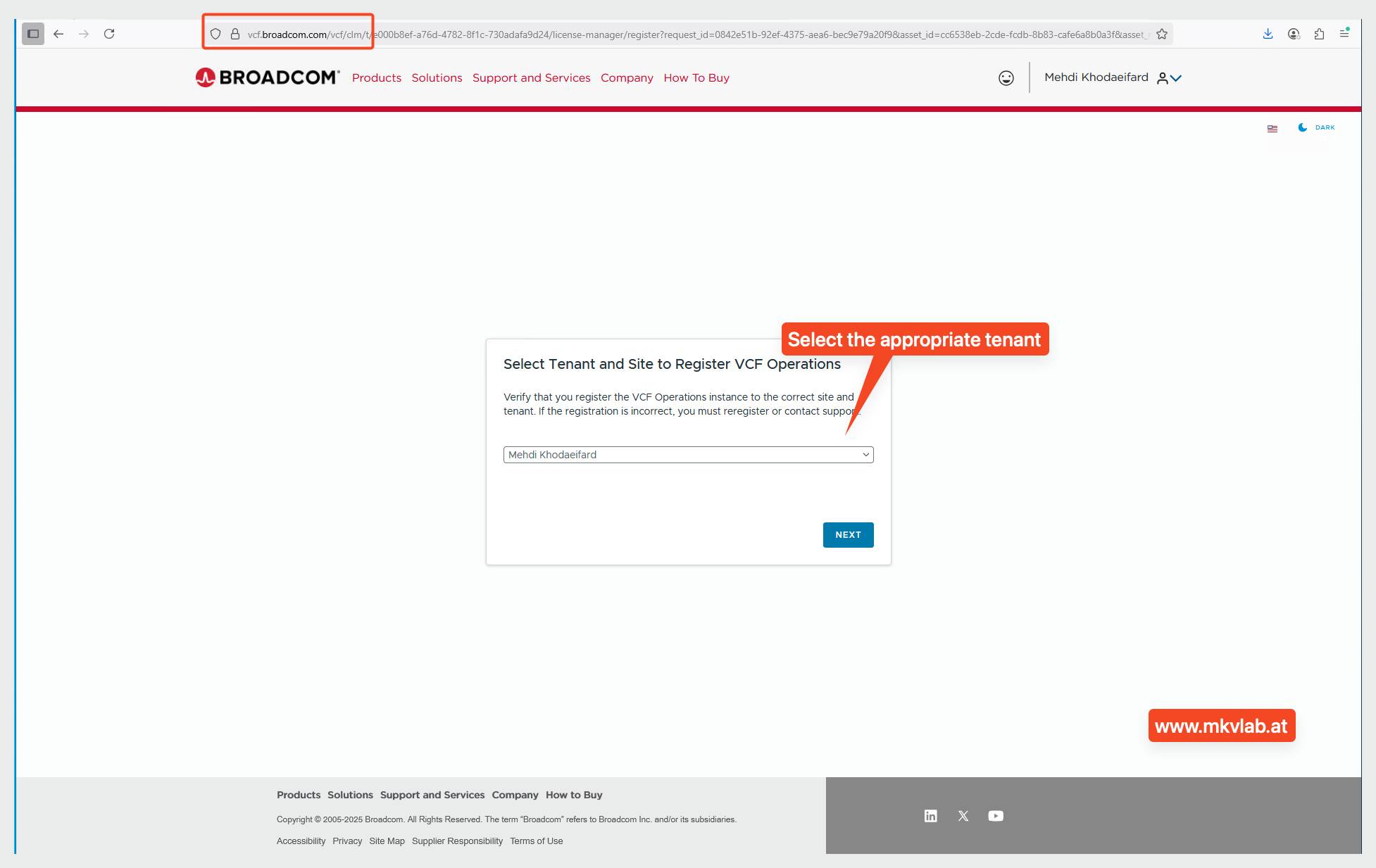
4. Enter a display name
Provide a display name for the VCF Operations instance. A clear and descriptive name makes later license tracking easier, especially when multiple labs or production environments are registered.
display name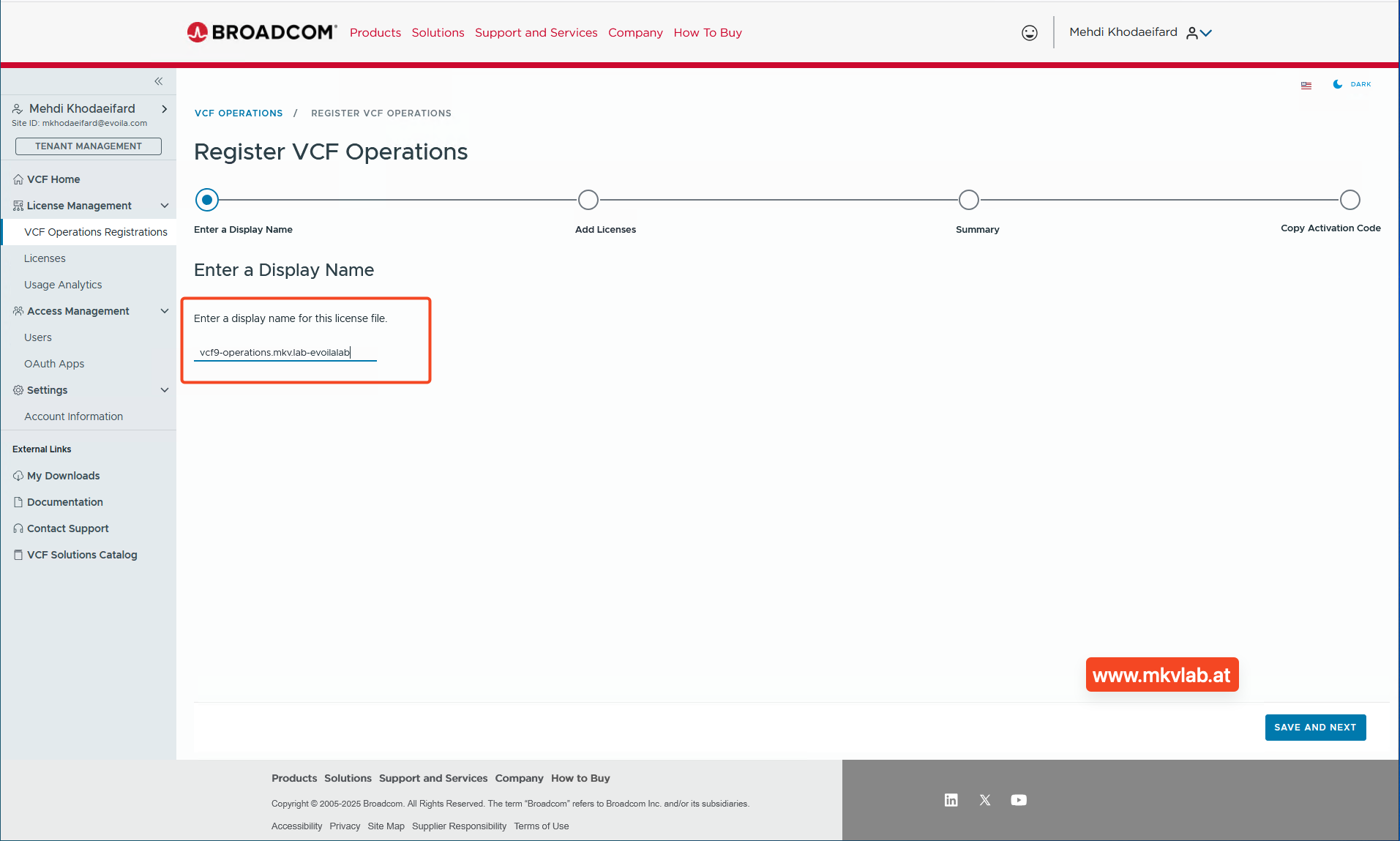
5. Add the available licenses
In the Add Licenses step, select the entitlements that should be associated with this VCF Operations instance. In this lab example, the selected licenses are VMware Cloud Foundation (cores) and VMware vSAN (TiB), matching the common VCF 9.0 core-plus-add-on pattern.
add licenses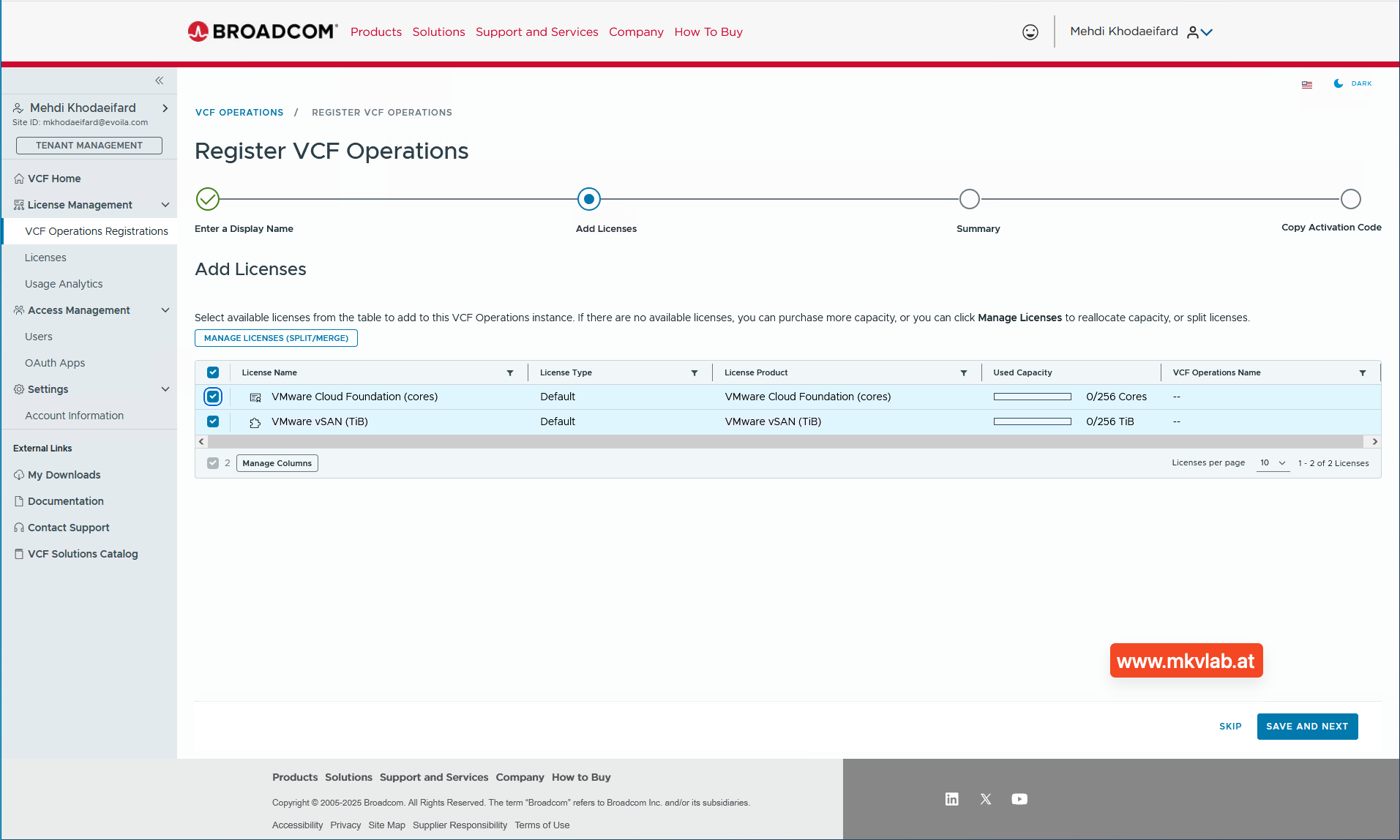
6. Review the summary
Review the summary page and confirm the selected capacities before proceeding. This page shows the licenses and allocated capacity that will be attached to the registered VCF Operations instance.
summary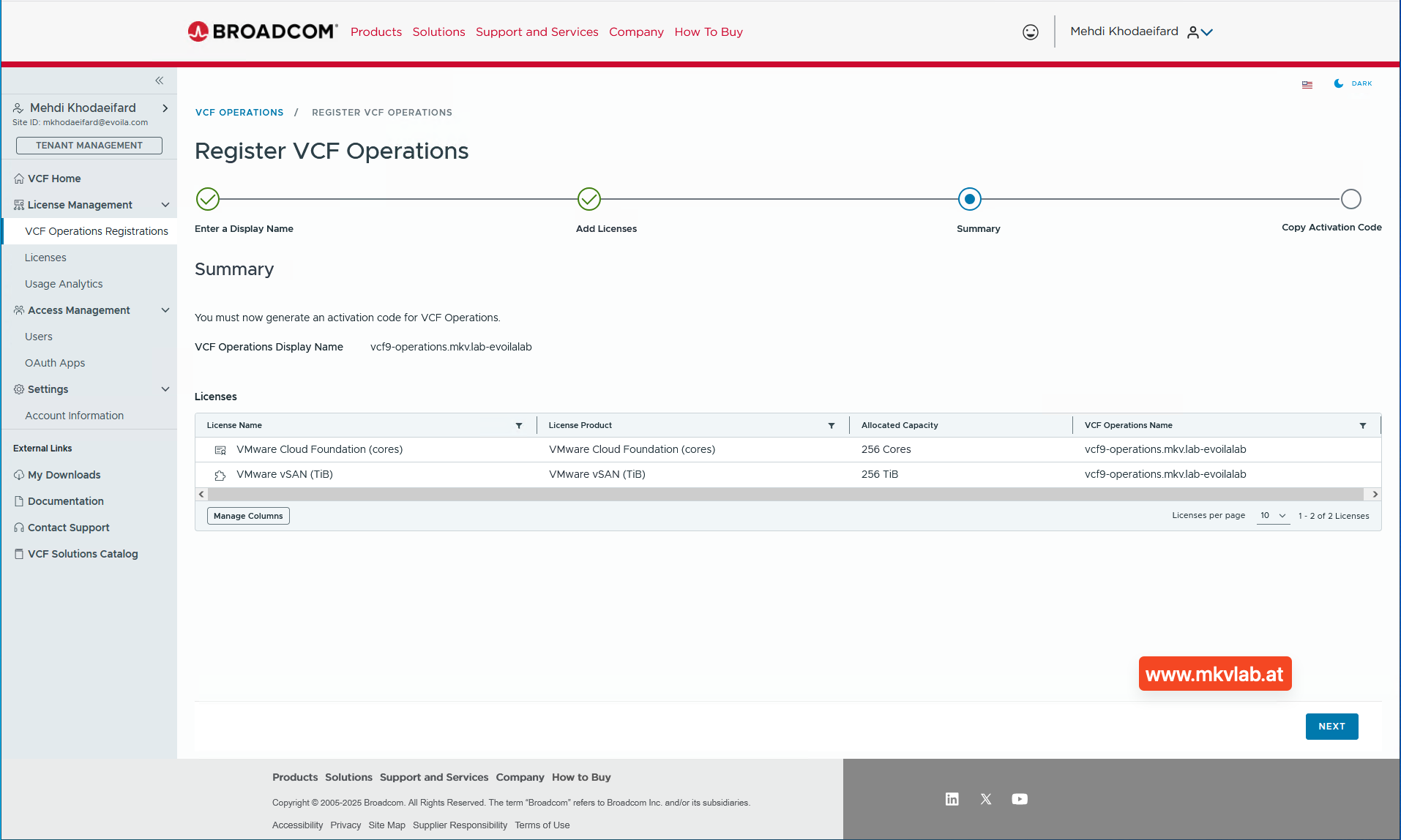
7. Copy the activation code
After the wizard completes in the portal, Broadcom generates an activation code for the VCF Operations instance. Broadcom states that this activation code is the value used to finalize connected-mode registration in the product console.
activation code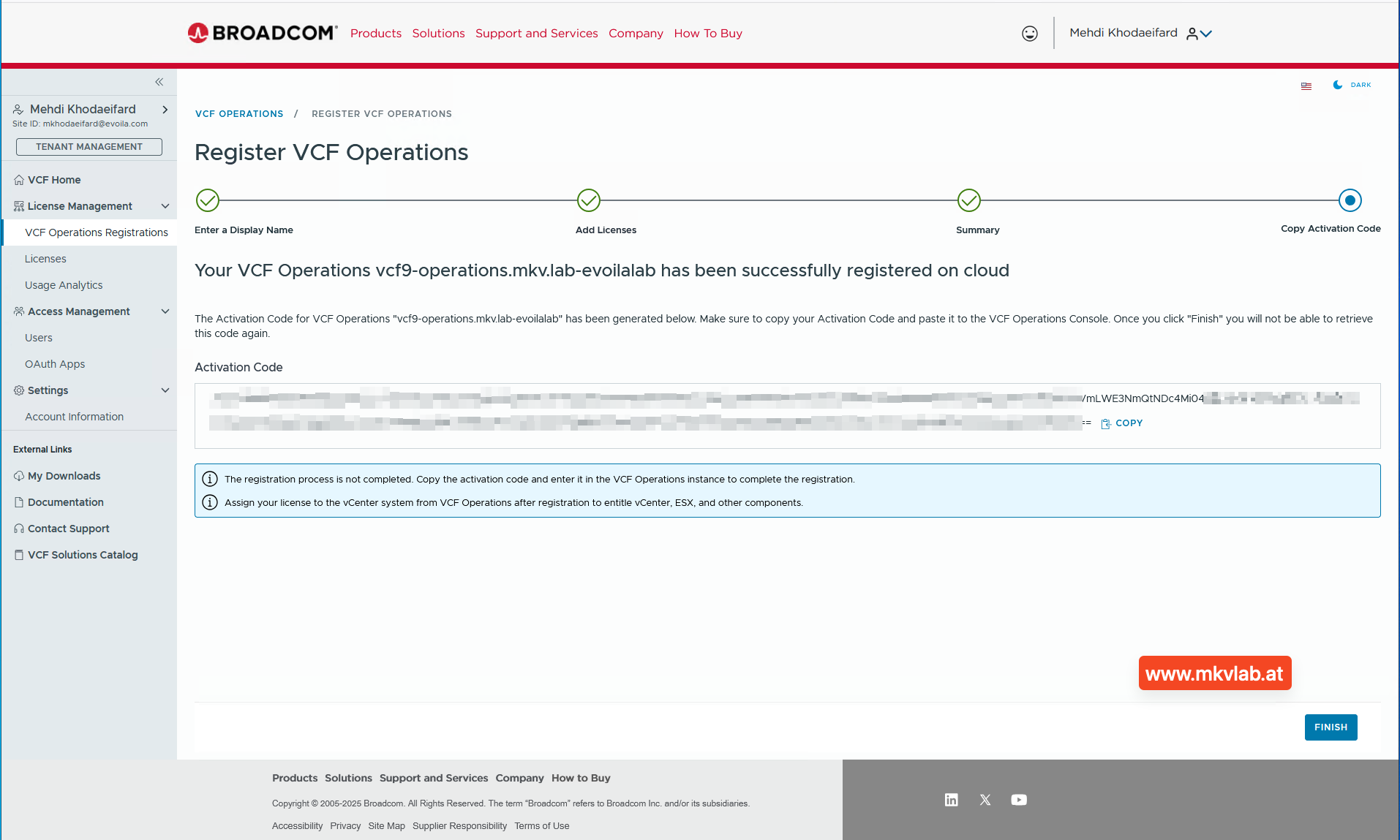
-
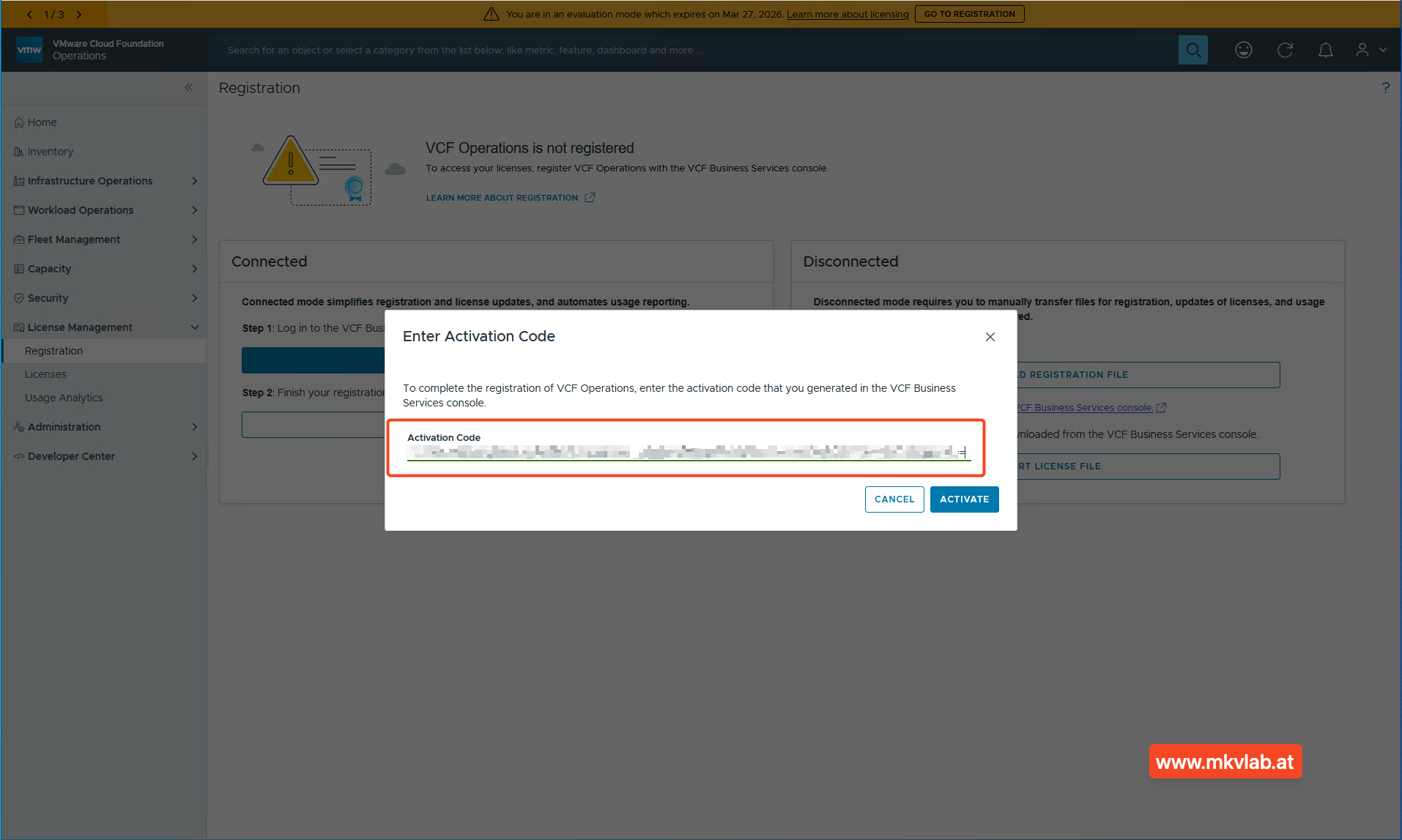
Enter the activation code in VCF Operations Return to VCF Operations, click Enter Activation Code, paste the generated code, and activate it. This completes the registration handshake between the portal and the VCF Operations appliance.
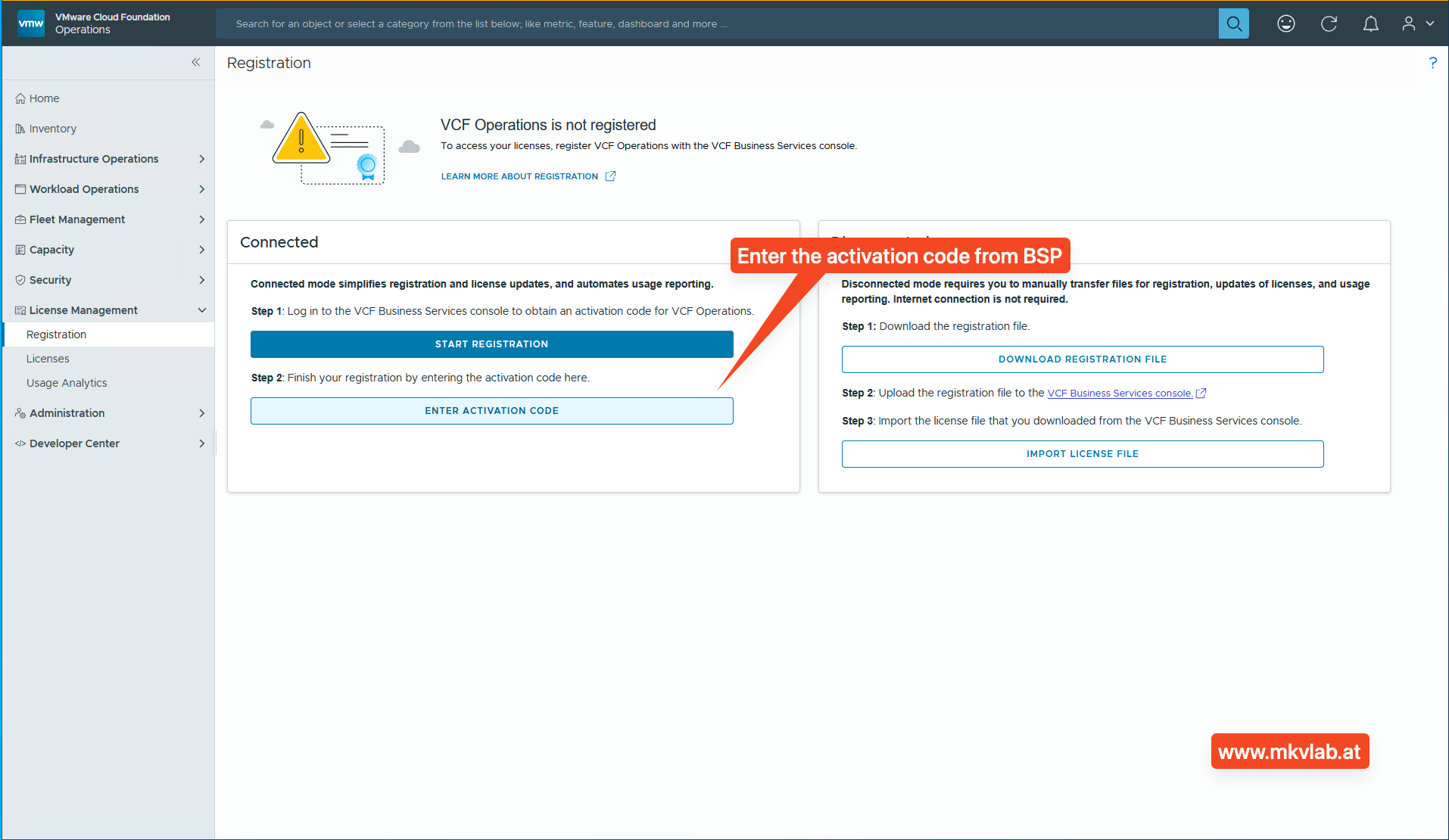
enter activation code
-
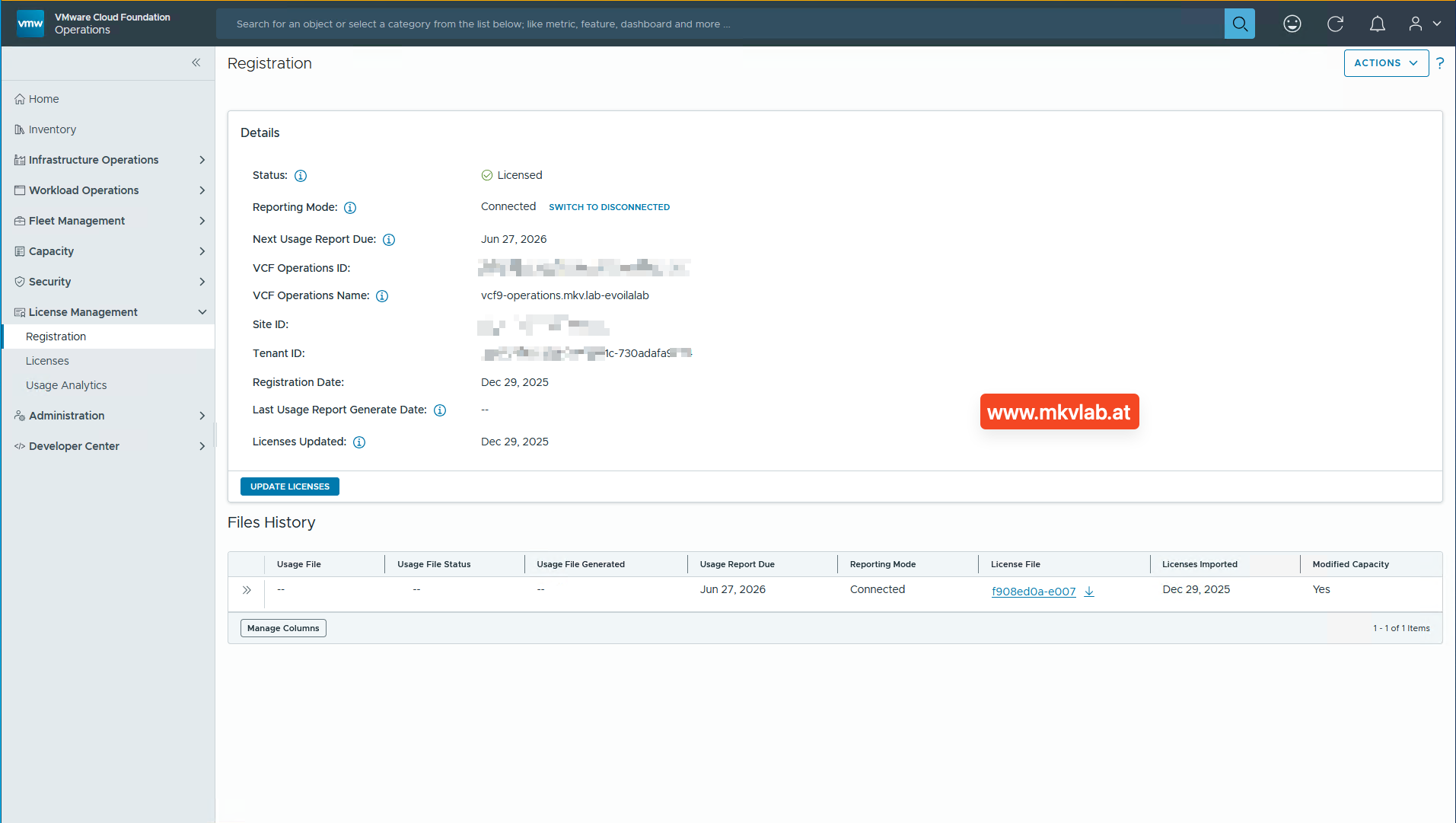
Confirm successful registration Once activation succeeds, the Registration page should show the system as Licensed and the reporting mode as Connected. The page also displays registration metadata such as the registration date, next usage report due date, and imported license file history.
enter activation code
Assign licenses to vCenter
Registration only makes the entitlements available in VCF Operations. The next task is to assign those licenses to the target vCenter system.
10. Open the Licenses view
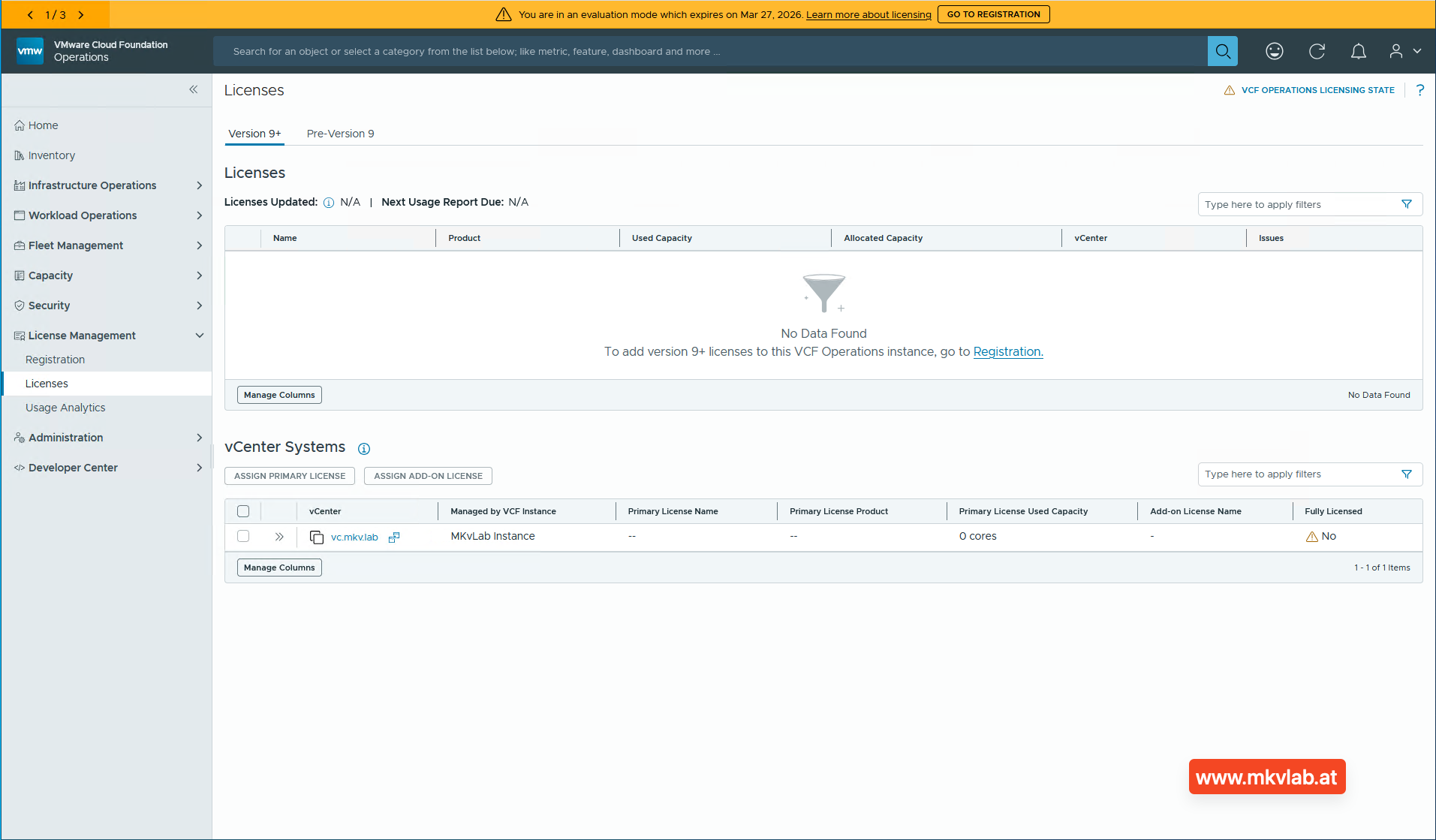
Go to License Management > Licenses and select the target vCenter under vCenter Systems. A newly registered environment can still show the vCenter as not fully licensed until both the primary and add-on licenses are assigned.
11. Assign the primary license first
Select the vCenter and click Assign Primary License. In this workflow, the primary license is VMware Cloud Foundation (cores), and it must be assigned before any dependent add-on license.
promary license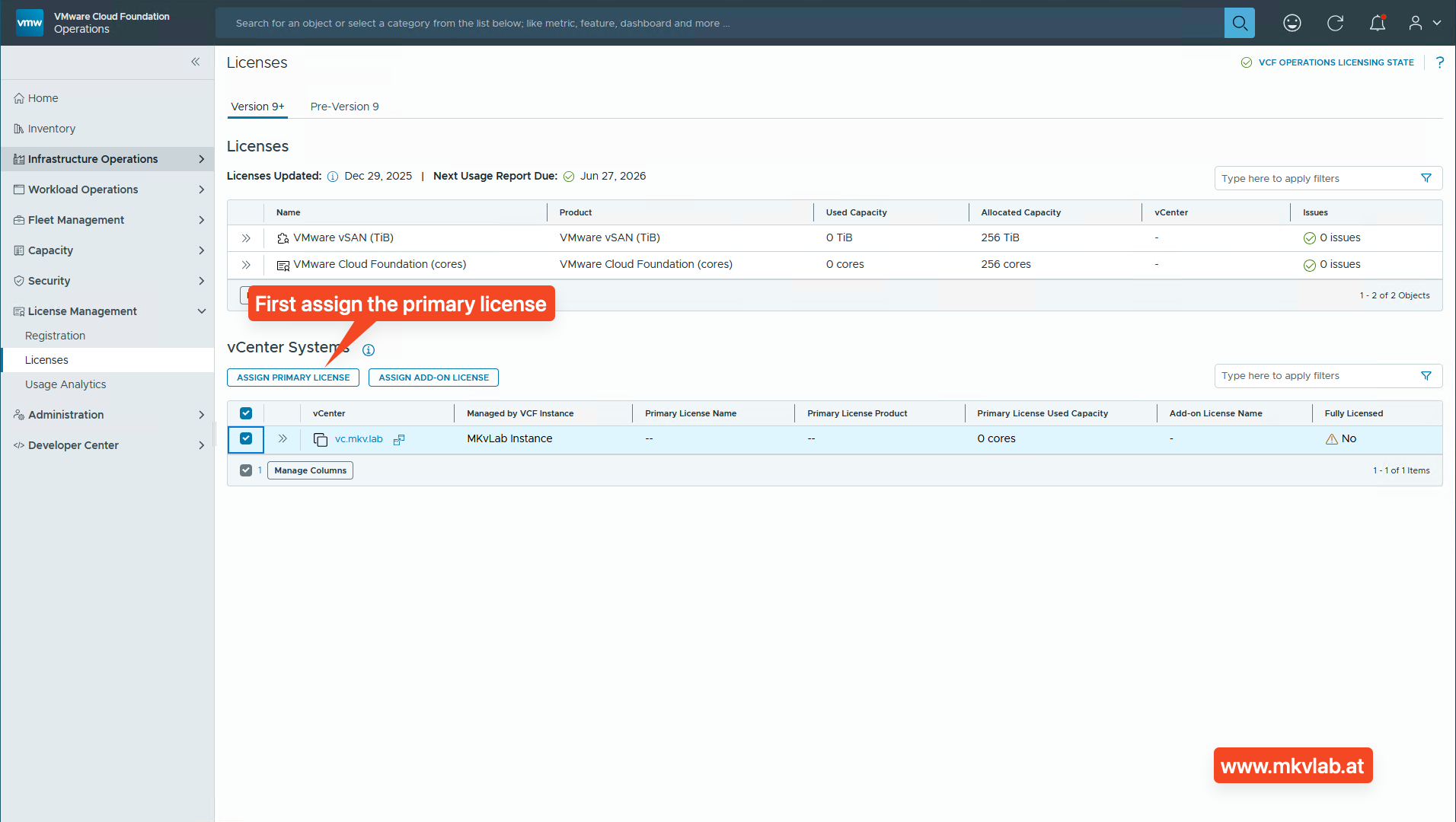
Then confirm the primary entitlement by selecting the available VCF cores license and clicking Assign.
assign primary license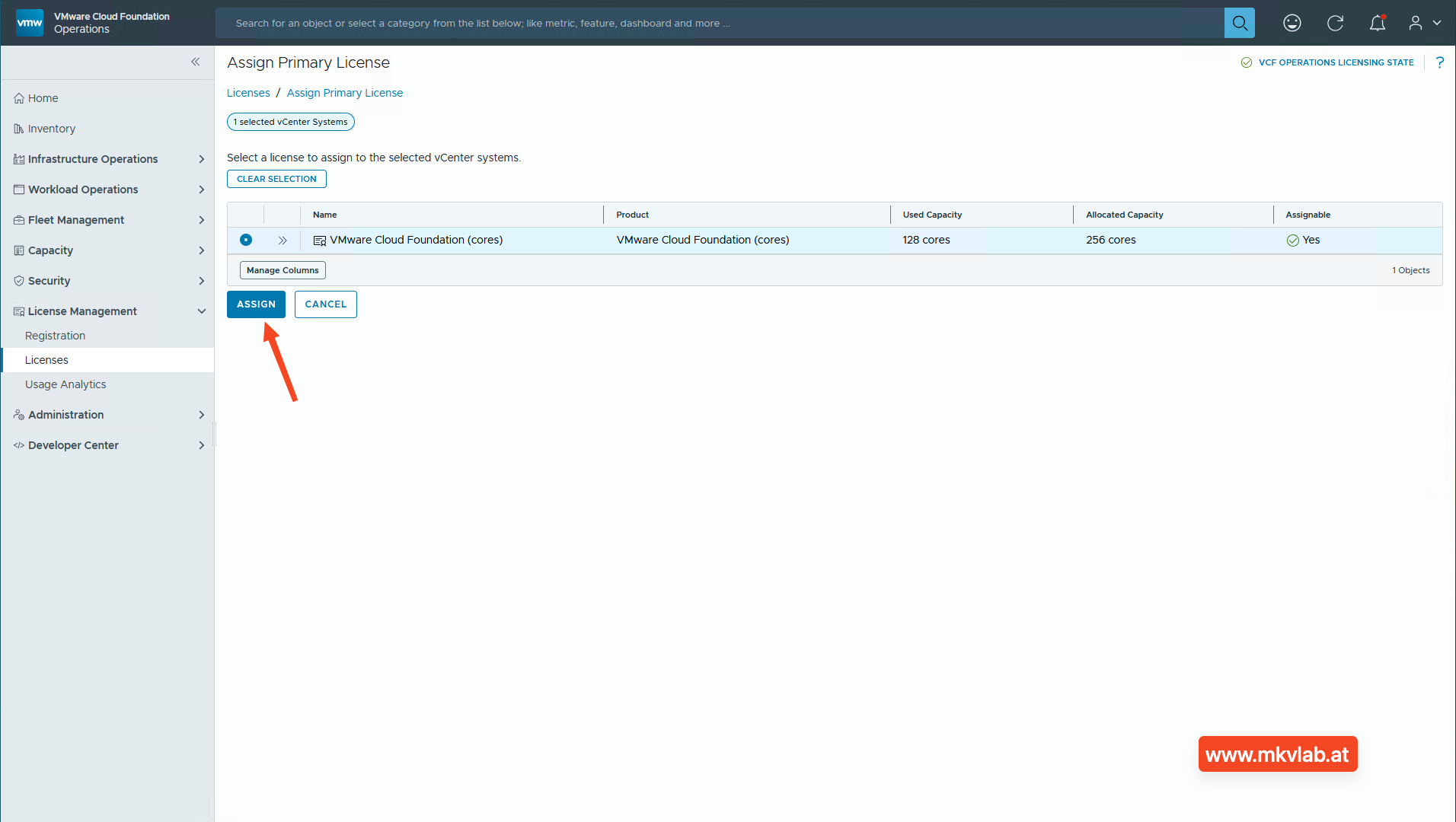
12. Assign the add-on license
After the primary license is attached, select the same vCenter and click Assign Add-on License. In this example, the add-on license is VMware vSAN (TiB).
add-on license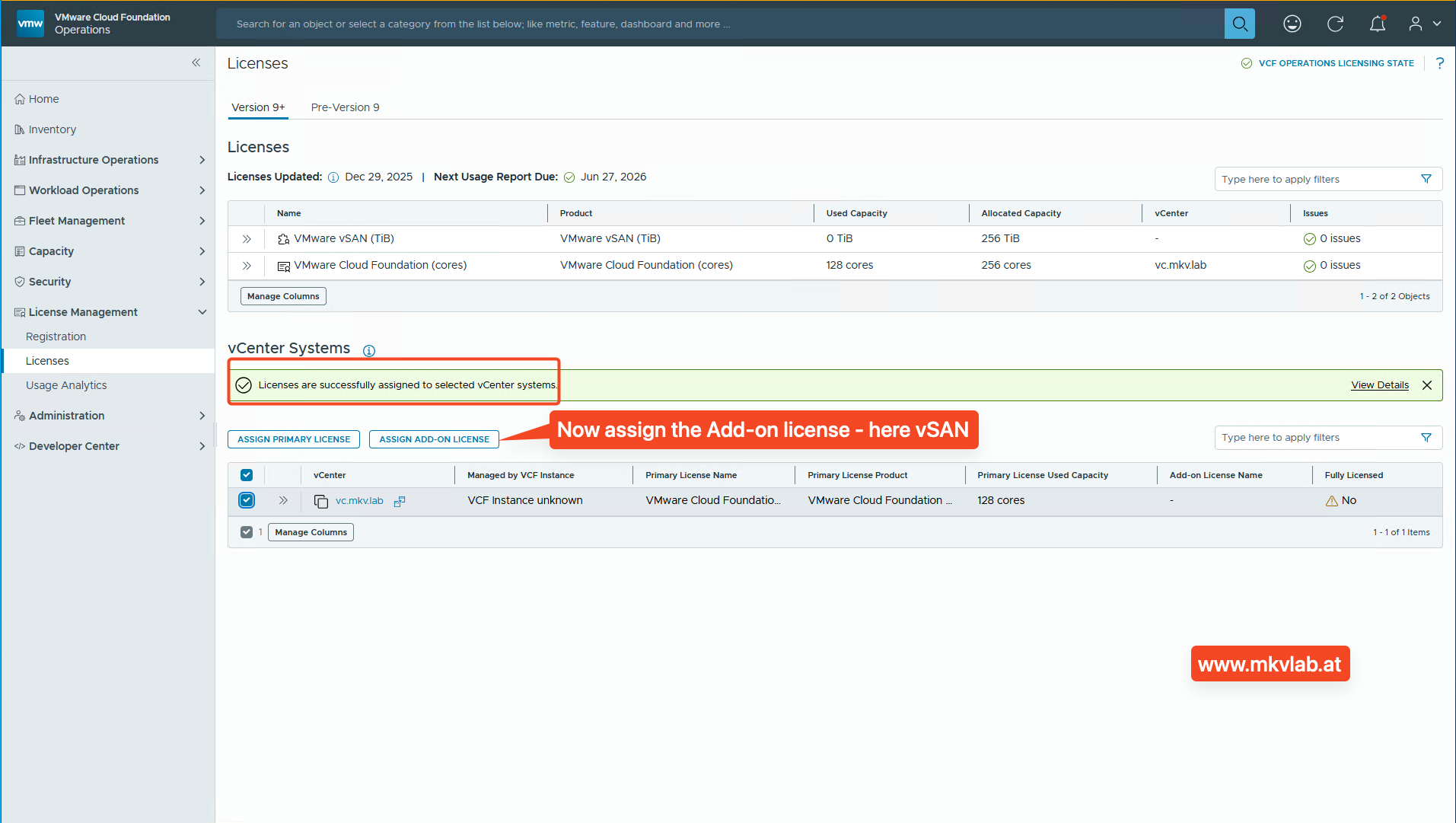
Select the appropriate add-on entitlement and click Assign to complete the licensing sequence.
assign add-on license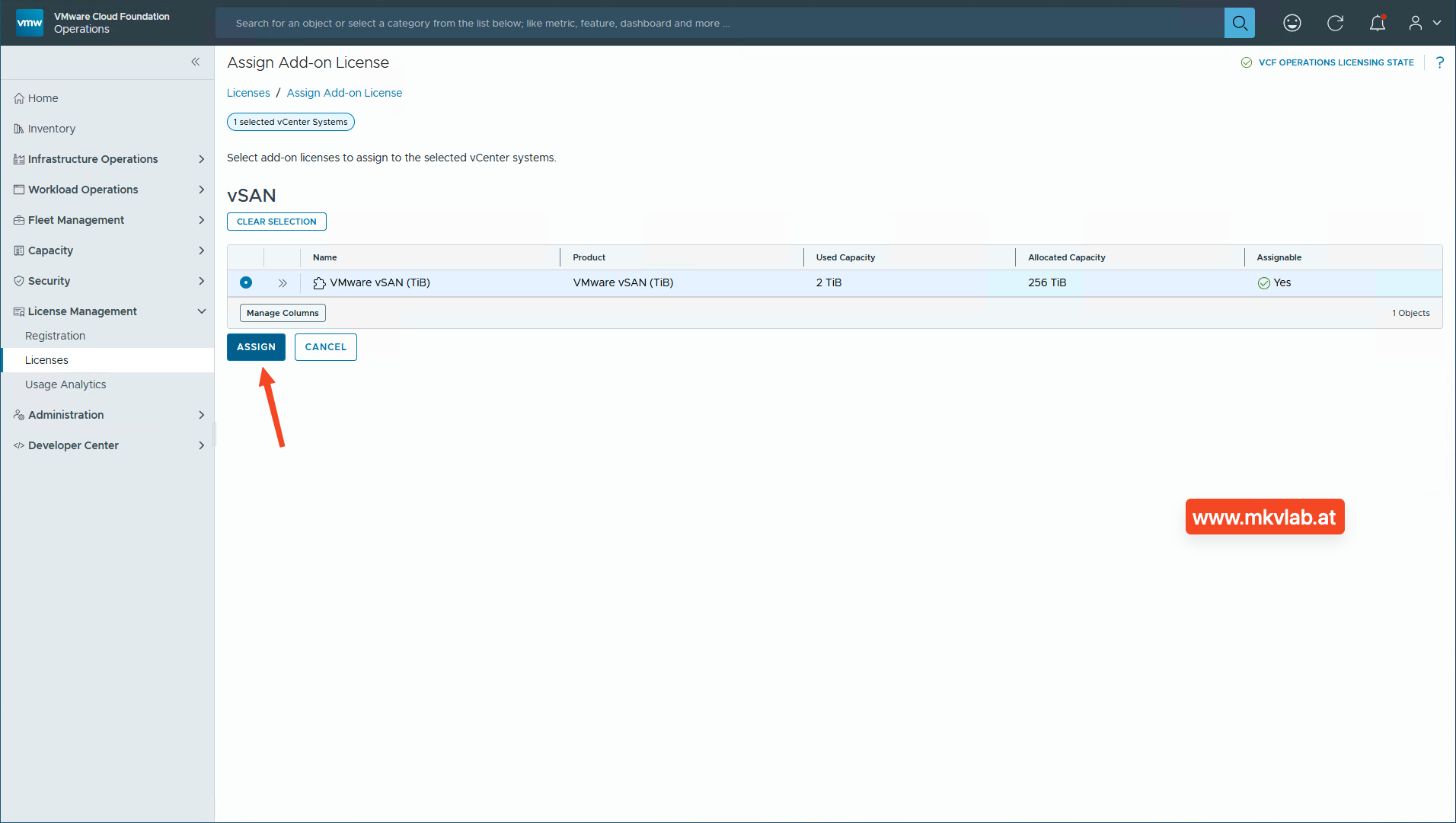
13. Verify the final state
Once both licenses are assigned, the vCenter should show the correct primary and add-on products, along with the associated usage and expiration information. The final details pane in this lab confirms that the vCenter instance is fully licensed and shows both the VCF core and vSAN add-on association.
fully licensed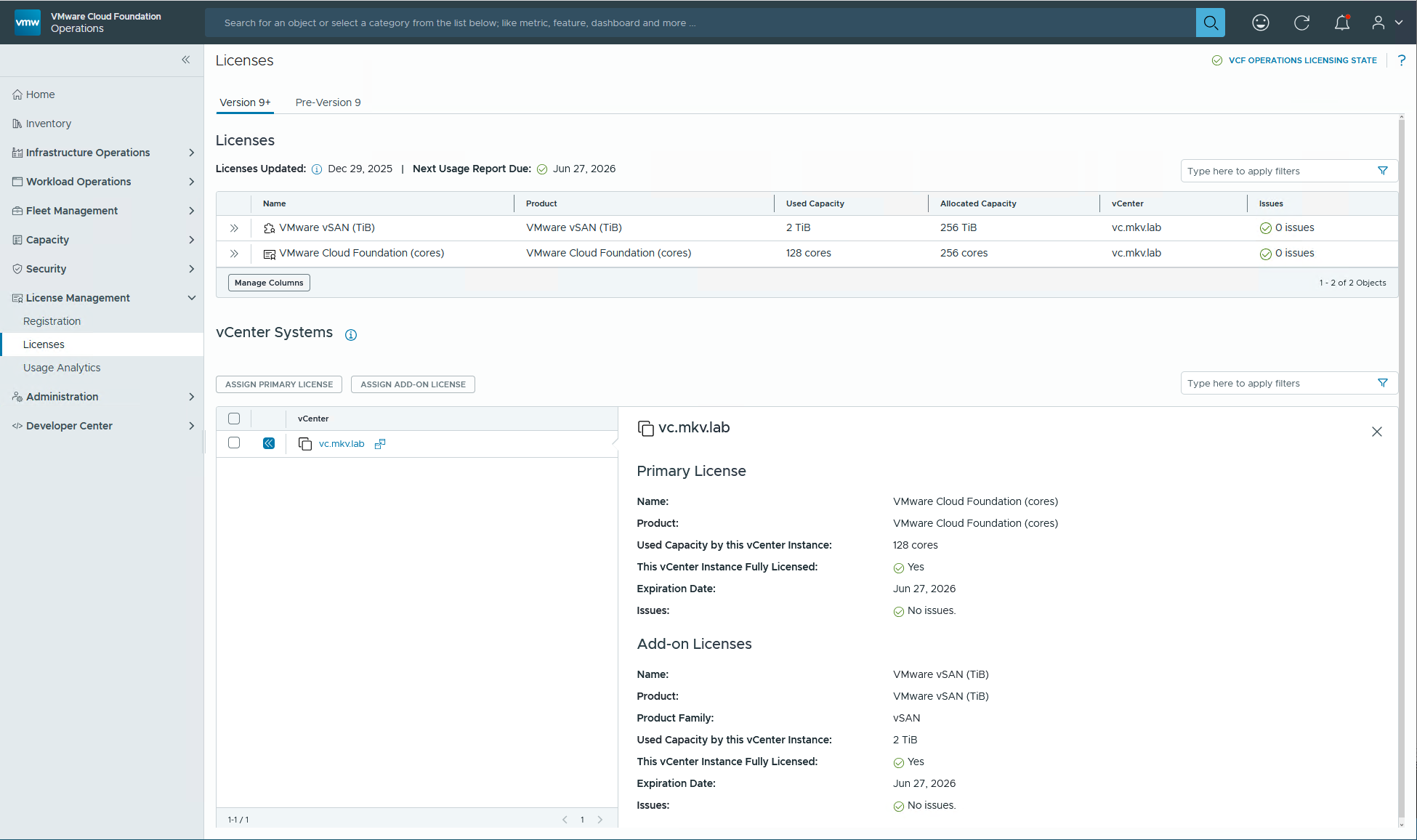
Notes from the lab
A useful operational detail from this workflow is the order of assignment: assign the primary license first and then the add-on license. That sequence is visible in the lab screenshots and avoids confusion when the vCenter initially appears only partially licensed.
Another practical takeaway is that connected mode is ideal when the environment has internet access and can reach the Broadcom services required for registration and reporting. For dark sites or air-gapped deployments, Broadcom documents a separate disconnected workflow instead.
Closing thoughts
VCF/VVF 9.0 licensing is much easier to follow once the workflow is broken into two parts: first register VCF Operations in connected mode, then assign the imported entitlements to the vCenter systems. In day-to-day operations, that gives administrators a single place to track license allocation, usage, and reporting status across the environment.