How to update your VMware ESXi 6.x, Offline Mode
I have talked about how to update ESXi hypervisor in online mode in my past article. And I said that I will write a post about updating ESXi host in offline mode. So, there we go!
But first of all, answer the question:
Why do we need to use offline mode when we can update in the online mode very easy?
And the answer is:
There are many reasons, but most frequently reason is sometimes our host has no internet access! And we cannot use online mode.
Offline mode is also very simple and fast and needs to run commands in SSH session like online mode, so if you don’t know how to enable SSH service, just take a look in my article.
Today, I will update my ESXi 6.5.0 with build number 4564106 to latest version 6.5.0a with build number 4887370, but basically, you can use the procedure for ESXi 6.x. only you need to download appropriate patch file.
See Also:
You can read the VMware ESXi 6.5.0a Released Note.
You can read the ESXi Version 6.5.0 History.
Before you start:
- Make sure you have a backup from your VMs, and/or I would to take a snapshot before any update to make sure that I have update discard possibility.
- Always good to check if your hardware is compatible with the version of ESXi. You can take a deep look at VMware Compatibility Guide to make sure your hardware is compatible or not!
- Download update patch file (.zip).
- Make sure you have downtime; the update requires host reboot.
How to Update:
- Put your host into maintenance mode: open ESXi host web client and navigate to Host > right click > enter maintenance mode.
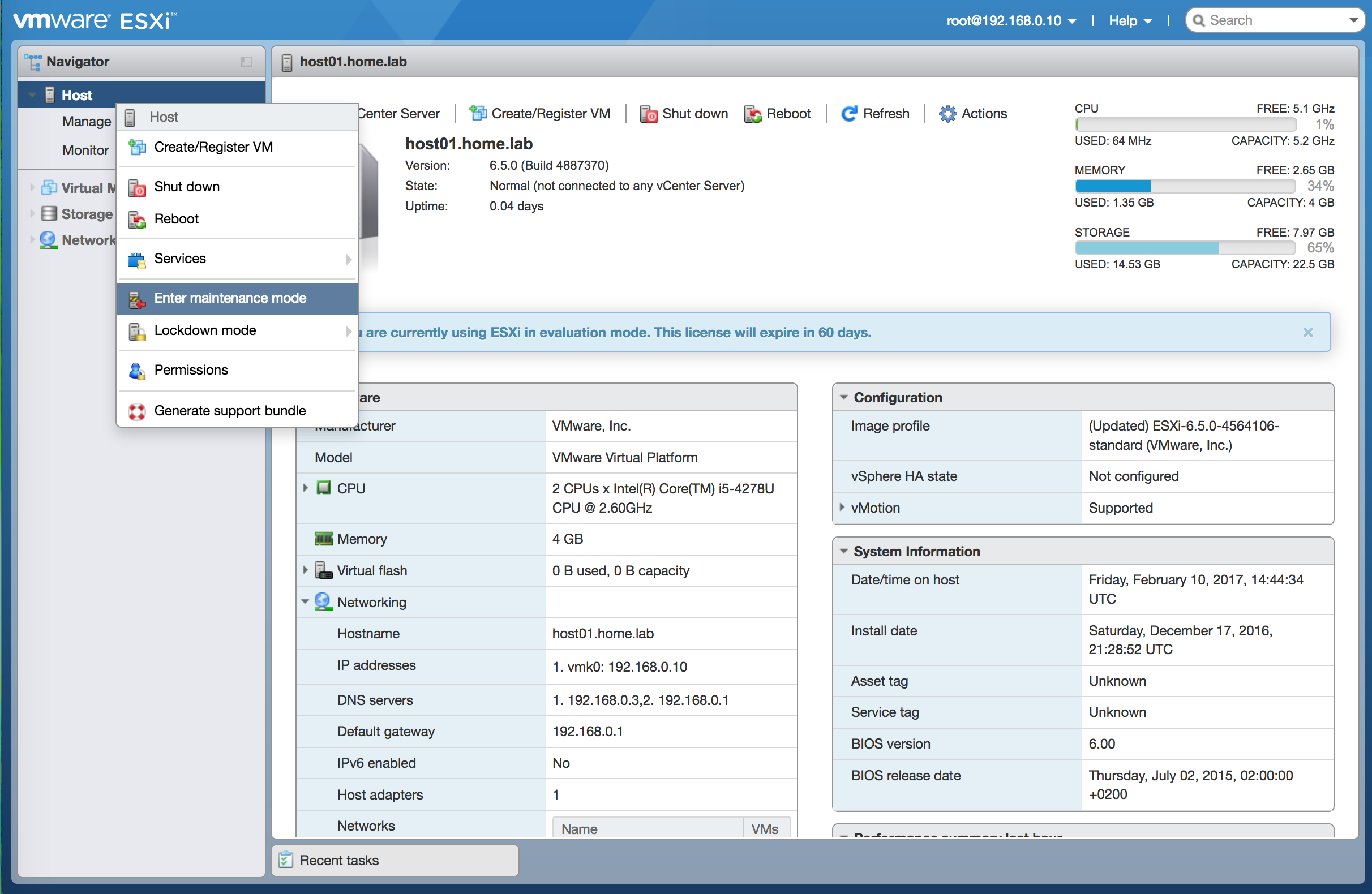
enter maintenance mode
- Copy patch file to datastore: you have to transfer downloaded patch file to datastore. Navigate to Storage > select datastore > datastore browser > upload and then upload the patch file.
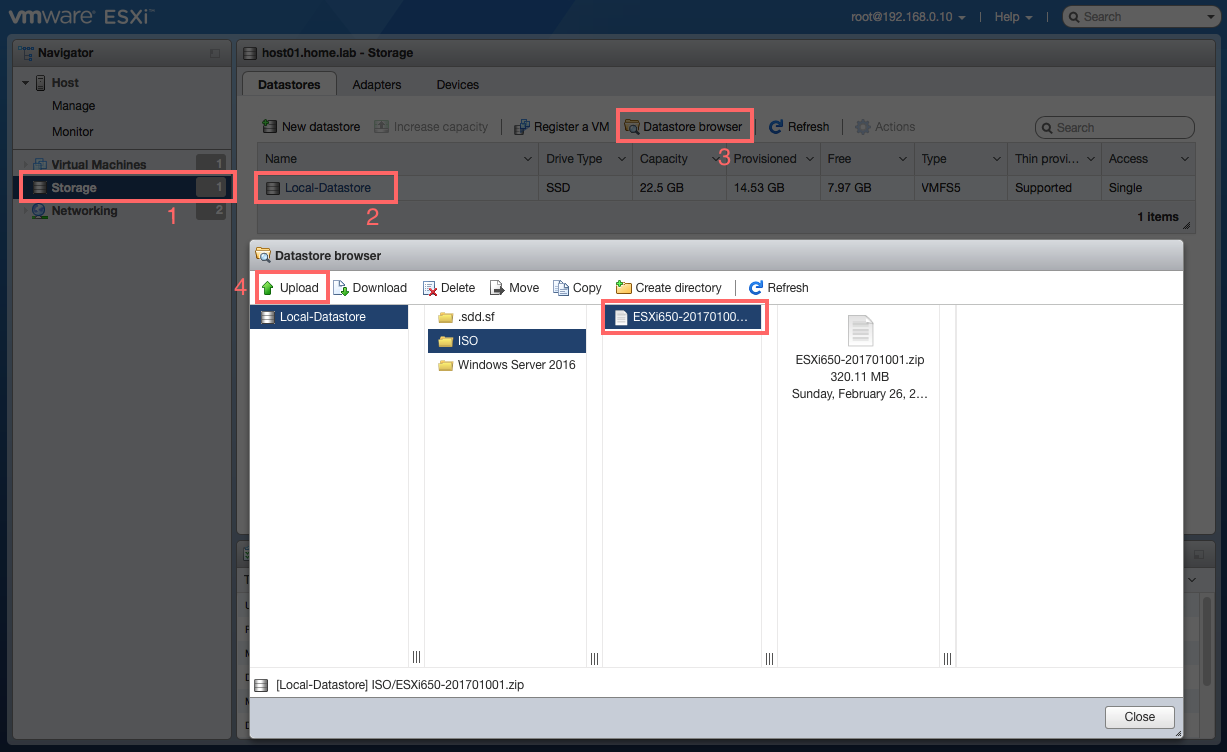
copy patch file to datastore
- Open SSH session to your ESXi host: use your SSH client of choice like PuTTY. First, you need to enable SSH service in your ESXi web client. Navigate to Host > Manage > Services and start service TMS-SSH.
- Determine your current version: If you want to determine your current software version and build number:
vmware –vl
- Update ESXi host :
esxcli software vib update -d <file path/patchfile.zip>
in my case:
esxcli software vib update -d /vmfs/volumes/Local-Datastore/ISO/ESXi650-201701001.zip
- Reboot host: at the end, you need to exit maintenance mode and as part of required step reboot the host with the command or from the web client.
You can see the build number changed to target build number and also yo can run command vmware –vl again to see your build number.
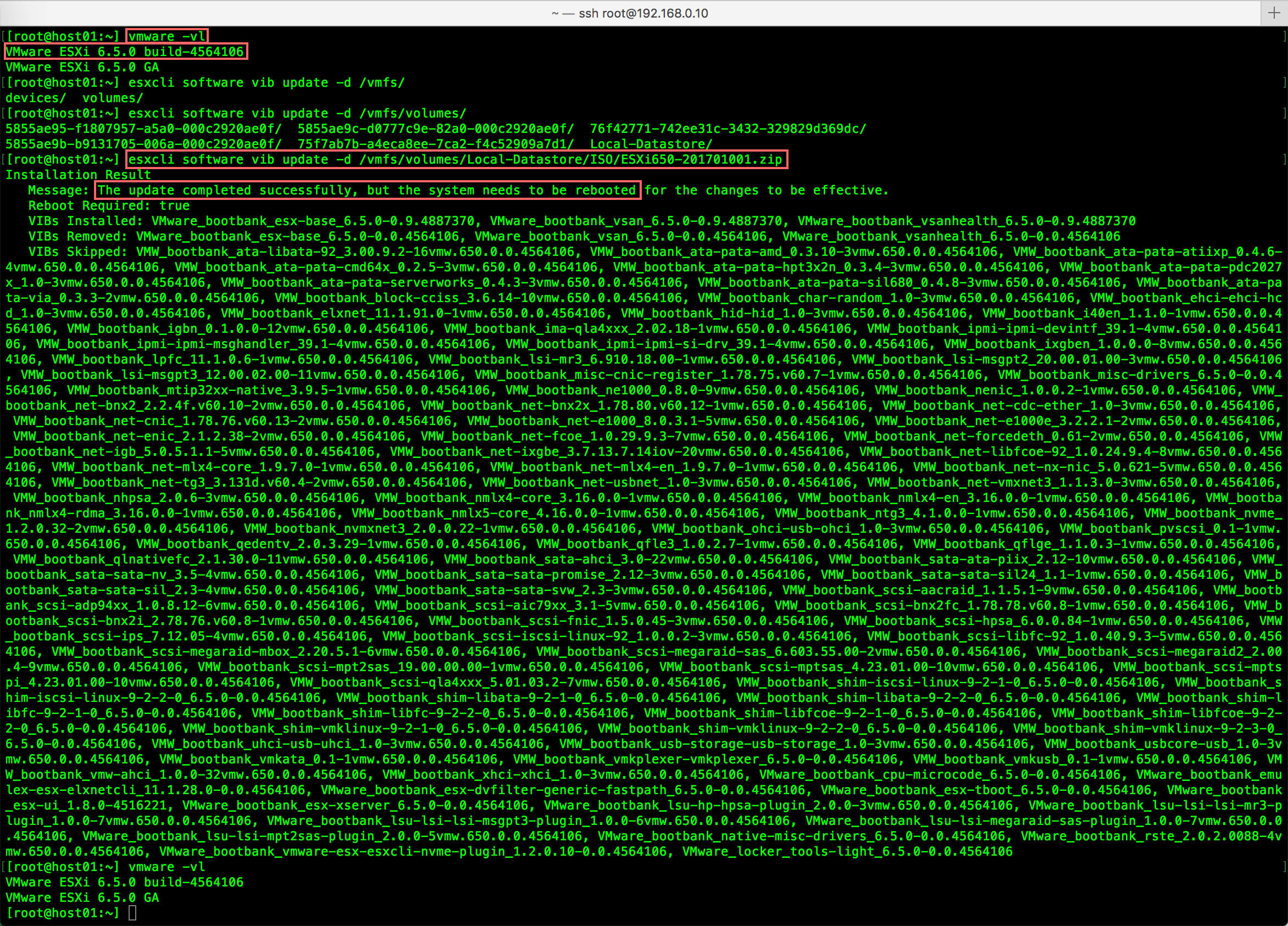
update completed successfully
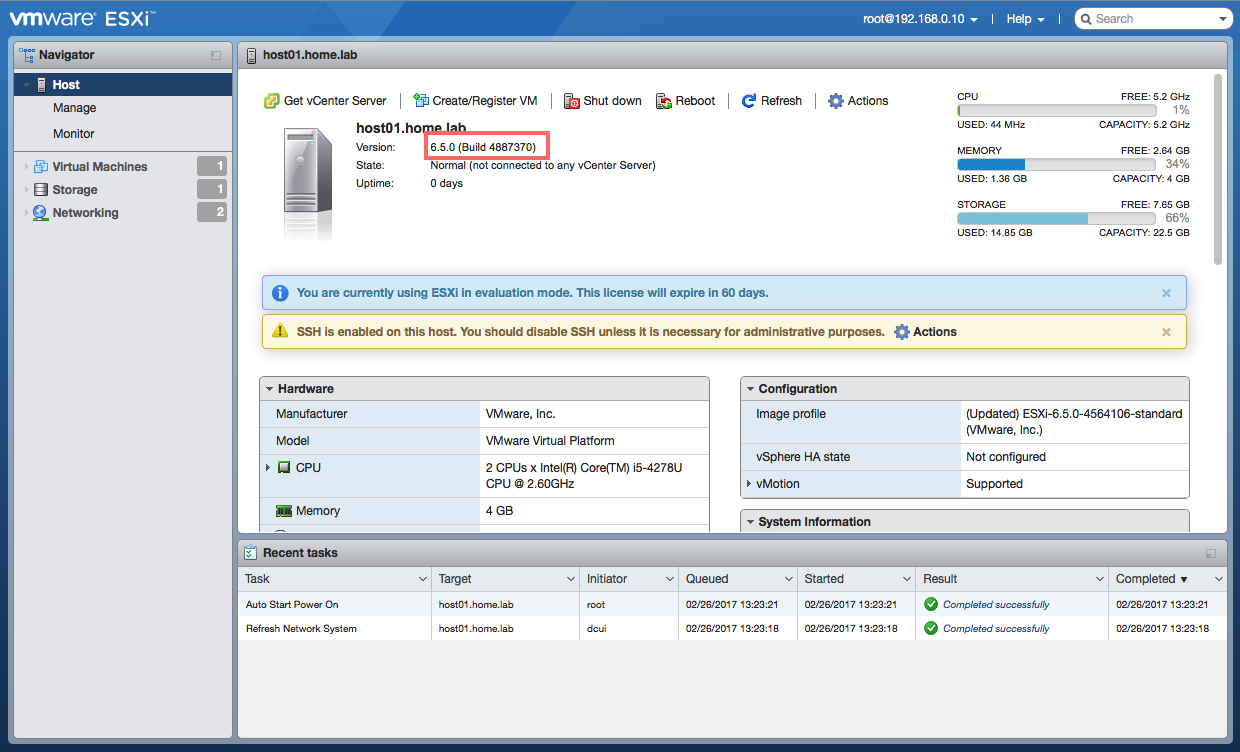
updated patch number