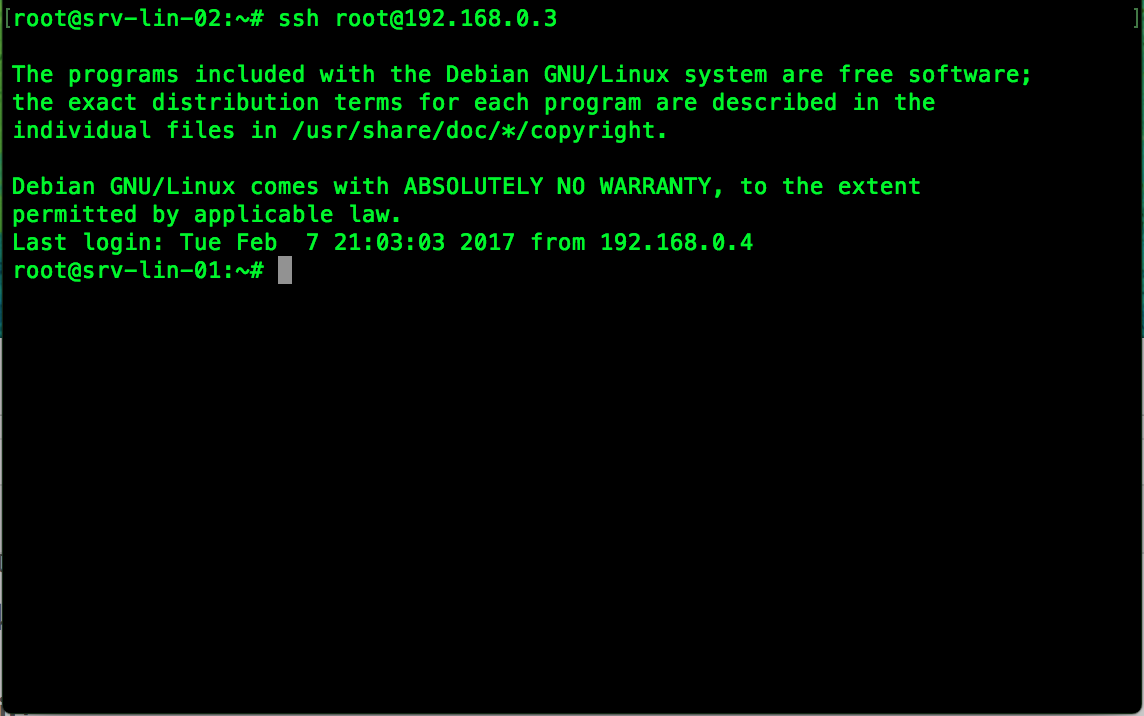
SSH to Linux Server Without Password Using SSH Key-Pair
The SSH public-private key pair allows you to securely log into AST’s servers and perform authentication, without having to specify a password using the public key. It also allows you to send files via an encrypted network connection. You can add as many key pairs as you. all pairs are independent and each computer only has information regarding its own pair. you can easily transfer your client machine public RSA key to your Linux box and then the world will be nicer for you.
Generate Public/Private Key
First of all, we need to generate our clients public key. Then we can transfer key to Linux server to define as an authorize SSH key. I will generate the on 3 different machines: Windows 10, MacOS Sierra, and Debian Linux.
On Windows client:
On windows, we need to use a program called Git to generate the key. You can download Git from this page. Also, you can use PuTTYgen to generate your windows client key. PuTTYgen is included in the WinSCP installation package that you can download from WinSCP download page.
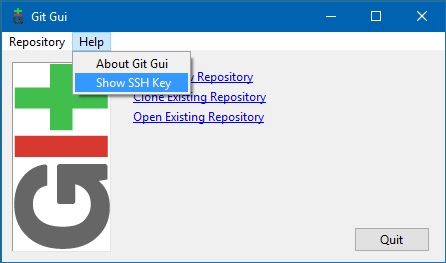
After installing Git, you need to execute Git GUI from Git folder in start menu. To generate a key, just open the Help menu and select Show SSH Key.
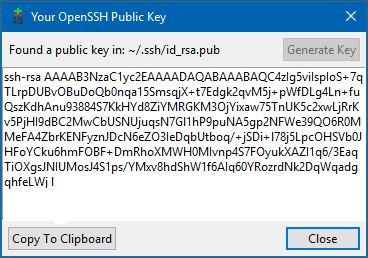
By pressing Generate Key and then setting up passphrase (recommended to set passphrase) you can see and copy your public key to your clipboard or copy to notepad to use it in next step.
On Mac client:
Here generating the key is much more convenient, you need to open Terminal and run the following commands.
ssh-keygen –t rsa
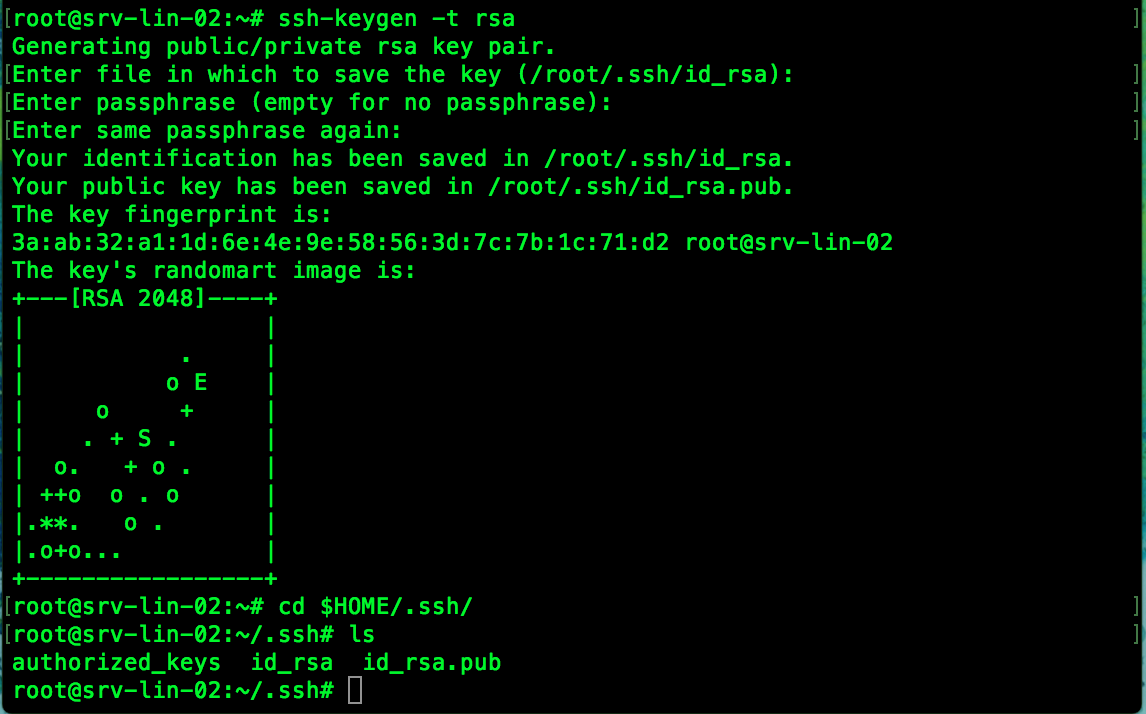
Your key is now saved in id_rsa file under .ssh directory which you can access with the command:
cd .ssh
ls
and you can copy to clipboard with the command:
pbcopy < ~/.ssh/id_rsa.pub
On Linux client:
On Linux box generating the key is quite similar with Mac. Need to run the same command in your terminal of choice.
ssh-keygen –t rsa
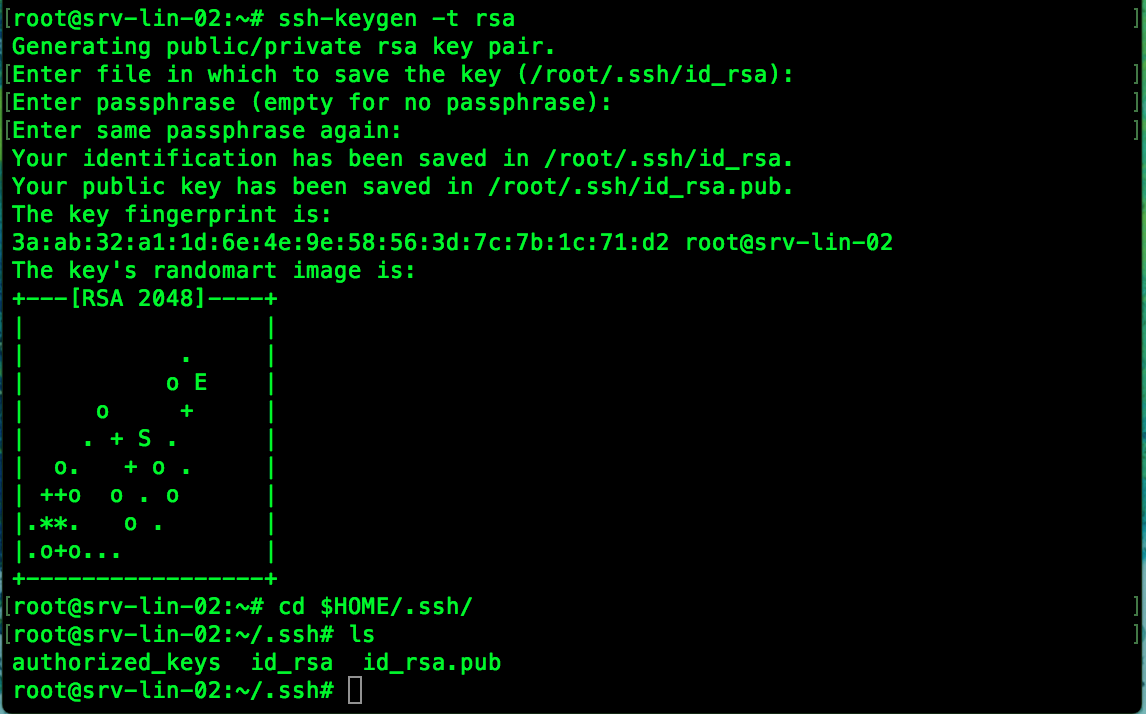
Your key generated and saved in .ssh directory under your home directory. And you can access with the following command and also copy the key.
cd $HOME/.ssh/
ls
cat id_rsa.pub
Transfer your client public key to Linux box
Now you need to transfer key to Linux server and make it authorize SSH client. You can verify the keys that you have already added by the command:
cat /root/.ssh/authorized_keys
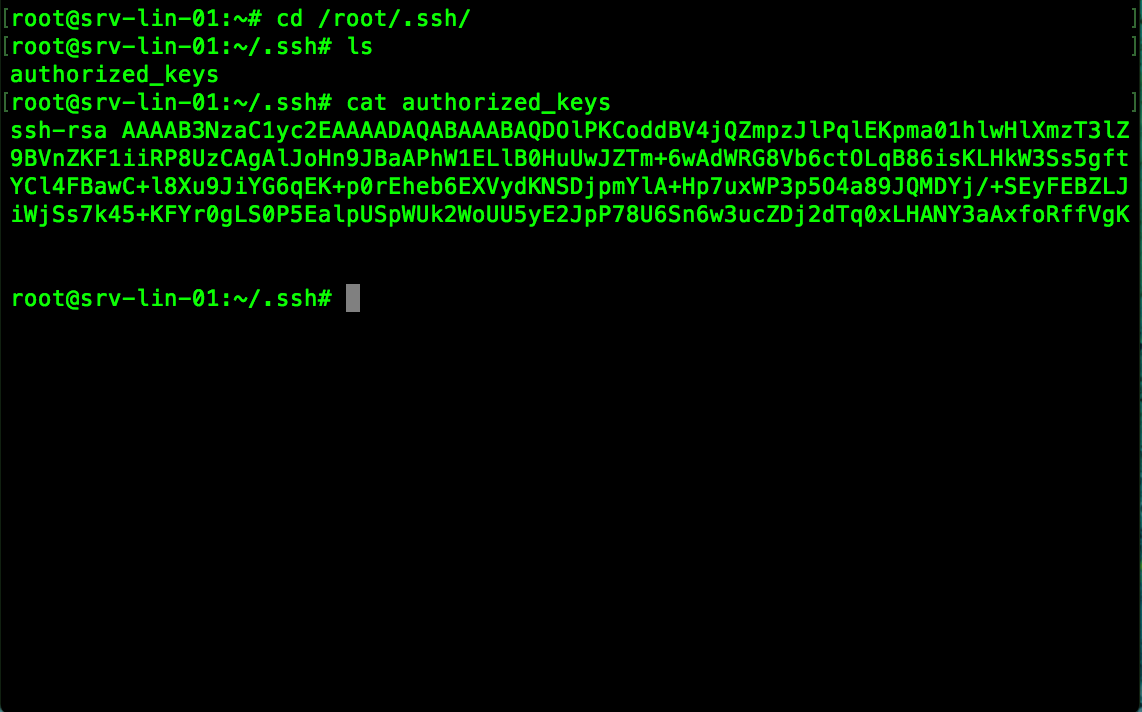
You can edit this file with your editor of choice like nano and add your clients public key or for instance in Linux and Mac use the following command to transfer your key easily to the server.
ssh-copy-id root@<Server IP>
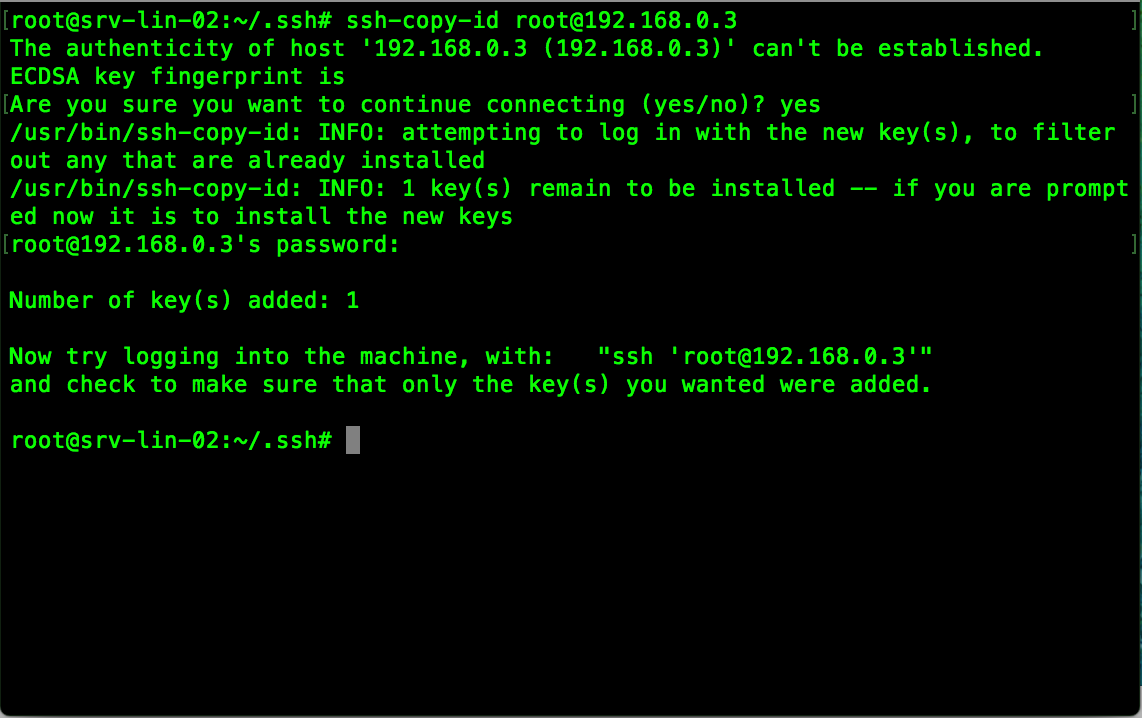
You are done and good to go! successfully transferred clients key to the server and now we can connect to Linux server without password requiring and most important SECURE.